Cerbur/clutch-dsh--packages-clutch-dsh-worktree ↗★ 13
@cerbur/clutch-dsh-worktree
在DSH网页端添加Git工作区视图
AI 分析
适合需要按Git工作区对DSH会话进行分组管理和快速切换的开发者。
安装
npx -p @deepseek-ai/dsh dsh plugin --profile web add github:Cerbur/clutch-dsh#b3de7d905dce42f5633ba3d39d72a0726b438cc4&path:packages/clutch-dsh-worktree说明文档
阅读完整 README ↗Usage
Open Worktree mode
- Start the DSH Web UI and select Worktree from the Sidebar footer. Worktree mode is an additive surface; it does not add a separate Workspace/Worktree tab.
- Use the Workspace tree to search, expand, and select the Main or Worktree view. Each group initially shows five rows; use Expand more/Collapse for additional rows.
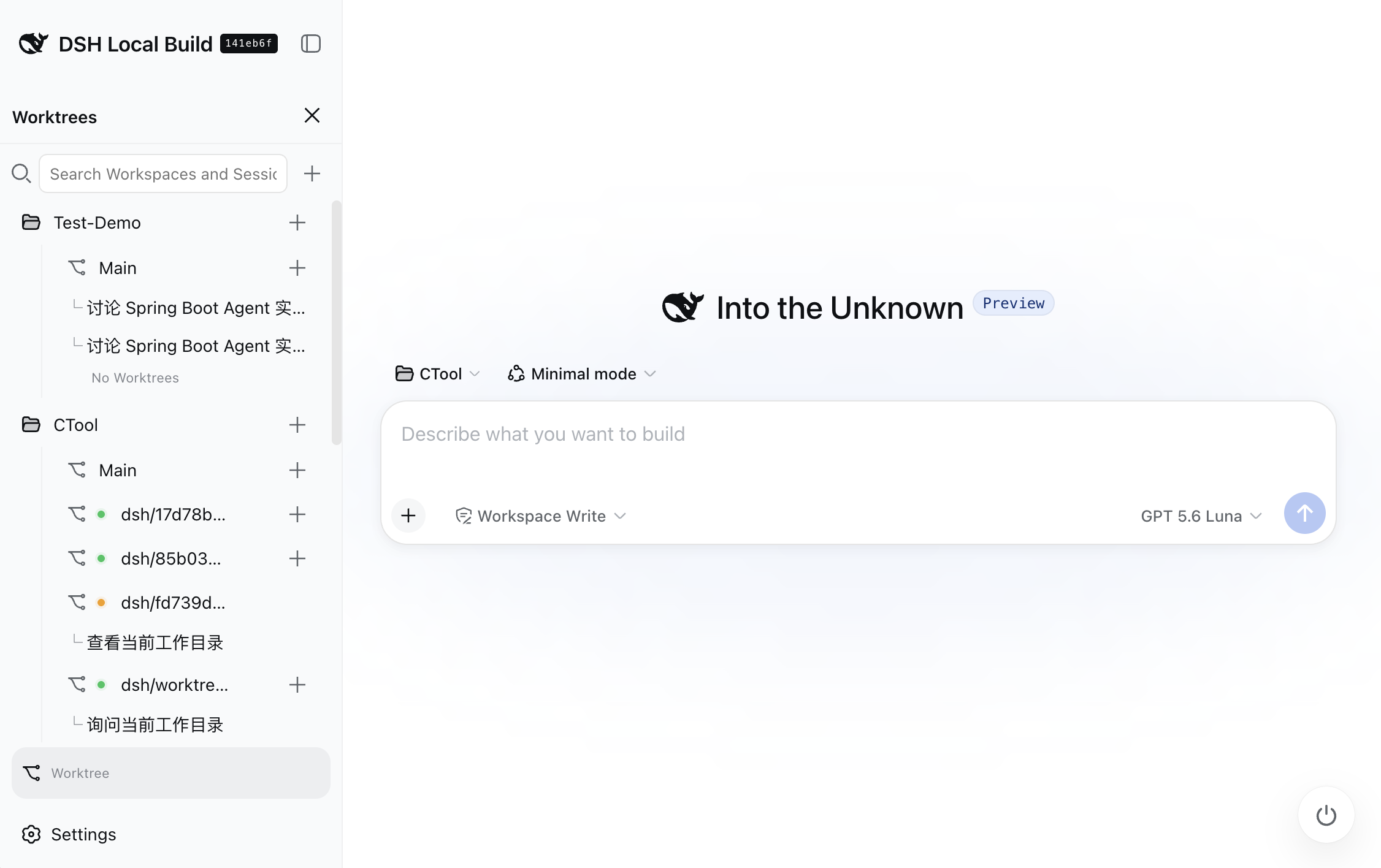
The screenshot above illustrates the Sidebar entry point and the visual context shown in the blank-session Hero. The displayed language follows DSH's current language setting.
Create a Worktree
New directories use $dshHome/clutch-dsh-worktree/worktree/wt_
(15 characters in the folder name, with 48 bits of cryptographic randomness).
Occupied directory names, Git registrations, and sidecar identities are automatically retried.
After eight random candidates collide, numeric suffixes such as _1 and _2 are tried until
available or cancelled. Existing Worktree paths and IDs stay unchanged; branch conflicts and
other Git failures retain their normal error handling.
- Select a Workspace, press its
+, choose a baseline local branch, and enter a Worktree name. The default branch name isdsh/. - To create a sibling from an existing Worktree, open that active Worktree's options menu and
choose
Create new Worktree. The dialog preselects the Worktree branch as the base and chooses the next available numeric suffix for the name; existing names are skipped. - The target Worktree path must be absolute, belong to the same Project, and differ from the Project root. Relative paths, a different Project, or the Project root are rejected.
- Git must be installed and available on
PATH. A missing Git executable shows install guidance and no command block; install Git, restart DSH, and retry. If the repository, initial commit, or local branch is missing, follow the copyable setup commands in the dialog. The plugin only renders this guidance; it does not run setup or installation commands or edit business files.
Import an existing Worktree
- Select a Workspace, press its
+, and choose theImporttab. The dialog loads Git-linked Worktrees for that repository through the existing DSH/apiConnection. - The first version lists only branch-attached, non-root Worktrees that are not already present
in the plugin sidecar. Detached HEAD, bare, prunable, missing-directory and missing-
.gitentries are omitted. Managed health and import eligibility share one runtime status mapping; importing rechecks that status. Locked Worktrees remain eligible when otherwise ready. Candidates are presented in a standard dropdown; each option shows its branch first and absolute path as secondary diagnostic text. - Choose an option and select
Import Worktree. Registration writes only the plugin sidecar; the existing Worktree directory and Git working state remain in place. Import then creates or reuses a Session at that Worktree cwd and runs the same bind → open → binding refresh flow as Create. Newly created Sessions are not projected into native Workspace membership before the binding refresh. - An active external import for the same Workspace and physical path is idempotent. A path already
managed by the plugin returns
WORKTREE_ALREADY_MANAGED; invalid or stale candidates returnWORKTREE_IMPORT_INVALIDand can be retried after the repository state is fixed.
Create Main and Worktree Sessions
- Use Main's
+to create a normal DSH Session in the Project-root view. - Use a Worktree's
+to create or reuse a Session with that Worktree as its runtime cwd. The plugin calls the DSH Session Controller withctx.sessions.create({ cwd: worktreePath }), then saves the external binding and opens the Session. The browser-local{ workspaceId, sessionId }membership projection is refreshed afterward, so the newly created Session does not briefly appear in Main. - The connector reuses an unarchived blank Session with the exact target cwd when possible. An
already-bound Session opens directly; an unbound candidate is bound before projection and
opening. Otherwise the new-Session flow is
create → bind → open → refresh, and concurrent clicks for the same Worktree are coalesced. - If binding fails after DSH has created the Session, the Session ID remains available for Retry or Open recovery. The plugin does not delete or mutate that DSH Session.
- Before opening an active Worktree Session, the plugin explains in a DSH-styled in-page dialog why linked Git metadata may need access outside the Session directory. The dialog requires an explicit risk acknowledgement; cancelling keeps the Session and binding, does not change permissions, and leaves a retryable pending state. The native DSH Access selector remains the way to switch to another permission mode.
- A provisional blank Session follows DSH's native display rules: it is shown only in the
selected view, uses the localized
New Sessionlabel, hides its generated ID, and has no Rename, Fork, or Archive menu. After the first prompt is accepted, it becomes an ordinary Session row; hiding the blank row does not delete the Session or its Worktree binding.
Session activity and ordering
- Session rows reuse DSH's native
StateDot: running Sessions, Sessions with running subagents, waiting approval, plan review, question, and completed states show their status dot in the trailing slot instead of relative time. Idle Sessions use that slot for the native compact relative-time label. - The trailing metadata uses the native compact buckets (
now, minutes, hours, days, months, and years). It is based on DSH'supdatedAt, which advances with the latest human-authored message; blank New Session rows have no time label. The display follows snapshot renders and does not add an independent minute ticker. - Hovering a Worktree Session row opens the native detail card after 500 ms with its full title, relative time, and status; the card is suppressed while the Session menu is open or a row is being dragged.
- A collapsed Workspace, Main group, or Worktree group shows the same running dot when any non-archived member is ongoing, including activity hidden by search. Expanding the group hides the aggregate dot; hover, focus, or an open menu reveals the existing action controls.
- A newer user message promotes its Session to the head of the current Main or Worktree visual group. The promotion, observed timestamps, and per-group order live only in browser-local state; successful manual drag still uses the native DSH ordering API before updating that local order.
Fork Worktree Sessions
- Use any native DSH fork entry point: a Session-list tab, a Worktree Session menu, or the
Conversation fork action. The plugin wraps the shared DSH
sessions.forkservice, so the original fork cut, title increment, and child lineage stay native. - After DSH creates the child, the plugin looks up the parent's active sidecar binding, writes the
child binding through the existing
/apiManager. The Worktree view refreshes the binding before replaying the browser-local Workspace membership projection, so the child does not briefly appear in Main/Local; ready content is retained during that refresh. - If the child is created but sidecar lookup or binding fails, DSH keeps the child and the plugin shows Retry Binding/Open Created Session recovery. A later plugin initialization also retries recoverable fork children from native Session lineage summaries; it never binds unrelated subagents automatically.
- This flow does not persist the child into DSH
Workspace.sessionIds. The native DSH Workspace view can only see the temporary browser projection while the plugin is loaded; the durable native Workspace data is unchanged.
Reorder and manage Worktrees
- Drag Worktrees within their owning Workspace. The ordered
worktreesarray is persisted in the plugin sidecar; Main is a fixed first row and Worktrees cannot move across Workspaces. - Newly created or imported Worktrees are inserted at the head of their Workspace's Worktree list; existing Worktree order is preserved and Main remains fixed first.
- Open the shared Main and Worktree options menu to copy the selected row's absolute path. Active
Worktrees show
Copy pathandArchive Worktree. Archiving an active Worktree is an internal archive operation: it setsstatus: removed, preserves disk files, active bindings, and runtime cwd, and moves the Worktree into the default-collapsedArchivedgroup at the bottom of the Workspace. - The
Archivedgroup is rendered at the bottom of the Workspace when archived Worktrees exist and is collapsed by default. Its label includes the total archived Worktree count, even when collapsed. Each Workspace tracks its own collapsed state independently. - Active Worktrees with
health: repairalso offerArchive Worktreeto archive the record without touching disk files or bindings.recovery-neededstill blocks removal pending recovery. - For archived Worktrees whose disk has not been cleaned, the options menu provides:
Unarchive Worktree: Restores a metadata-archived Worktree whose disk directory is intact back to active status, without secondary confirmation.Clean Up Disk: Prompts for secondary confirmation detailing the path and irreversible deletion, tells you that the plugin does not check Session or subagent activity and requires you to confirm that all tasks using the directory have stopped (otherwise deletion may cause task failures or data loss), runs real non-forcedgit worktree remove, and upon success recordsdiskCleanup: completed, projects health ascleaned, transitions bindings to detached, and normalizes Full Access permissions toworkspace-write + ask. Disk removal commitment is decoupled from permission normalization: once disk removal commits, the dialog closes and the record updates tocleaned; any follow-up permission or refresh failure provides independent retry without re-executing disk removal. UseRetryin the permission notice to retry only permission normalization for the cleaned Worktree. If the Worktree directory or its.gitentry was already deleted externally, confirming cleanup only marks the plugin record as completed and detaches its bindings. It does not run Git removal or prune stale Git registration. Any remaining directory and files are preserved. The completed status readsWorktree removed, which does not imply residual files were deleted. Ordinary refreshes still show missing directories asrepairuntil cleanup is explicitly confirmed.Remove from Management: Prompts for confirmation and removes the Worktree sidecar record and all its bindings, while preserving disk files and native DSH Sessions. It retires in-flight fork operations, recovery state, and permission notices for that Worktree. No Session activity check is required.
- For archived Worktrees whose disk has already been cleaned (
health: cleaned), the menu providesRemove from Managementto prune the sidecar record completely. - Session activity is informational and does not block cleanup or removal from management.
The default Host may report
unknown. Before confirming disk cleanup, stop all tasks using the directory yourself; the plugin does not verify that they have stopped. Native activity changes and reopening the archived menu refresh its owning Workspace while retaining ready content. - Deleting a Workspace removes only DSH's Workspace registration; its directory, Sessions, Git Worktrees, and plugin sidecar remain.
- DSH-native Workspace rename/delete/reorder and Session menus remain available. Session drag ordering is limited to the current visual Main or Worktree group.
- The Main group shows the current local branch as
Local (branch)and falls back toLocalif DSH reports no current branch. When a Workspace is imported from a Git subdirectory, the Git root is resolved first and the same branch/worktree information is used as for the root. Branch names, paths, Workspace names, Session titles, and raw DSH/Git errors keep their original values. - Existing Sessions show read-only context in the form
Session title→Agent mode→current branch / Worktree branch. Long values remain ellipsized in the compact chip and show their complete value in a hover card. The blank Hero showsWorkspace (branch)after the native title when its anchors are available and offers the same complete-value hover card. - When the Sidebar is collapsed, the footer keeps its icon-only native action geometry; the plugin
does not render a separate
WTrail control.
Reconcile a branch changed in Git
After an external git checkout, the next Worktree read shows old branch → current branch
and a branch-change warning. Reads occur on refresh and when opening a Worktree menu; the
plugin does not watch Git continuously. Detached HEAD is shown explicitly. Session bindings
and runtime cwd remain unchanged, and normal branch changes do not lock the Workspace.
Choose Adopt current branch from the active or archived Worktree menu and confirm the
displayed transition. This updates only the plugin's recorded branch. A changed branch or
stale snapshot during confirmation is rejected; refresh and confirm again. Detached HEAD
must first be switched to a branch in Git. Disk cleanup requires adopting the current branch
first. Creating a Worktree on the old branch is allowed when Git proves the existing record
has switched away; genuinely checked-out branches remain unavailable.
Confirmation failures appear inside the dialog. Choose Retry to reload the observed branch
and snapshot token, then confirm the updated transition; the old confirmation stays disabled
until refresh succeeds. If the Worktree is no longer branch-drifted or has entered detached HEAD,
the dialog closes. Creating a sibling Worktree uses the observed current branch, even before
adoption; detached HEAD does not offer this action.
For recovery-needed, the Worktree menu offers Retry recovery for its Workspace.
This retries safe journal recovery; it does not adopt branches, delete unknown paths, or
clear unresolved identity issues. Successful adoption and recovery refresh only the owning
Workspace while preserving existing ready content. Legacy non-transactional branch observations
are retired automatically; there is no need to edit sidecar JSON for ordinary checkout drift.
Understand status and recovery messages
-
Operation, permission, binding, and refresh failures use DSH's native toast, one at a time. Unchanged errors are not repeated on every render. Full messages and existing Retry/Open actions remain in the expandable Notification details and recovery entry after the toast fades. Form validation and Workspace Git setup guidance remain next to their inputs.
-
Hover or focus an active Worktree row to see its status, path, and repair guidance for missing directories/Git registration, branch drift/detached HEAD, or incomplete recovery. Opening its menu or dragging suppresses the hover card. Archive confirmation explicitly preserves the directory, Session bindings, and cwd for both plugin-created and external Worktrees; Clean Disk remains a separate action.
-
readymeans the Worktree is available.cleanedindicates disk cleanup completed while the sidecar archive entry is retained.repairidentifies a missing or invalid Worktree, Session, binding, or cwd.recovery-neededmeans a Git/sidecar operation or identity check is unresolved and destructive actions are blocked.detachedmeans the Git Work