Chael-Chael/dsh-reference-anything ↗★ 1
dsh-reference-anything
Reference locally mirrored ChatGPT, Claude, Gemini, DeepSeek, Grok, and Kimi conversations from DeepSeek Harness
安装
npx -p @deepseek-ai/dsh dsh plugin --profile web add github:Chael-Chael/dsh-reference-anything说明文档
阅读完整 README ↗Usage
- Open
Settings → Reference Anythingin DSH Web. - Under Availability check, confirm that OpenCLI, Browser Bridge, the browser extension, and the conversation adapter are ready.
- Under External conversation sync settings, choose a connected browser Profile, history storage mode, and sync mode. Then click Sync enabled sources now, or sync an individual Provider from its card.
- Type
@in the input box and choose from theFiles and folders,DSH sessions, orExternal conversationsgroups. - Type a keyword to filter candidates, for example
@cache-design.
The default Read bodies on demand mode stores only the title index locally and uses the browser when an agent reads a reference. Choose Store full bodies locally for offline reading and full-text search; this mode keeps only the latest version of each conversation. The settings page also lets you enable or disable each @ group, reorder groups, set their maximum result counts (six per group by default), and switch between Pill and Raw text input rendering. The plugin checks npm for updates when it loads; restart DSH after installing an update from the settings page.
[!WARNING] To protect your account and conversation data, external conversations are imported and synchronized through OpenCLI using your existing logged-in browser session. A browser window may temporarily open during use or synchronization, and it may display OpenCLI debugging information. This is expected—please do not be alarmed or close the window manually; wait for the operation to finish.
Search
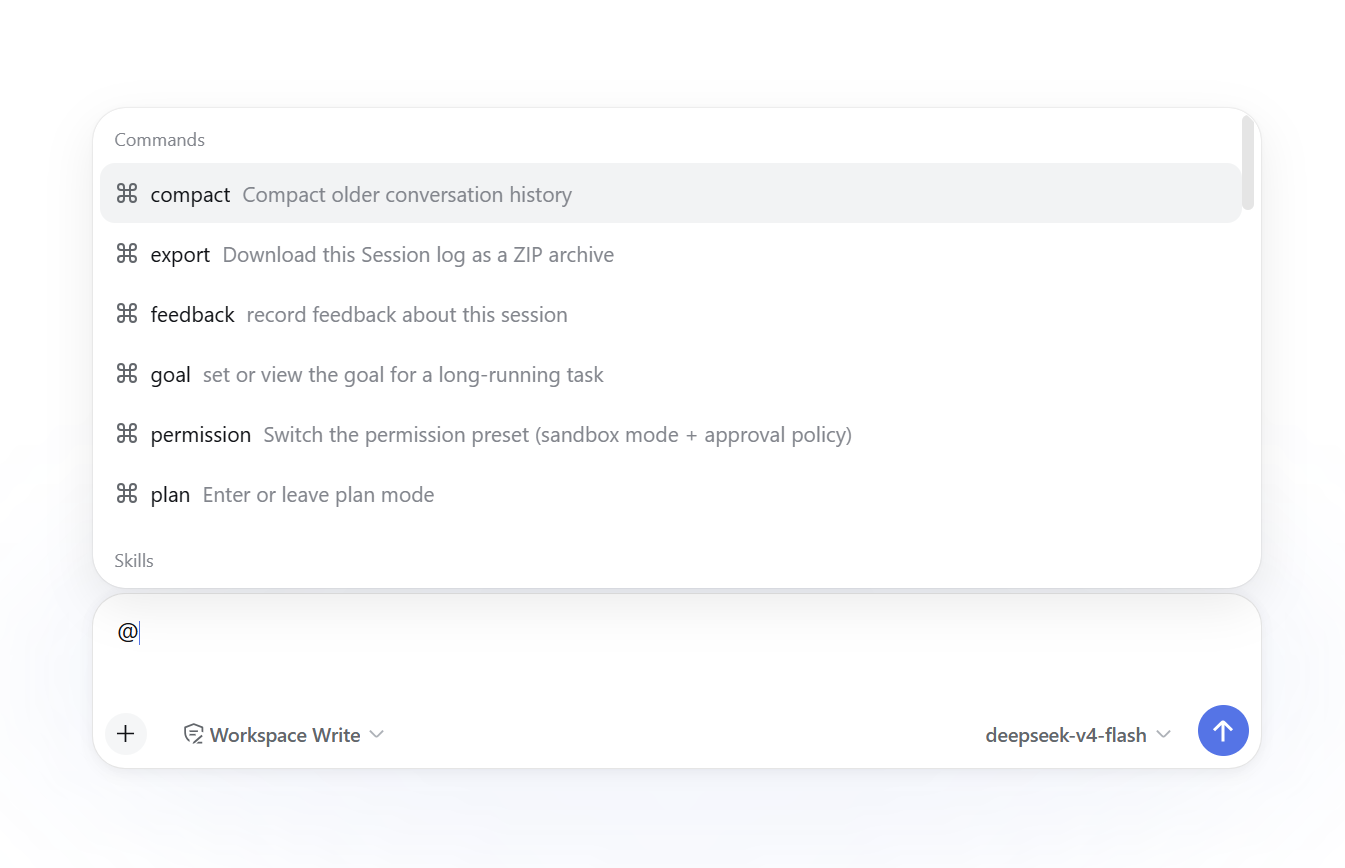
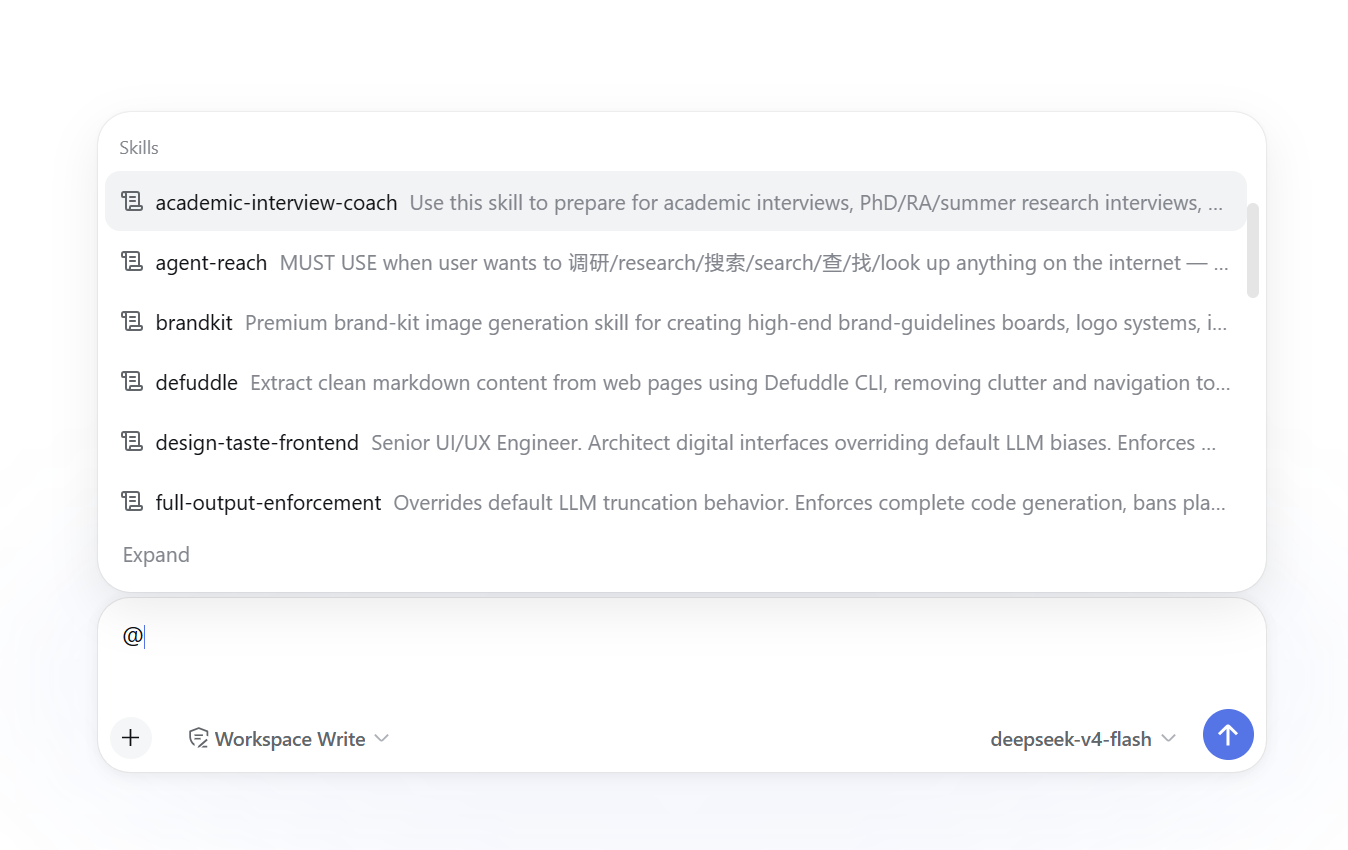
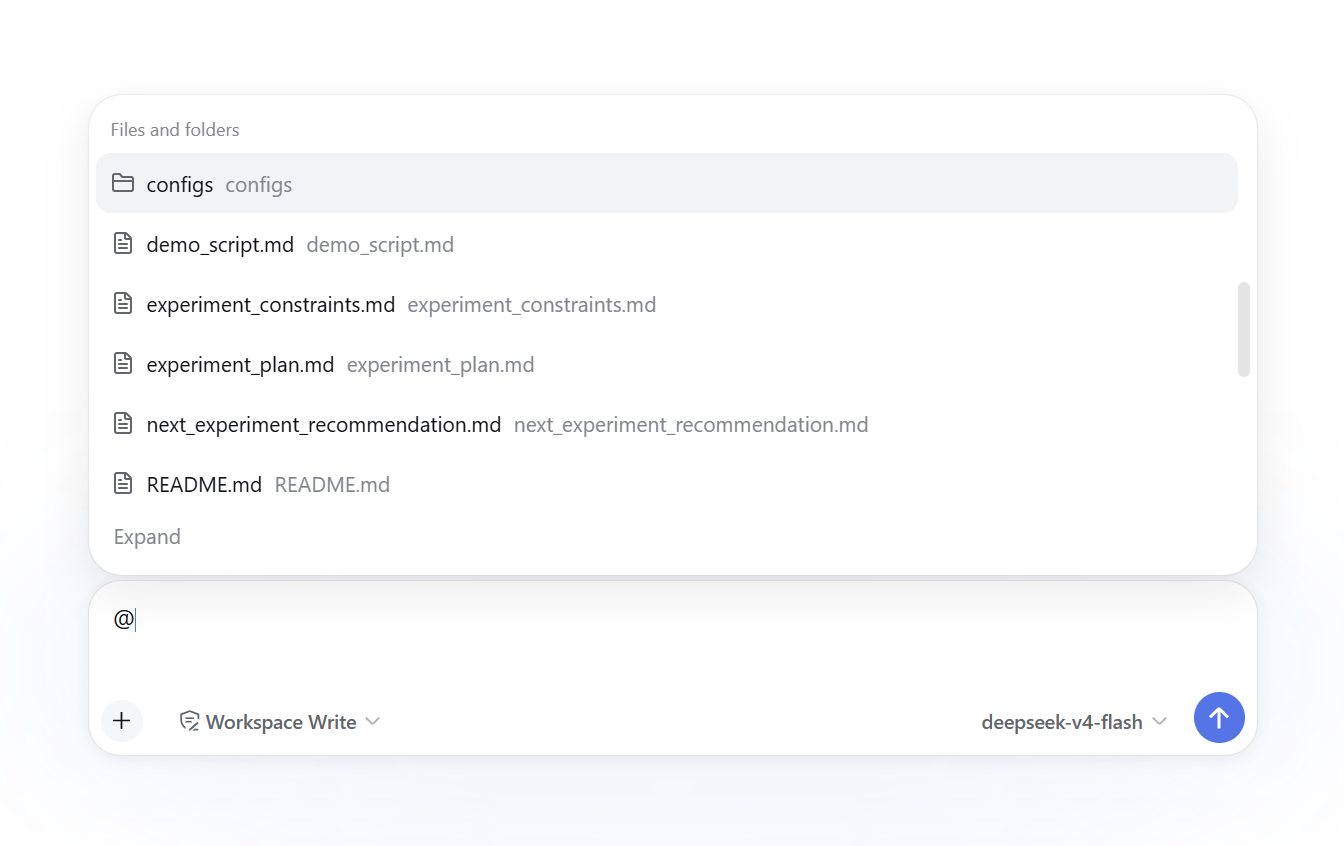
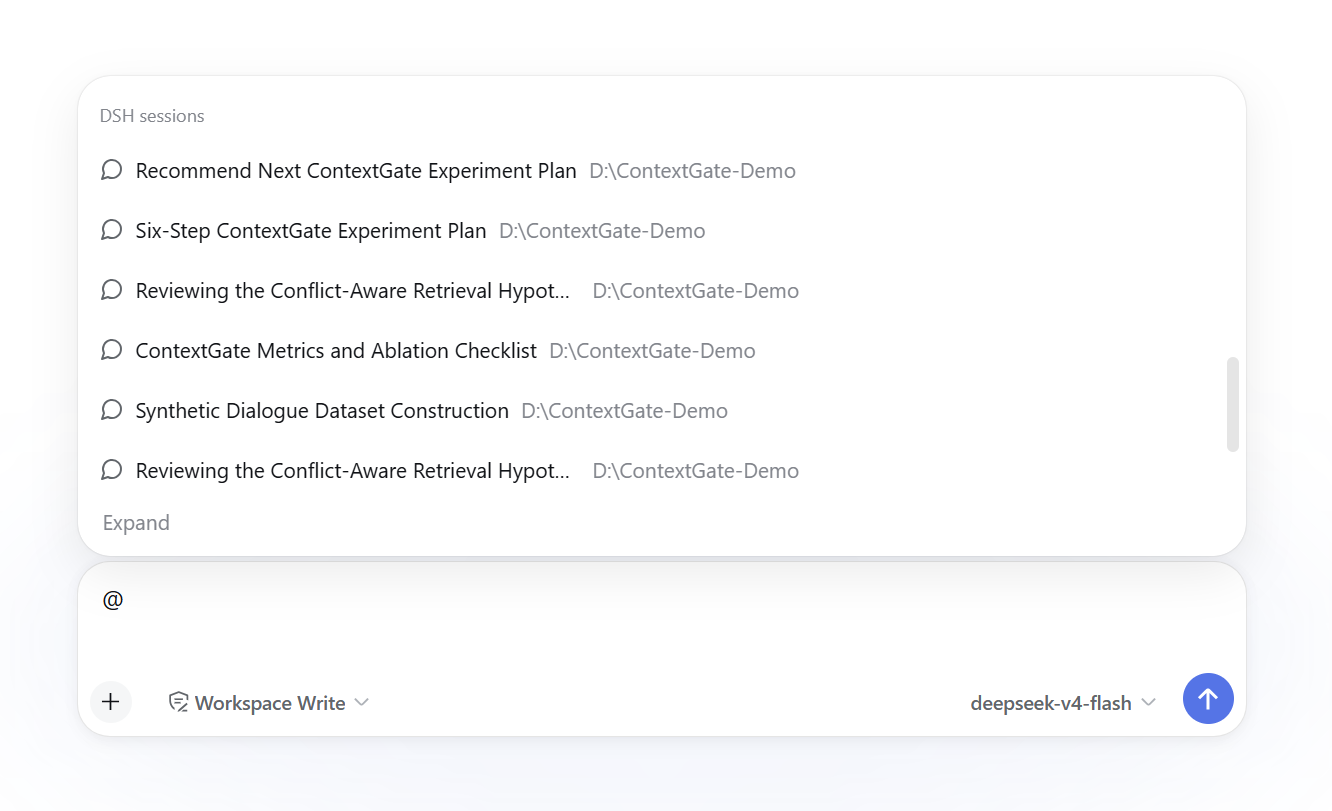
The @ menu contains five groups: Commands, Skills, Files and folders, DSH sessions, and External conversations. The first two appear only when @ is at the beginning of the draft. Each group shows up to six results by default. Under Settings → Reference Anything → General, you can enable or disable groups, reorder them, and set each limit from 1 to 50.
@Commands — DSH native commands
Available only at the start of the draft. To browse all commands, use @commands or the native DSH / panel.
@Skills — DSH skill library
Available only at the start of the draft. To browse all skills, use @skills: or the native DSH / panel.
@Files and folders — workspace files and directories
Type @files: in the input box to browse all files and folders in the workspace. Search supports fuzzy matching on titles, so both @cachedes and @cache-design can match “Cache design notes.”
Features:
- Quick reference to workspace files with automatic workspace-boundary validation
- File references only write a validated path and type marker into the model context; file content is not preloaded
- If the model needs file content, it must use the existing permission-constrained file tools
@DSH sessions — DSH session history
Type @sessions: to browse locally synced DSH sessions. Sessions are ranked by match quality, with recency as fallback ordering.
Search capabilities:
- Title match: fuzzy search on session titles
- Content search: when title matches are insufficient, the synced session body is searched; matching excerpts are shown in the candidate row for UI display only and are not injected into model context
- Auto-generated generic titles such as “New chat” can also be found via body keywords
Full browsing is available on the settings page’s paginated list. Session references follow the official dsh-session: protocol and immutable snapshot semantics.
@External conversations — external conversation platforms
Supports historical conversations from ChatGPT, Claude, Gemini, DeepSeek, Grok, and Kimi.
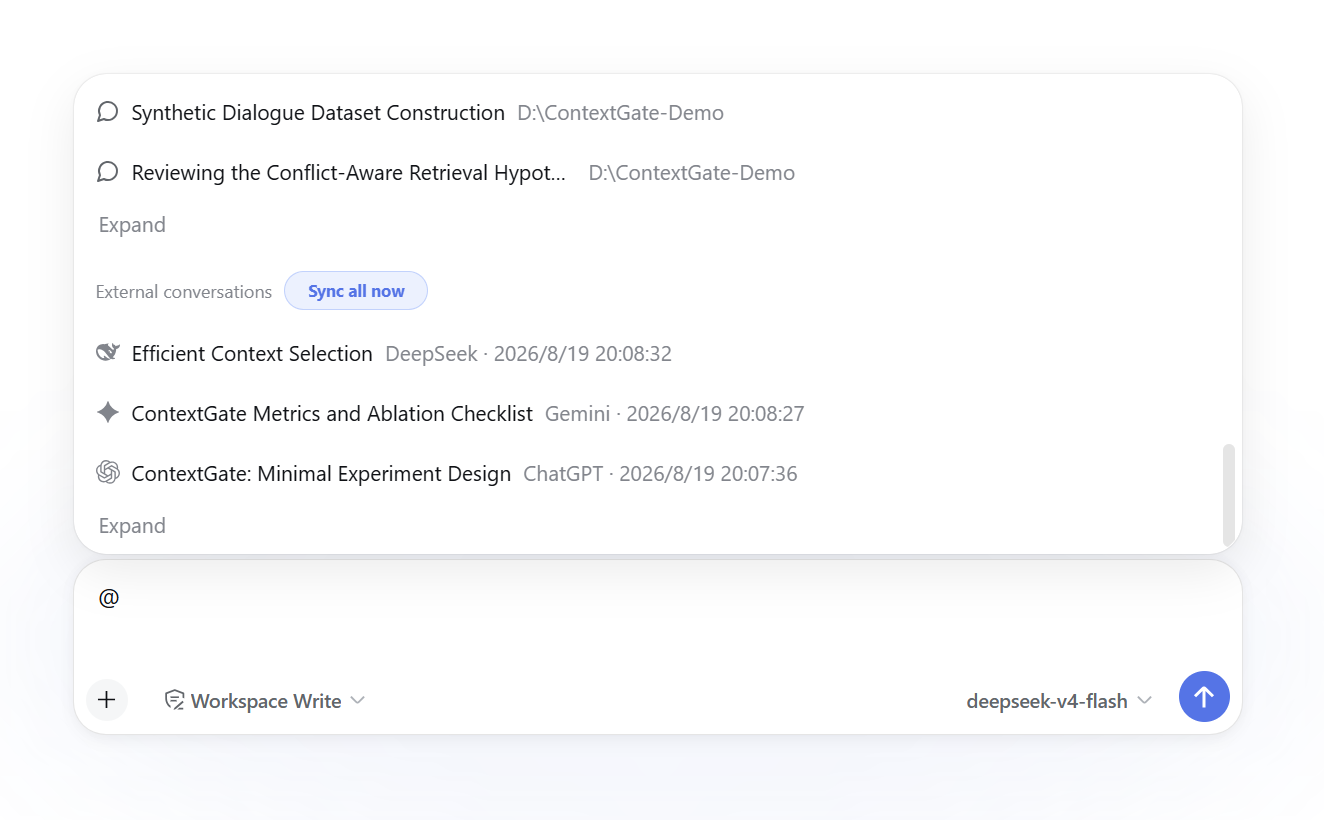
Platform filtering:
- Use
@chatgpt:cacheor@claude:refactorto filter a specific platform - Short aliases are also accepted, such as
@gpt:and@ds: - Entering
@claudealone lists recent conversations for that platform
Search capabilities:
- Title match: fuzzy search on conversation titles
- Content search: available only in Store full bodies locally mode; if title matches are insufficient, synchronized bodies are searched and matching excerpts are shown in the candidate list
- Provider and account isolation: history is maintained separately by Provider and account scope
@search uses the account scope cached by the latest sync and never probes the browser; after a sync observes an account switch, it exposes only that account while older rows remain available in conversation management for cleanup
Reference display: after selection, the draft shows a removable reference chip:
@[ChatGPT · Conversation title](https://github.com/Chael-Chael/dsh-reference-anything/blob/238759344edbd4e24d242e95da40ccaca173d2b6/)
Opening the source URL happens only in the UI; the URL is never injected into model context. The initial reference contains only a safe pointer; if the model needs the body, it calls reference_read on demand.
[!NOTE] Due to DSH's current underlying length limit for References, external-conversation references temporarily use a compatibility layer implemented by this plugin instead of relying entirely on DSH's native reference presentation. As a result, some interactions may behave differently or encounter issues in certain scenarios. We have raised this limitation in DSH Discussions; when a future DSH release provides the necessary support, we will update the plugin promptly and migrate to a more native implementation.
General notes:
- Use
:or/as the separator instead of a space: the@candidate token ends at a space, so@chatgpt keywordcloses the menu as soon as you press the space. For multi-word searches, write@cachedesignor@cache-design. - Without a type prefix, all groups are searched at once.
- For full browsing across groups: sessions are listed on the settings page, while commands and skills use the native
/panel.