Civitasv/dsh-plugin-open-editor ↗★ 0
dsh-plugin-open-editor
Open the current DSH project in your favorite editor — one click for the default (VS Code), a picker for Cursor, Windsurf, Trae, JetBrains IDEs, Sublime Text, Vim/Neovim, Emacs, the OS file manager, and custom commands.
安装
此插件尚未提供可验证的 bundle,或兼容性检查未通过。请先阅读仓库说明。 阅读完整 README ↗
说明文档
阅读完整 README ↗dsh-plugin-open-editor
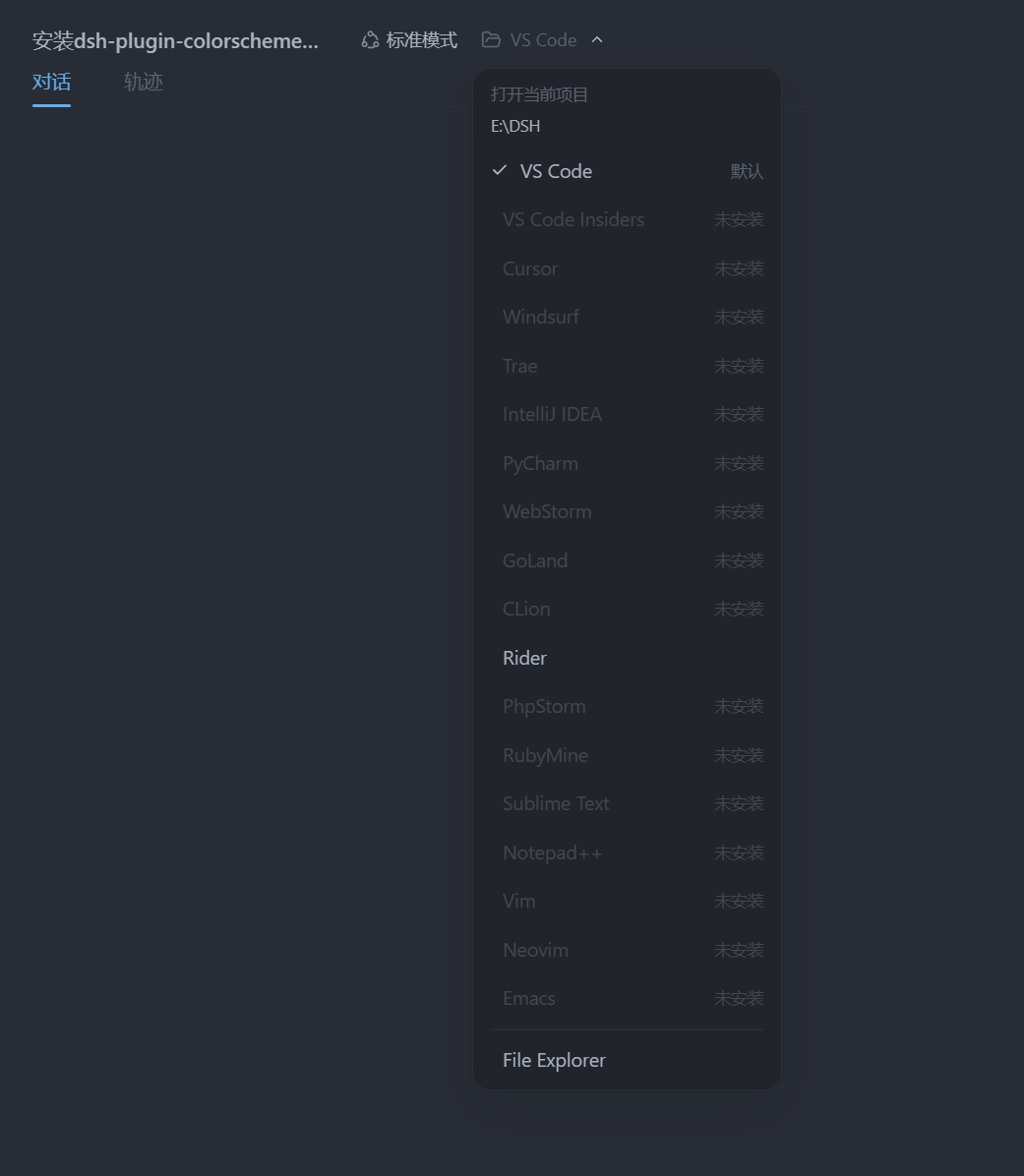
一键把 当前项目 用你喜欢的编辑器打开。插件在 DSH 会话页头的 操作区添加一个入口:
- 点击主体按钮 → 立即用默认编辑器(默认 VS Code)打开当前会话的工作目录;
- 点击箭头 → 弹出编辑器选择器:VS Code / Cursor / Windsurf / Trae / JetBrains 系列 / Sublime Text / Vim / Neovim / Emacs / 系统文件管理器等;
- 未安装的编辑器会置灰显示「未安装」;
- 打开动作发生在 DSH 宿主机(浏览器所在机器)上,无需浏览器具备任何 shell 权限。
安装
本仓库已包含构建产物(dist/index.js 与 client.js),可直接使用;修改过源码才需要
先执行 npm install && npm run build。
-
把插件放进 profile 的依赖目录(与
dsh-plugin-colorscheme同层,保证 DSH 能解析):# PowerShell(Windows) Copy-Item -Recurse "$HOME\.dsh\profiles\node_modules\dsh-plugin-open-editor"如果机器装了 pnpm,也可以用
dsh plugin --profile web add。 -
注册到配置:编辑
~/.dsh/profiles/web/cordis.patch.yml:- insert: - id: colorscheme name: dsh-plugin-colorscheme - id: open-editor name: dsh-plugin-open-editor -
重启
dsh web,打开任意会话,页头标题旁会出现「在编辑器中打开」按钮。
使用
| 操作 | 效果 |
|---|---|
| 点击「在编辑器中打开」 | 用默认编辑器(默认 VS Code)打开当前会话的项目目录 |
| 点击右侧箭头 | 展开编辑器选择器,选择任意已安装的编辑器 / 文件管理器 |
| 菜单底部 | 显示打开结果(成功 / 失败原因) |
当前项目 = 当前会话的工作目录(cwd)。没有工作目录的会话不显示该按钮。
支持的编辑器
| 编辑器 | 探测命令 |
|---|---|
| VS Code | code |
| VS Code Insiders | code-insiders |
| Cursor | cursor |