chihy525/dsh-mcp-skill-manager ↗★ 1
dsh-mcp-skill-manager
MCP & Skills management panel for DeepSeek Harness - manage MCP servers and skill library from the Settings page.
安装
npx -p @deepseek-ai/dsh dsh plugin --profile web add github:chihy525/dsh-mcp-skill-manager说明文档
阅读完整 README ↗dsh-mcp-skill-manager
A Settings-page panel for DeepSeek Harness that manages MCP servers and the skill library in one place.
Every server card shows its transport (stdio / streamable-http), a live reachability badge, a tool count + token estimate, and per-server Test / Edit / Delete actions. The skill library groups 130+ skills by collection (e.g. hack-skills, superpowers-zh, ui-ux-pro-max) with batch enable/disable; the grouping rules panel lists the built-in default matchers plus your own rules.
Design philosophy
Most skill managers list skills flat and rely on search/tags. This panel takes a different angle: DSH users often install whole skill packs (superpowers, hack-skills, ui-ux-pro-max, …) that each ship a set of skills. So the panel groups skills by collection — auto-detected from frontmatter shape and user rules — so you can see where each skill came from at a glance, act on a whole pack at once, and scale to a hundred skills.
Key principles:
- Provenance first: every skill shows why it is in a group (frontmatter field / manual assignment / a rule), and the grouping panel lets you test what a rule matches before applying it.
- Heuristics are suggestions, not decisions: built-in shape detection and signature clustering only propose groups; you confirm before anything is written. A skill is never silently re-grouped.
- Batteries for the everyday, levers for the power user: the default view is grouped, and one-click suggestions cover the common case; the rule editor (10 matcher types, suggest/auto toggle, live match test) is there if you want finer control.
Features
1. MCP servers (Settings → MCP & Skills → MCP Servers)
| MCP management panel | Add MCP server panel |
|---|---|
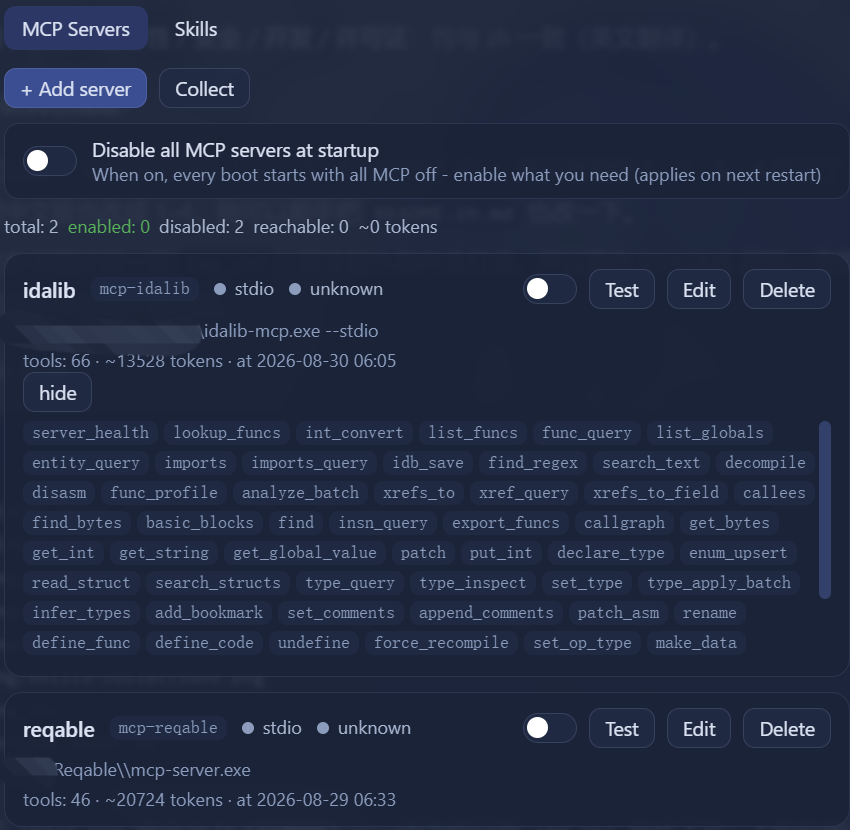
|
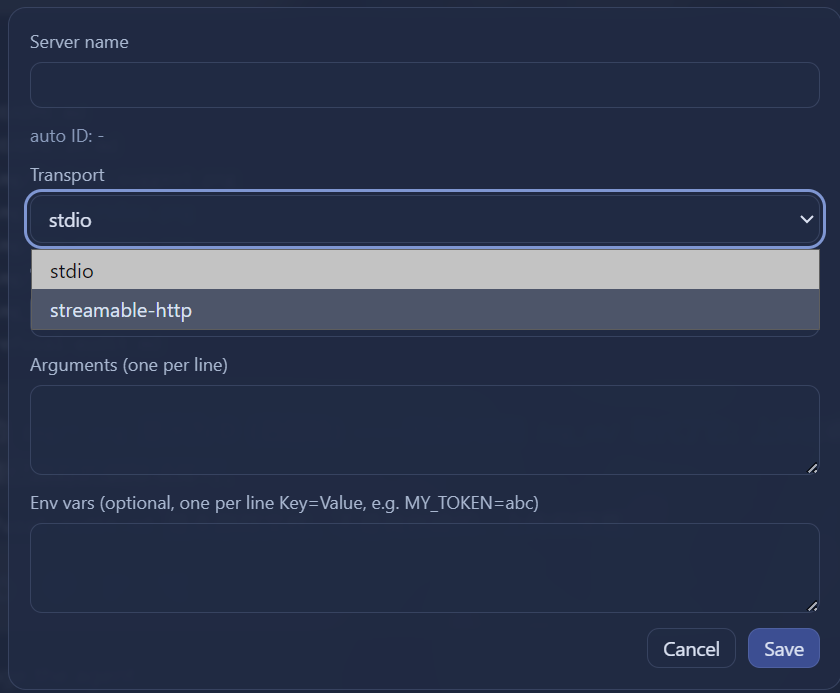
|
-
List every
mcp-*server from your profile patch (cordis.patch.yml) with live status (active / failed / loading). -
Add, edit, delete and enable/disable servers; changes are written to the user patch layer with an automatic backup, and DSH hot-reloads them (no restart needed for config edits). New servers get an auto-derived id (
mcp-). -
Test connections with a real handshake (
initialize+tools/list) for both stdio and streamable-http transports. -
Service status badge: HTTP servers are auto-probed when the panel loads (reachable / not running), so "plugin active" is clearly separated from "server actually up".
-
Tool count & token estimate: click Collect (or Test) to snapshot each server's
tools/list; cards showtools: N · ~X tokens, and disabled servers still display the last-good snapshot to help you decide whether to enable them. -
Optional auth headers (streamable-http): enter one
Key: Valueper line (e.g.Authorization: Bearer xxx). Headers are used by real connections (official mcp-client) and by the test probe. -
"Disable all MCP at startup" toggle: when on, every boot starts with all MCP servers off — enable what you need per session (applies on next restart). Stored in
~/.dsh/dsh-mcp-skill-manager/settings.json. -
Summary bar: total / enabled / disabled / reachable servers plus the estimated token footprint of enabled servers.
-
Expandable tool list: collect once, then expand a card to see its tool names.
-
Optional env vars:
Key=Valuelines per server (stdio and http), passed to real connections and the test probe.How Collect estimates tool count & token usage Clicking Collect runs a real MCP handshake for every configured server (stdio via
spawn, streamable-http via HTTP POST):initialize→notifications/initialized→tools/list. Then: tool count N is the number of tools returned bytools/list; schema bytes isJSON.stringify(tool.inputSchema ?? tool.parameters).lengthsummed across all tools; per-server tokens ismax(1, ceil(schemaBytes / 4)), the community rule of thumb "≈4 bytes per token". Each server's "tool count, tool names, schemaBytes, estimatedTokens, serverName, transport, fetchedAt" is stored as a last-good snapshot in~/.dsh/dsh-mcp-skill-manager/catalog.json; the card'stools: N · ~X tokensreads that snapshot, and the top summary's~X tokensis the sum ofestimatedTokensover enabled servers only — disabled servers keep their last snapshot but are excluded from the total.
2. Skill library (Settings → MCP & Skills → Skills)
By collection
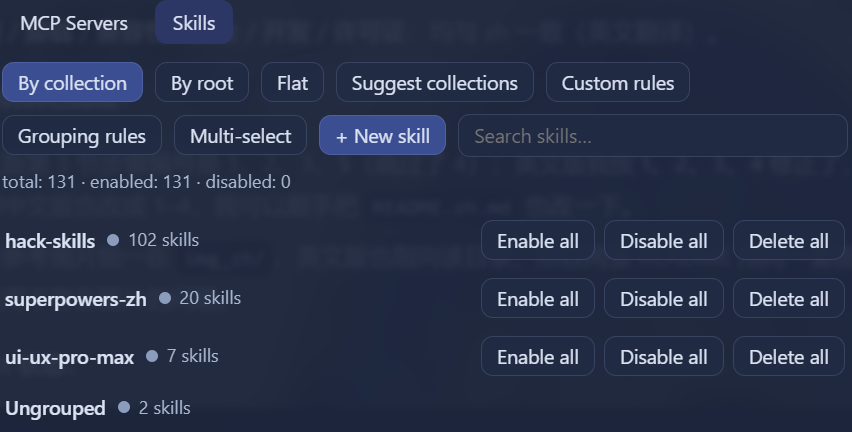
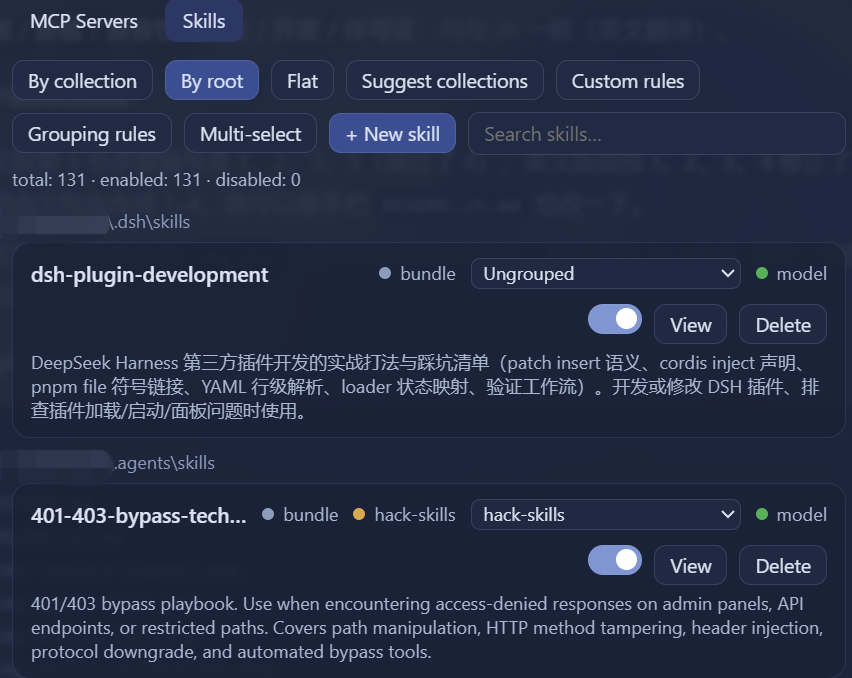
By root
Custom grouping rules
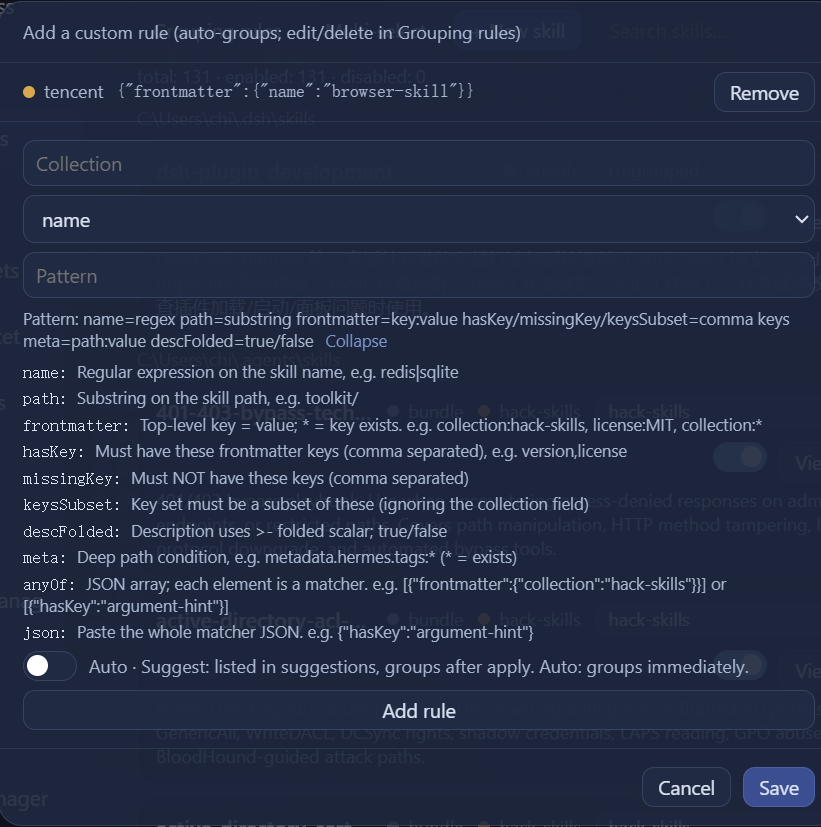
View grouping rules
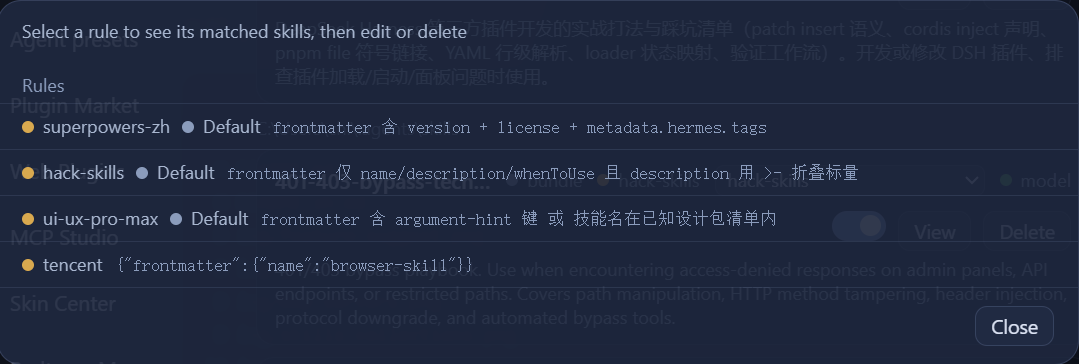
- Browse skills from all standard roots (project
.dsh/skills,.agents/skills,~/.dsh/skills,~/.agents/skills). - Create skills from a template (kebab-case name, description, optional
whenToUse), toggle model invocation, edit the description, and delete (moved to.trash-dsh-mcp-skill-panel/). - View any skill in a modal (full SKILL.md, read-only) and edit its description inline.
- Search skills by name/description. Deleting a skill moves it to
.trash-dsh-mcp-skill-panel/; once the trash is non-empty, a Trash section appears at the bottom of the Skills tab with a Restore button. - Skill collections: group skills by collection —
collection:frontmatter field first, then manual assignment, then user rules — with three views (by collection (default) / by root / flat). Per-card quick-assign dropdown, multi-select assign/unassign, and batch enable/disable model or delete a whole collection. - Feature suggestions: built-in rules (superpowers-zh via
metadata.hermesmetadata; hack-skills via minimal frontmatter +>-folded description; ui-ux-pro-max viaargument-hintor known design names) plus signature auto-clustering (groups skills sharing a distinctive frontmatter shape, ≥2 members, renamable). Suggestions only cover not-yet-grouped skills; review before applying. - Custom rules & grouping panel: 10 matcher types (name regex, path substring, frontmatter key=value, hasKey, missingKey, keysSubset, descFolded, meta deep path, anyOf, json) with a Suggest / Auto toggle (Suggest = listed in feature suggestions, groups after apply; Auto = groups immediately). The Grouping rules panel shows a rule's matched skills, edit + test + delete rules; built-in default rules are editable and flagged 默认 (confirm before editing). Grouping state lives in
~/.dsh/dsh-mcp-skill-manager/collections.json.
3. Skill custom grouping walkthrough
The following uses the browser-skill skill as an example to show the grouping flow.
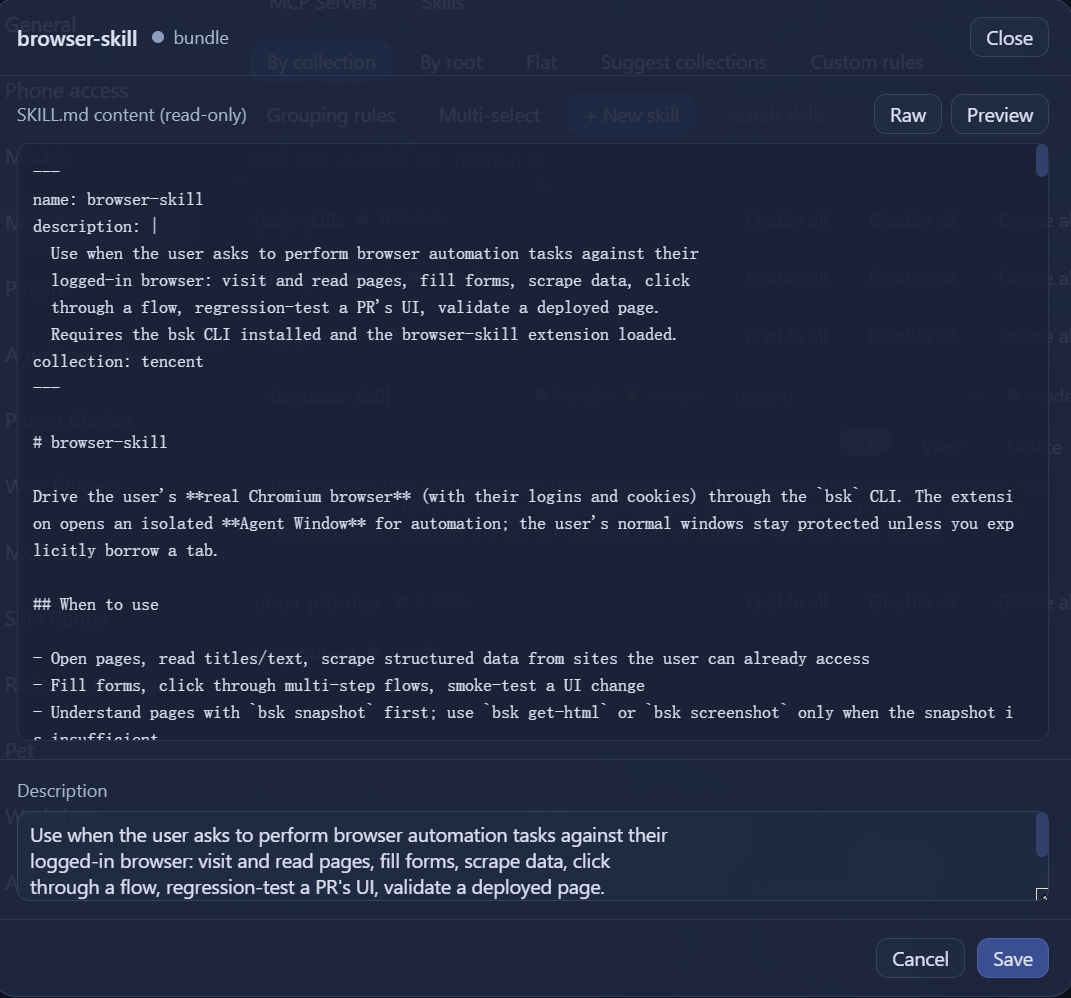
1. View the skill content
Click View on browser-skill to open its content — the frontmatter has name: browser-skill.
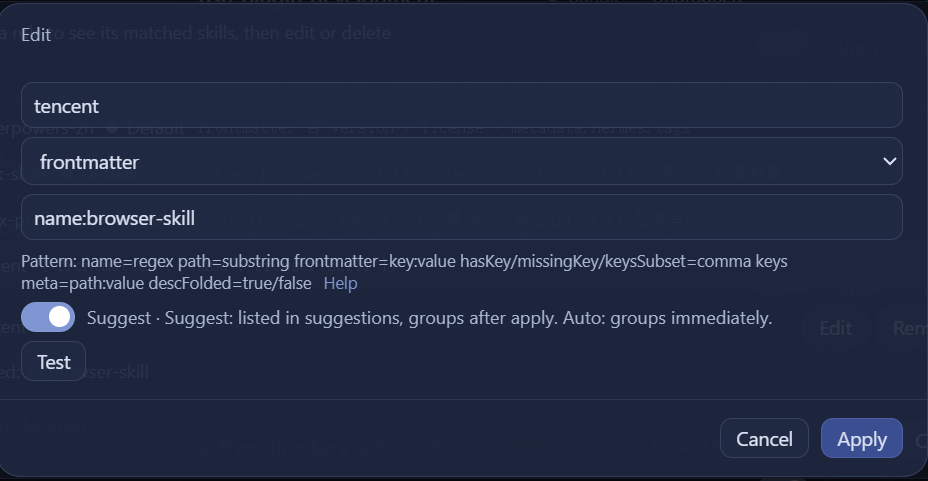
2. Add a custom rule
Fill in the rule as shown below (this example uses Suggest; if you choose Auto, step 3 is unnecessary — the skill is grouped immediately).
3. Open Feature suggestions
Click Feature suggestions — the custom rule you just added now takes effect.
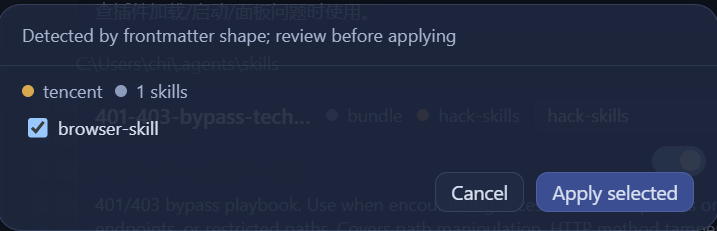
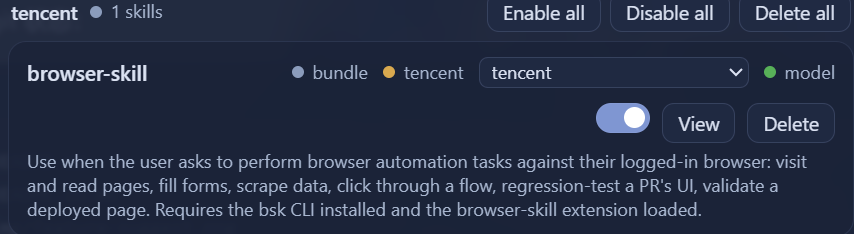
4. Apply the selection
Click Apply selected — browser-skill is now automatically added to the tencent collection.
Install
Requires Node >= 20 and pnpm, and a DSH web profile (default).
Option A — official CLI (recommended)
The package ships a dsh.bundle.patch (cordis.patch.yml), so the official DSH plugin CLI installs and mounts it in one command — no manual cordis.patch.yml edits.
# published on npm
dsh plugin --profile web add dsh-mcp-skill-manager

# straight from a GitHub repo (builds the client bundle on install)
dsh plugin --profile web add github:/dsh-mcp-skill-manager

# from a local checkout (self-link, for development)
dsh plugin --profile web add .
Then restart DSH web and open Settings → MCP & Skills.
[!IMPORTANT]
- npm installs install the published package (
dsh-mcp-skill-manager); thefilesincludecordis.patch.ymland the builtclient/client.js.- GitHub installs build the client bundle on install via the package's
preparescript (node client/build.mjs), which needsesbuild(a devDependency). If pnpm blocks the build, allow it in the profile'spnpm-workspace.yamlunderallowBuilds— the DSH CLI prints the exact key to add when it blocks a git-hosted build.- Do not mix the two channels in one profile. If the plugin is already active through the bundle channel (
dsh.profile.bundles), do not also runnode install.mjsor keep a manual- insert:row incordis.patch.yml— that double-mounts the plugin (two host halves, two client bundles).install.mjsdetects the bundle channel and skips its manual insert automatically.
Option B — node install.mjs (local / non-CLI)
node install.mjs
# or with a custom profile:
node install.mjs --profile web
The script backs up cordis.patch.yml, installs the package into the profile (pnpm add file:...), and appends the plugin row. Restart DSH web once so the new plugin enters the boot composition (client bundles are assembled at startup):
cd    # e.g. D:/deepseek-harness
pnpm exec dsh web
Then open Settings → MCP & Skills. To verify headlessly after the restart: node scripts/smoke.mjs (checks the loader entry, the client bundle, and the MCP/Skills RPC endpoints end-to-end).
Manual install (equivalent):
cd ~/.dsh/profiles/web
pnpm add file:
 --config.auto-install-peers=false
cat >> cordis.patch.yml  client/client.js
npm test        # node --test
License
MIT