dsh-quickstart
Desktop launcher for DeepSeek Harness — start dsh web with no console window and auto-open the browser. Tested on Windows; macOS/Linux in progress.
安装
此插件尚未提供可验证的 bundle,或兼容性检查未通过。请先阅读仓库说明。 阅读完整 README ↗
说明文档
阅读完整 README ↗dsh-quickstart

Launch DeepSeek Harness from a
desktop icon — dsh web starts without a console window, then the browser
opens automatically once the web UI is ready.
Status: implemented and tested on Windows. macOS and Linux are in the codebase but not yet tested — see Roadmap.
No more typing npx @deepseek-ai/dsh web and waiting for the page by hand — this
double-click-and-go wrapper handles startup, readiness polling, and browser opening.
Preview
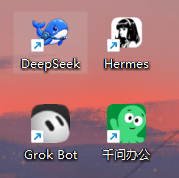
The desktop shortcut you get — double-click the icon to launch:
Why
dsh webblocks a terminal window and gives no feedback on when it is ready.- Starting it from a desktop shortcut shows an ugly console box.
- Users who double-click and see nothing think the tool is broken.
dsh-quickstart starts dsh web detached and hidden, polls http://127.0.0.1:
until it answers, then opens your default browser. A desktop shortcut created with
dsh-quickstart shortcut shows no console window at all.
Install
# the launcher
npm i -g dsh-quickstart

# the harness itself (required)
npm i -g @deepseek-ai/dsh
Usage
# start dsh web, wait for readiness, open the browser
dsh-quickstart

# custom port / timeout
dsh-quickstart --port 3000 --timeout 120000

# wait but do not open the browser
dsh-quickstart --no-open

# spawn and exit immediately (no polling)
dsh-quickstart --no-wait

# pass extra args to dsh
dsh-quickstart -- web --port 3000
Install a desktop shortcut — the primary way to use it on Windows. Double-click to launch, no console window, and it uses the bundled DSH icon by default:
# Windows (.lnk)
dsh-quickstart shortcut --name "DeepSeek" --working-dir "D:\your\workdir"
macOS (
.command) and Linux (.desktop) shortcuts are implemented but untested (TODO) — Windows is currently the only fully verified platform.