sprainJinyu/dsh-vision-link ↗★ 0
dsh-vision-link
轻量级视觉桥接插件:配置专用视觉模型进行图像识别,同时保持所选文本模型的控制权。
AI 分析
核心用途是让不支持视觉的文本模型也能间接“看懂”图片。适合主用纯文本模型但偶尔需要分析粘贴图片的混合任务场景。
安装
npx -p @deepseek-ai/dsh dsh plugin --profile web add github:sprainJinyu/dsh-vision-link说明文档
阅读完整 README ↗🚀 Quick Start & Configuration
Step 1: Install the Plugin
Run inside your DSH workspace directory:
npx -y @deepseek-ai/dsh plugin --profile web add dsh-vision-link
[!IMPORTANT] If the npm tag still shows
1.2.0, install from the git repo or a local path instead of trusting the changelog alone. Remove this note after npm actually publishes1.2.1.Do not stack
dsh-vision-linkwith other paste-intercept plugins such asmodlens,image-bridge, orvision-toolkiton the same DSH Web page. They may compete for the same paste/drop hook and make image intake behavior ambiguous.
Start or restart DSH Web:
npx -y @deepseek-ai/dsh web
Step 2: Verify Image Capability on Vision Model
Ensure your multimodal model (e.g. Doubao, Qwen-Max, or Gemini) declares input: [text, image] in DSH settings.yaml:
llm-pi-ai:
  providers:
    my-provider:
      models:
        - id: deepseek-v4-flash
          name: DeepSeek V4 Flash
          # Text-only models do not declare image

        - id: doubao-seed-2.1-turbo
          name: Doubao Seed 2.1 Turbo
          input: [text, image]    # 👈 Explicitly declare image input
Step 3: Configure Vision Mapping (Built-in Visual Panel)
Navigate to Settings → Plugins → Vision Mapping in DSH:
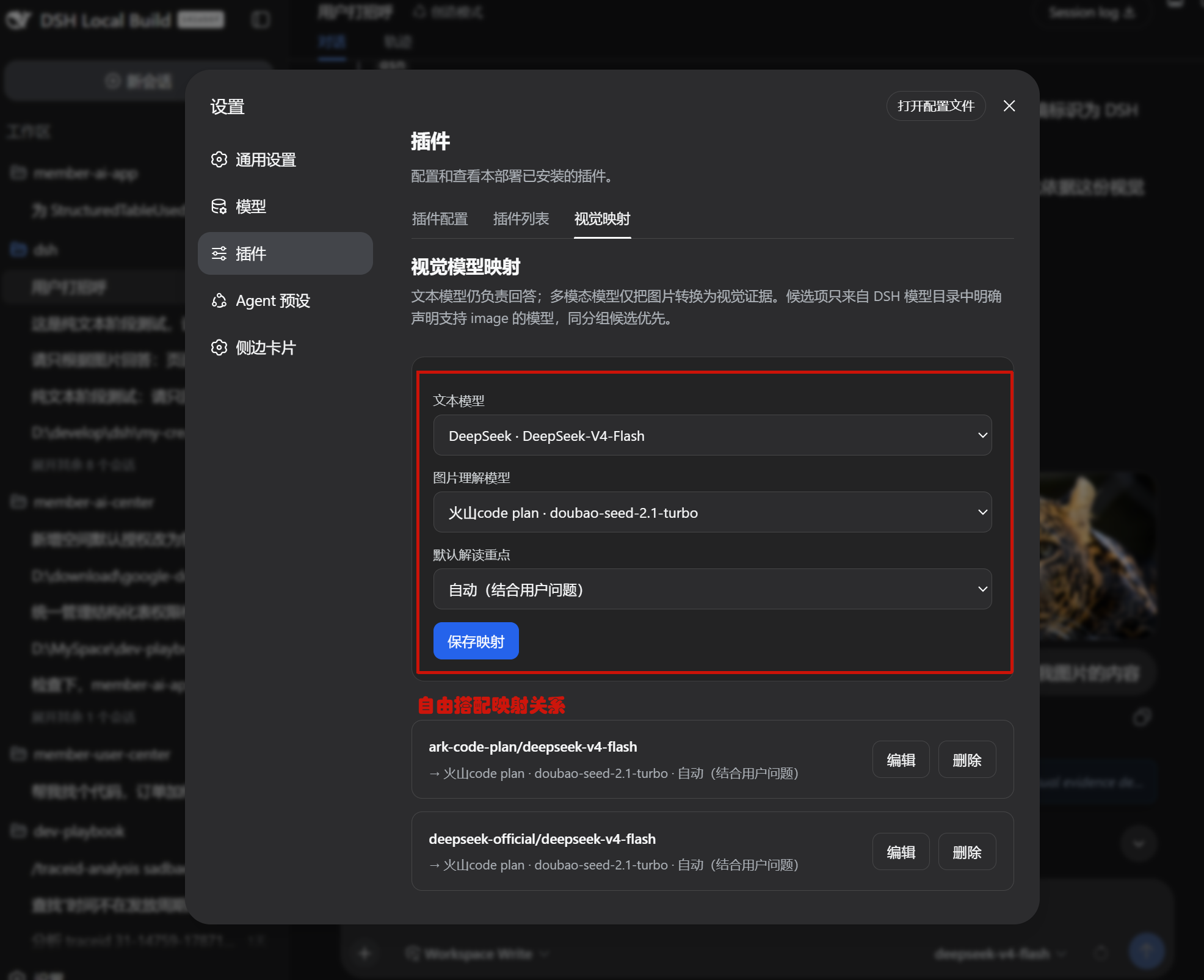
- Select your Text Model (e.g.
DeepSeek-V4-Flash), paired Vision Model (e.g.Doubao / Qwen-Max), and Focus Preset; - Click "Save Mapping". Changes take effect immediately only when the current DSH host exposes
vision-linkas a writable Settings namespace; - (Optional) You can click "Edit" or "Delete" anytime in writable hosts, or configure directly in
settings.yaml(in normal npm-installed or restricted environments, the panel automatically acts as a YAML generator):
vision-link:
  mappings:
    ark-code-plan/deepseek-v4-flash:
      provider: ark-code-plan
      model: doubao-seed-2.1-turbo
      displayName: 火山code plan · doubao-seed-2.1-turbo
      focusPreset: auto    # 👈 Optional: auto/ui/ocr/code/chart/custom
[!TIP] Same-provider vision models are automatically prioritized. For full syntax examples, see
examples/settings.yaml.
Step 4: Paste-and-Ask Workflow
Keep your preferred text model (e.g. DeepSeek-V4-Flash) selected, and paste (Ctrl+V) or drop an image directly into the composer to begin asking multimodal questions!