dsh-vision-plugin
DeepSeek Harness plugin: upload/paste images in the chat box; on send, transcribe via a vision model (dashscope) or offline Windows OCR, then inject the description into the message as 【解析了提供图片,图片内容是<描述>】.
安装
$
npx -p @deepseek-ai/dsh dsh plugin --profile web add github:zcma11/dsh-vision-plugin说明文档
阅读完整 README ↗dsh-vision-plugin
English documentation: README.en.md
DeepSeek Harness 插件:在聊天输入框上传/粘贴图片,发送时用视觉模型(百炼 DashScope)或 Windows 离线 OCR 转述图片内容,并把描述注入消息:
【解析了提供图片,图片内容是】
安装
npx @deepseek-ai/dsh plugin --profile web add dsh-vision-plugin
或从 GitHub 直接安装:
npx @deepseek-ai/dsh plugin --profile web add github:/dsh-vision-plugin
pnpm 9 注意:若
add报ERR_PNPM_ADDING_TO_ROOT(workspace root 检查),在命令末尾追加--workspace-root:npx @deepseek-ai/dsh plugin --profile web add dsh-vision-plugin --workspace-rootgit 源插件需要 pnpm 允许构建脚本(
prepare),按 pnpm 打印的提示把包名加入$DSH_HOME/profiles/web/pnpm-workspace.yaml的allowBuilds后重试。
教程
① 上传 / 粘贴图片
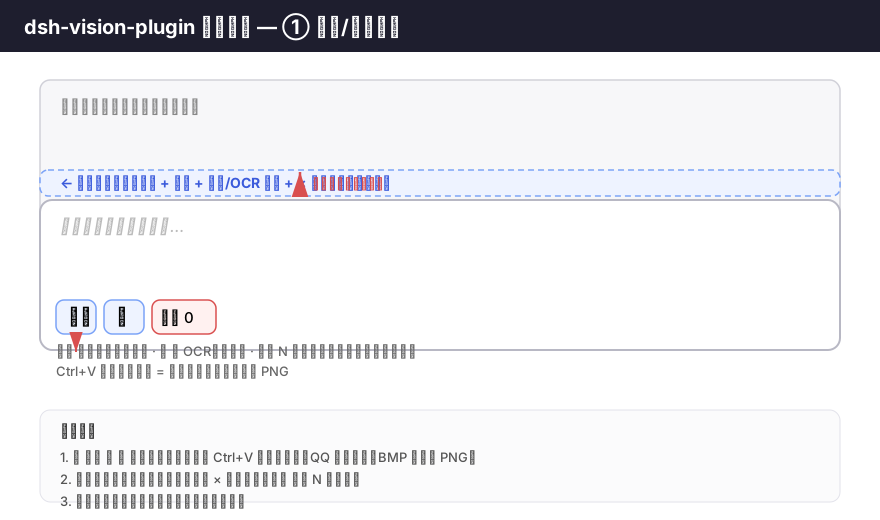
- 点输入框工具行的 🖼️(视觉转述)或 📝(纯 OCR)选一张图片; 或直接 Ctrl+V 粘贴(QQ 截图、系统截图都行,BMP 自动转 PNG)。
- 图片出现在输入框上方的预览条——缩略图 + 文件名 + 视觉/OCR 徽标 + 红色 × 删除按钮。 也可以点 🗑️ N 一键清空本会话所有待发图片。
- 在输入框输入文字(可选),然后回车发送。
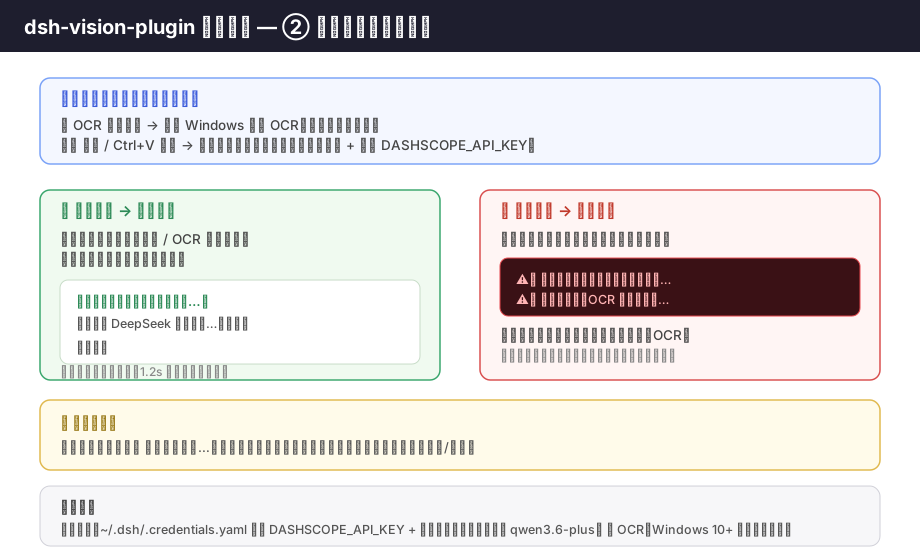
② 发送时如何转述
| 上传方式 | 转述方式 |
|---|---|
| 📝 OCR 按钮 | 仅 Windows 内置 OCR(离线、不调模型) |
| 🖼️ 按钮 / Ctrl+V 粘贴 | 仅视觉模型(需先选择模型 + 配置 API Key) |
- 转述成功 → 消息正常发送,主模型收到的内容以
【解析了提供图片,图片内容是】开头,后接你的原文;预览条随后自动清除。 - 转述失败 → 消息发给主模型,顶部弹出红色 toast,准确区分 「视觉模型调用失败」还是「OCR 识别失败」;预览与图片数据保留,可直接重发。