439436269-ctrl/dsh-preview-snip ↗★ 0
dsh-preview-snip
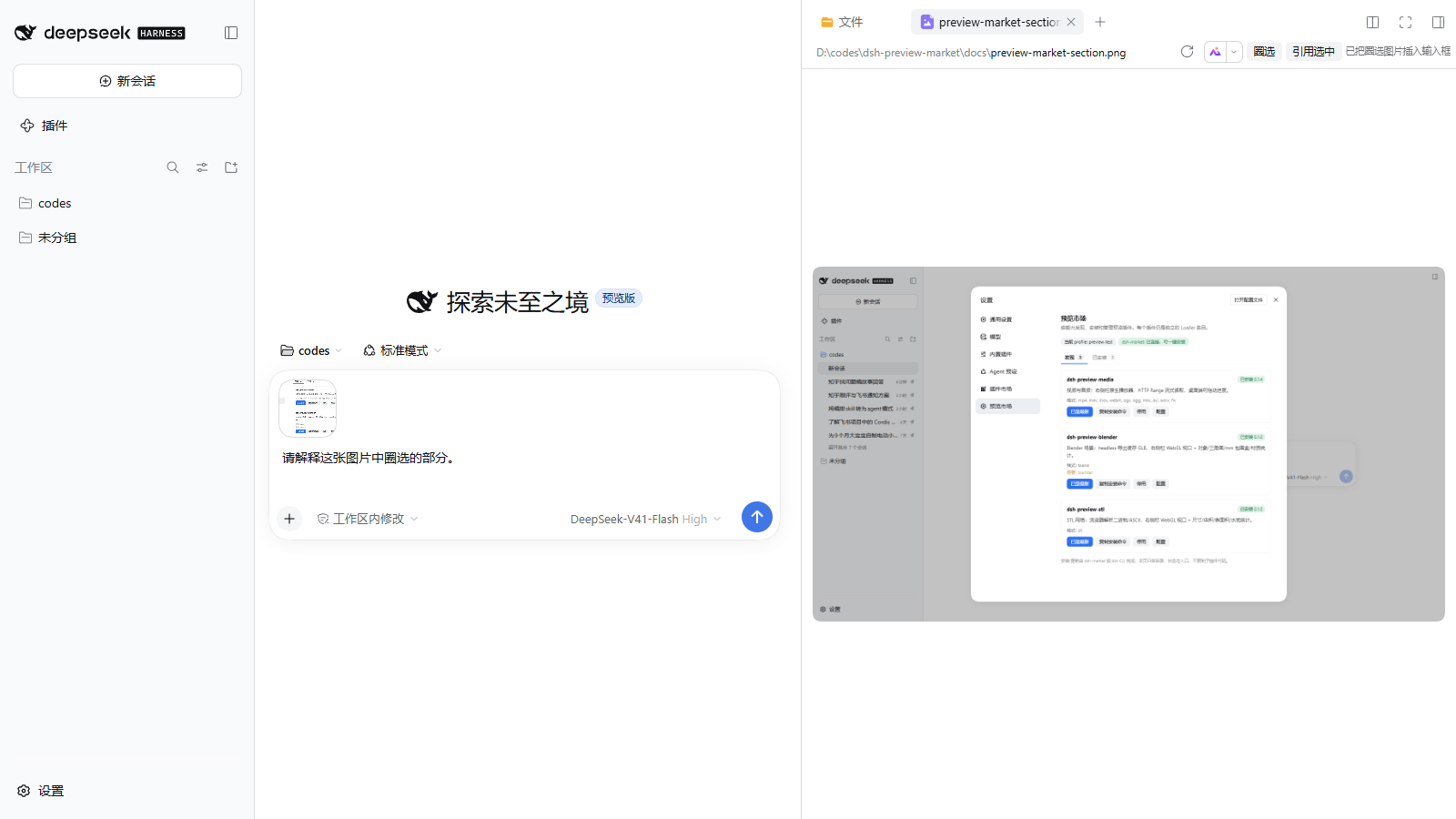
Circle a region or quote selected text in an image/PDF preview and insert it into the DSH composer. 适合需要从PDF或图片预览中截取区域、添加批注并快速插入输入框的用户。
Install
npx -p @deepseek-ai/dsh dsh plugin --profile web add github:439436269-ctrl/dsh-preview-snipREADME
Read the full README ↗dsh-preview-snip
Snip, annotate or quote any document preview in DSH and put the result into the composer.
What it does
The plugin adds three actions to the right-Sidebar document-preview header:
- 圈选 / Snip — drag a rectangle; the selection becomes a PNG attachment in the composer. The quick path only adds the image; it does not fill in a question.
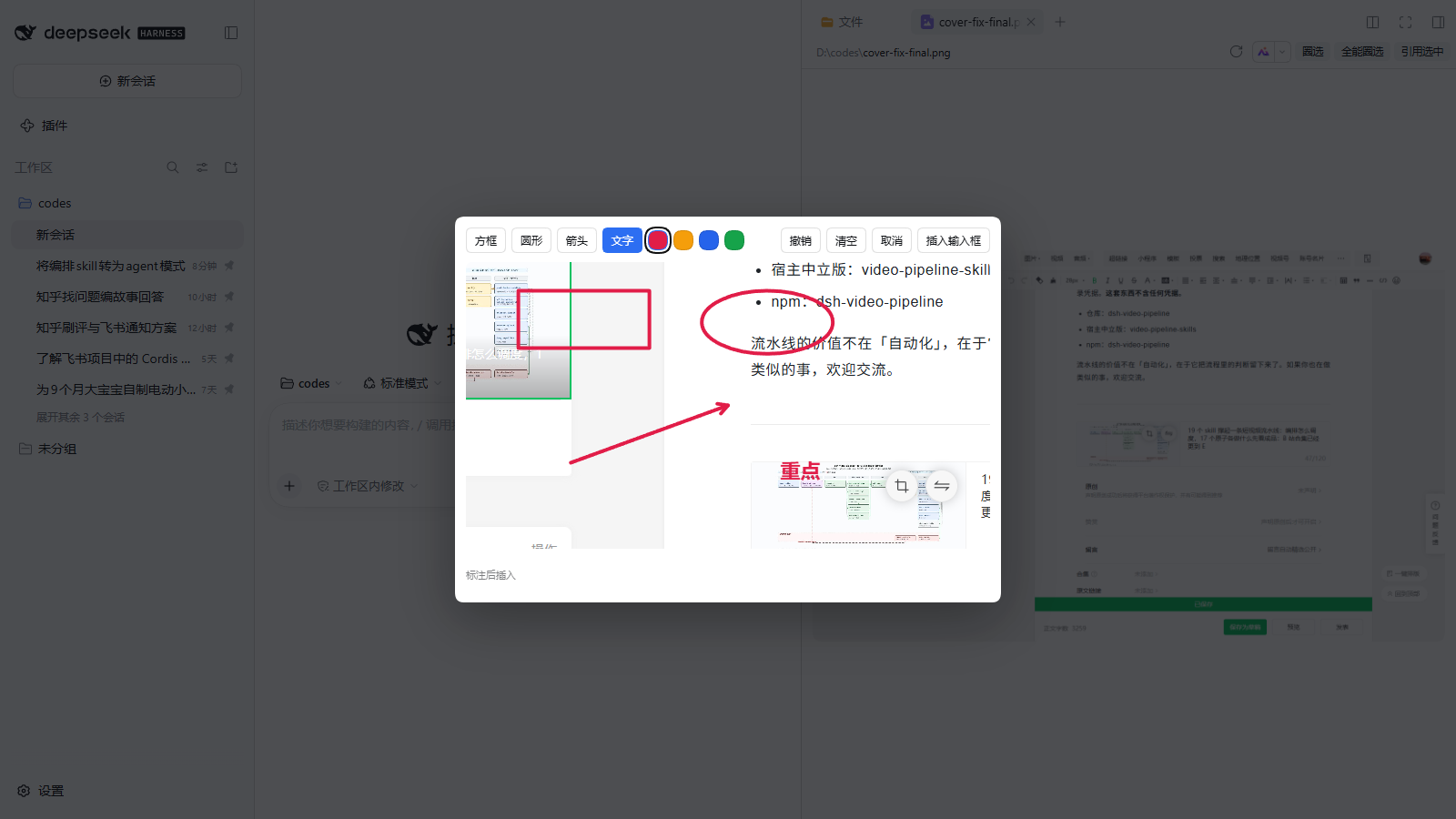
- 全能圈选 / Annotate — drag a rectangle, then open an editor and add a box, circle/ellipse, arrow or text, choose a color, undo/clear, and insert the annotated PNG.
- 引用选中 / Quote selection — quote the current text selection into the composer as a Markdown blockquote.
Nothing is sent automatically: the attachment and text land in the composer, and you finish the question and press send.
Works on every preview type
- Pixels:
,current frame and `` — images, PDF pages, video frames and WebGL viewports (the first-party Blender/STL viewers keep their drawing buffer). - DOM screenshot: text, Markdown, code and HTML previews are serialized to an SVG
foreignObjectand rasterized in the browser; the current pane stylesheet is embedded, so the screenshot keeps the preview's appearance. - Quote: any preview whose text is selectable.
Annotation editor
After a full snip you get a canvas editor:
- box, ellipse, arrow, text;
- red / amber / blue / green;
- undo, clear, cancel, insert;
- text is entered inline (not a browser prompt);
- the inserted image is the annotated canvas, not the original crop.
Sidebar browser (desktop)
When a webpage is open in DSH's right-side browser tab, a small floating 圈选 / 全能圈选 group appears over the webview. It captures through Electron's webview.capturePage() and then uses the same crop, annotation and composer-attachment path.
- This is the browser tab (
sidebar.right.pane.tabkeybrowser), not a document preview. - In browser/web mode the page is a cross-origin iframe, so the group does not appear; a browser extension would be needed there.
Install
dsh plugin --profile
 add dsh-preview-snip
Open any file in the right Sidebar. The three buttons appear as one segmented group in the preview header.
How it works
- Uses
sidebar.right.tab.document.actionsfor file previews and aconversation.session.header.utilitiesbridge for the desktop sidebar browser; no Host routes and no external screenshot library. - Pixel crops map through
object-fit: containfor images/video, and use the canvas bitmap for PDF/WebGL. - Sidebar-browser capture uses
webview.capturePage(); the selected viewport rectangle is cropped from the returned NativeImage. - DOM previews are cloned, the pane's CSS rules are embedded, and the clone is drawn through an SVG
foreignObject. - Creates the PNG in the browser and hands it to
conversation.createDrafts/inputActions.addAttachments, the same draft attachment path as a pasted image. - Quoting uses the browser text selection and
inputActions.setDraft.
Limits
- DOM screenshots skip cross-origin stylesheets and cross-origin background images; text and layout still render.
- Video captures the current frame; it does not record.
- WebGL capture needs the viewer to keep its drawing buffer; the first-party Blender and STL viewers do. A third-party WebGL preview that clears its buffer may capture blank.
- Cross-origin images that taint the canvas fail with a notice.
- Sidebar-browser capture is desktop-only; it needs a `` with
capturePage. Browser/iframe mode cannot capture a cross-origin page. - The editor is client-side only; the original file is never modified.
Compatibility
- DSH
0.2.0-rc.2(and0.2.1-rc.2). - Client-only plugin; no Host configuration.