6Mikao9/dsh-wsl-workspace ↗★ 7
dsh-wsl-workspace
WSL workspace support for DeepSeek Harness: add a WSL workspace from the web GUI and run the whole agent session (bash + file tools) inside the WSL distribution, VS Code Remote-WSL style. No toolchain install inside WSL required.
AI Analysis
核心用途是让 DSH Agent 能够直接在 Windows 的 WSL 虚拟环境中执行 Linux 命令和文件操作。适合在 Windows 上进行 Linux 环境开发的用户。
Install
npx -p @deepseek-ai/dsh dsh plugin --profile web add github:6Mikao9/dsh-wsl-workspaceREADME
Read the full README ↗Usage
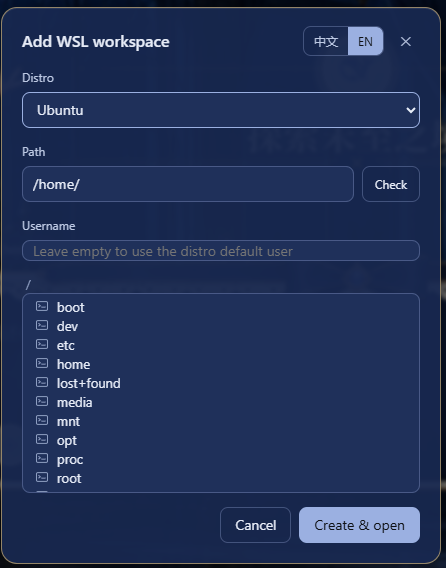
Click the W button beside Settings at the sidebar foot to open the "Add WSL workspace" dialog. Pick a distribution from the list, then browse the directory tree or type an absolute Linux path (for example /home/me/proj) — use the Check button to verify the path exists before creating the workspace. The dialog follows the DeepSeek Harness UI language. The username field is optional: leave it empty to run commands as the distribution's default user, or name a Linux user of that distribution to run the session as that user instead (equivalent to wsl.exe -u ). The username only changes the bash tool's run identity — the file tools go through the Windows-side WSL share and are unaffected. Each workspace's username is kept in /wsl-workspaces.json; delete the entry (or recreate the workspace from the dialog) to return to the default user.
Click "Create & open" to start a new session in the workspace. In the new session the bash tool executes commands inside the chosen distribution and read/write/edit operate on WSL files, so every path the model sees is a Linux path. The mode picker keeps working as usual: Standard, PTC, Minimal and Creative each land on their WSL variant automatically (the WSL variant entries in the picker are bilingual, e.g. WSL · Standard mode(标准模式)), and Windows files stay reachable from inside the session under /mnt/ (for example /mnt/c/Users/...).