JKZeng-cell/moki-library-for-dsh ↗★ 2
dsh-moki-library
MOKI Library for DSH: local file management, rich previews, Office editing and precise AI selection collaboration.
Install
npx -p @deepseek-ai/dsh dsh plugin --profile web add https://github.com/JKZeng-cell/moki-library-for-dsh/releases/download/v0.1.68/dsh-moki-library-0.1.68.tgzREADME
Read the full README ↗MOKI Library for DSH
English · 简体中文
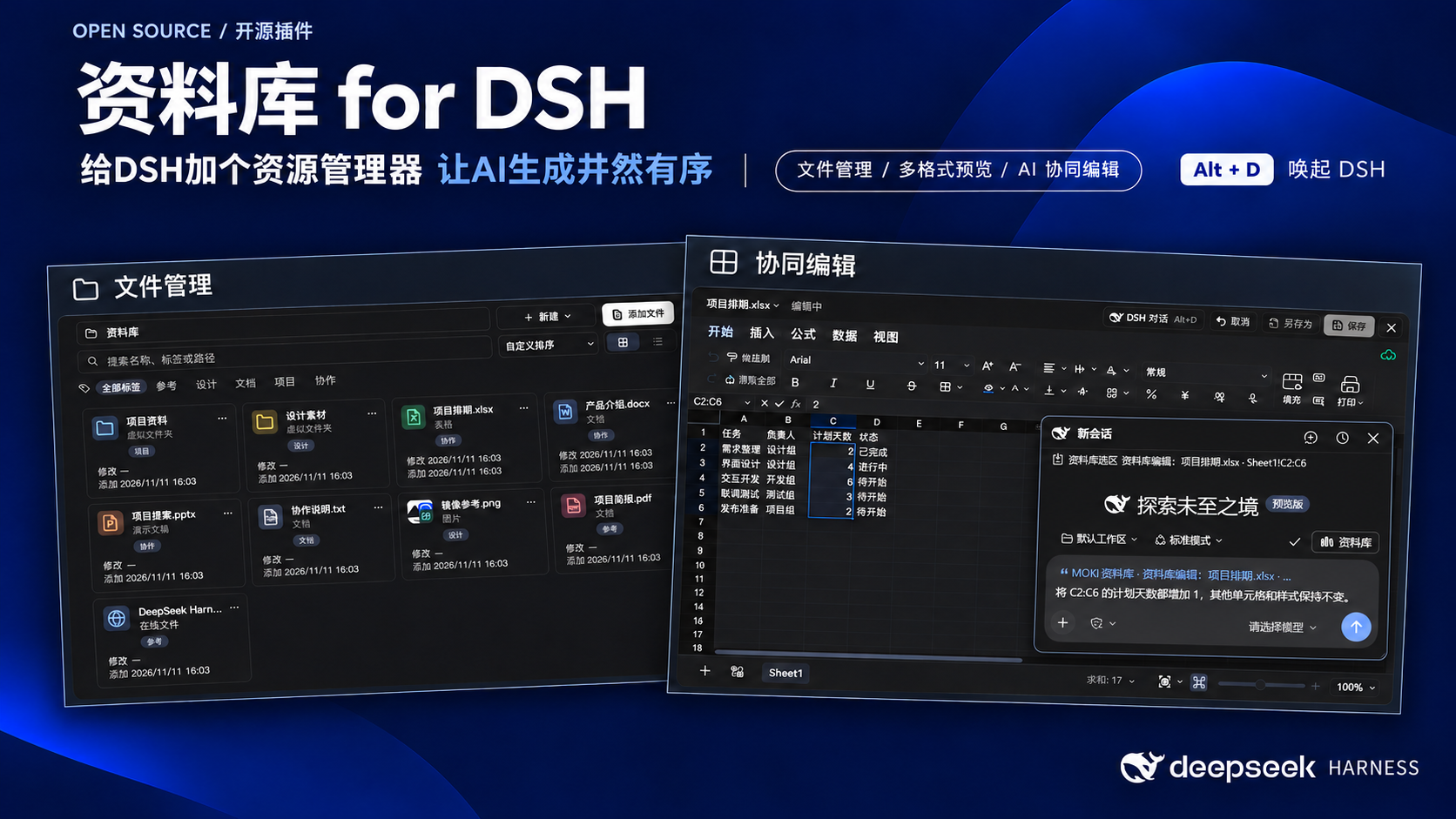
Give DSH a file explorer. Keep AI-generated work organized.
MOKI Library is a community plugin for DeepSeek Harness (DSH). It brings a local file library, multi-format previews and Office editing into the same workspace as your DSH conversations.
Move from finding a file to reading, selecting, editing and saving it in one workflow. Organize a project, then keep its documents and spreadsheets beside the conversation.
Five usage demos · Create PPTs in the side workspace · Preview and editing format support · Media kit
Copy a prompt to install with DSH · Download · Usage guide (中文) · Features · Report an issue
Interface and navigation
Open Library settings → Interface language to choose Follow DSH (default), 简体中文 or English. The choice is saved across restarts and updates open library views immediately, independently of DSH’s own interface language. File names, paths, tags and document contents are preserved. An already-open Office editor keeps its current language until reopened, so unsaved edits are not interrupted.
Start a selection drag in the blank space on either side of the library, or between cards and rows. Name, modified-time and added-time sorting compare all items together, without grouping folders or file formats first. Missing dates appear last.
What you can do
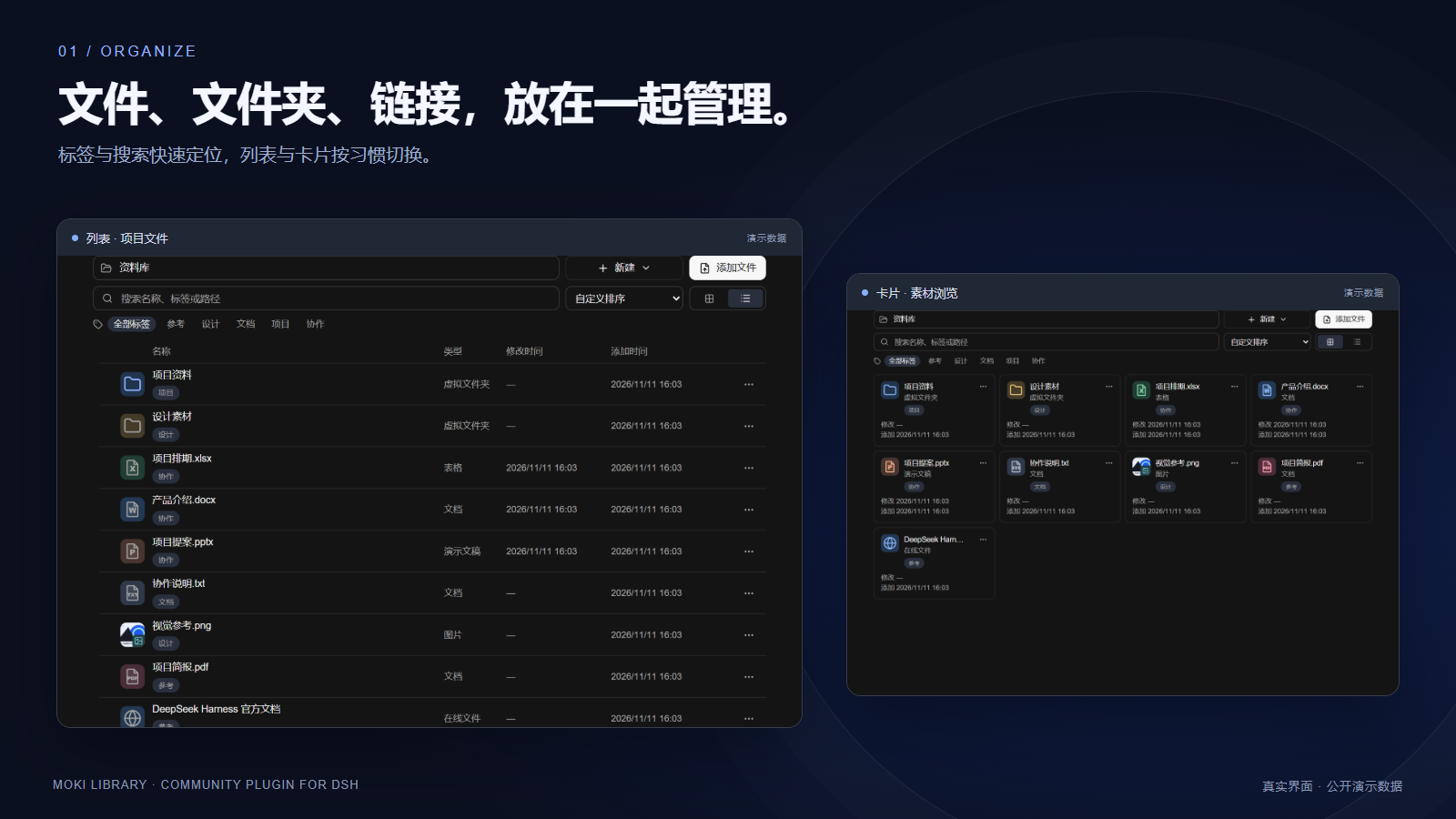
- Manage files, folders and links. Map existing local files, organize virtual folders and tags, search, and switch between list and card views. An empty folder welcomes drag-and-drop imports.
- Preview without switching apps. Images, audio/video, PDF, Office, text, archives, fonts and common 3D formats have built-in preview paths. Some formats require conversion or have documented limitations.
- Edit Word, Excel and PowerPoint. Work on isolated drafts, see changes in the editor, then save back or save a copy.
- Collaborate on a precise selection. Pass text offsets, sheet/range addresses, slide objects, page numbers or a selected image region to DSH. Use Alt+D to open the conversation while viewing a document.
- Choose your workspace. Use the main library, side-workspace tabs, movable native preview windows, or your system's default app. The floating conversation supports the native DSH input capabilities.
- Connect files to conversations. Optionally add a library attachment picker above the composer and automatically map newly created DSH task files.
- Keep context compact. Selection references carry bounded content and exact locations. Supported edits use
context → edit_selection; complex edits can use the Office tools.
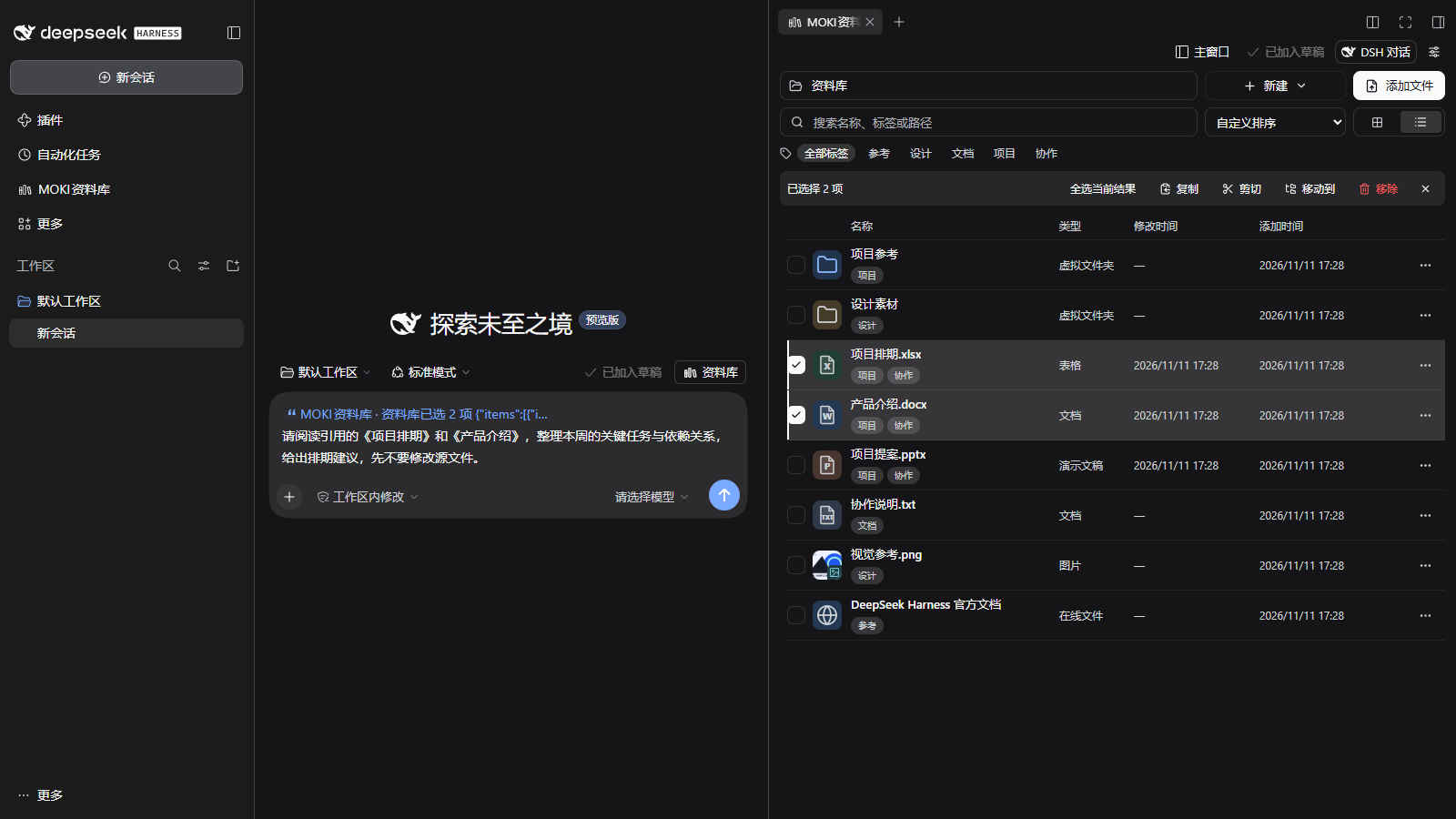
Library and conversation in one window. In this actual local DSH Web capture, “项目排期.xlsx” and “产品介绍.docx” are selected in the side workspace. Add selection to conversation places a native reference in the composer, followed by the user's request. The files are demonstration data and the input is an unsent draft. Card-view alternative.
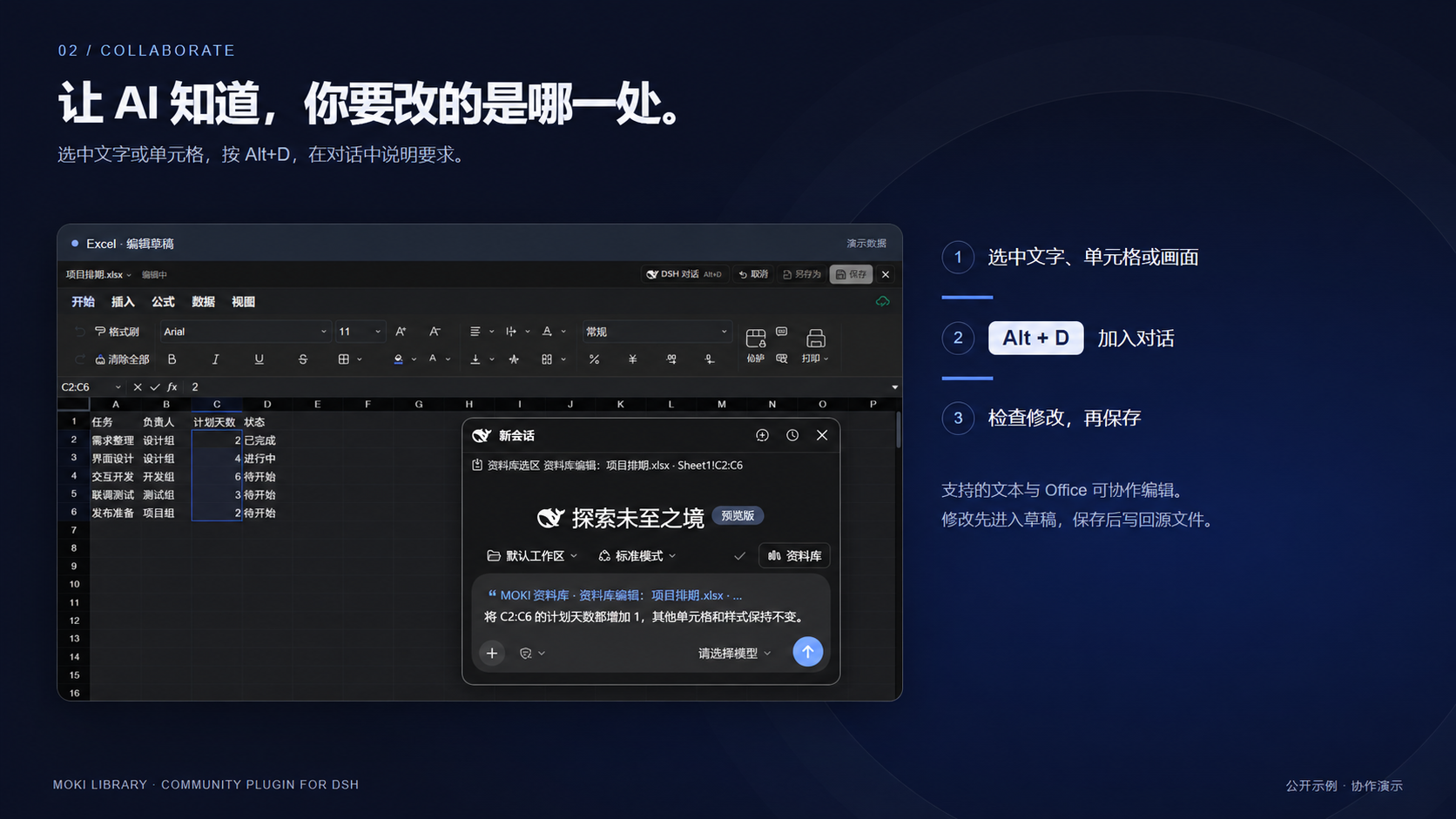
The collaboration illustration includes the DSH floating composer with a Sheet1!C2:C6 reference and an unsent request. Original floating-chat capture.
Install
Tested on Windows with DSH Desktop 0.2.2-rc.1. Declared compatibility: `>=0.2.2-rc.1 =0.2.2-rc.1 =22.19. Windows Desktop is the primary verified environment. 2. Locate the CLI belonging to this desktop installation. On Windows, prefer resources/runtime/cli/bin/dsh.cmd inside its installation directory. Use the desktop's existing DSH_HOME if one is set. Target the desktop profile. 3. Check the installed dsh-moki-library version in desktop. Verify an existing identical version; retain and report a newer version. If installation is needed, download the .tgz above locally and verify its SHA256. 4. Use the actual CLI and the downloaded archive's absolute path with this command pattern. Replace with that path, using forward slashes on Windows: dsh plugin --profile desktop add "dsh-moki-library@file:" --allow-build=sharp 5. Check the installed version: dsh plugin --profile desktop list dsh-moki-library --depth 0 Confirm that desktop lists version 0.1.68 (or the newer version retained above). Preserve existing plugins, configuration and library data. 6. Report the archive location, actual CLI, profile and version-check result. Then ask me to save my work, fully quit DSH and reopen it manually. Keep the current DSH conversation running while the installation task is in progress.
If this conversation cannot download files or execute a terminal, the environment is incompatible, or installation fails, explain the specific cause and next step. Report installation status from the actual command results.
3. Respond to DSH's prompts for the download or terminal operation, if shown, and wait for its installation and version-check results.
4. Save your work, **fully quit DSH and reopen it**. Confirm that **MOKI Library** is enabled in the plugin list, then open it from the sidebar.
5. Preview a sample file. In a supported editor, select text or cells and press **Alt+D** to check the conversation entry. Enable the library attachment picker or task-file mapping in library settings if needed.

### Option 2: Install manually in a terminal

1. Open DSH Desktop once to initialize its desktop profile, then fully quit it. Download `dsh-moki-library-0.1.68.tgz` from the [release](https://github.com/JKZeng-cell/moki-library-for-dsh/releases/tag/v0.1.68).
2. In PowerShell, replace the first two paths with the actual CLI and archive paths. If the desktop uses a custom `DSH_HOME`, use the same value in this terminal.

```powershell
$mokiDshCli = 'C:\Path\To\DeepSeek Harness\resources\runtime\cli\bin\dsh.cmd'
$mokiArchive = 'C:\Downloads\dsh-moki-library-0.1.68.tgz'
$mokiArchive = (Resolve-Path -LiteralPath $mokiArchive).Path.Replace('\', '/')
& $mokiDshCli plugin --profile desktop add "dsh-moki-library@file:$mokiArchive" --allow-build=sharp
- After the install command succeeds, check the version, then reopen DSH:
& $mokiDshCli plugin --profile desktop list dsh-moki-library --depth 0
If dsh is on PATH and belongs to the current desktop installation, use it in place of & $mokiDshCli. --profile desktop targets the desktop profile; --allow-build=sharp allows the installation build step for the sharp image dependency. Initial installation requires network access for runtime dependencies. See the official DSH CLI reference for profile command syntax.
The GitHub source archive is for development; the .tgz release asset is the built plugin. This release does not require an npm publication.
Selection collaboration
Your first workflow
- Open MOKI Library from DSH's sidebar. Use Add files or drag files, folders and links into the content area.
- Organize virtual folders and tags. Search by name, tag or path, clear the search with one click, and switch between list/card views. Hover over a thumbnail for a larger preview.
- Open a file. By default, the main library uses separate preview windows and the side workspace opens new tabs. Settings can explicitly choose DSH's main window, a separate window or the default app.
- Select text in preview or edit mode and click the whale beside the selection. A compact input opens beside the selection with its content and location already attached. Type an instruction, optionally choose, drop or paste files, then press Send (Enter; Shift+Enter for a new line). After sending, the side workspace focuses the current main conversation; main-window and standalone previews open a floating DSH conversation. Alt+D and Add selection to conversation remain available. The whale also appears at Word/PPT text insertion positions, empty Excel cells and text-editor carets. Clicking an empty PDF page area quotes its page and page-relative position. Empty positions never reuse previously selected text.
- Review the highlighted AI edits, then choose Accept or Discard edit. Accept saves to the original file immediately, keeping the editor open at the current position. Continue editing or reopen the file to check persistence.
Text previews, PDF text, the text editor and Office editors support quick selection chat, including file and precise location references. Mouse and keyboard selection work in side workspace tabs and separate preview windows. Opening the quick input never sends a message. Its Send button submits only the captured selection, your instruction and its attachments; existing DSH draft text and attachments stay intact. Failed sends retain the quick input for retry. Files use DSH’s native attachment pipeline (32 MB per file). Use visual region selection for scanned PDFs; selections in the default external application remain managed by that application.
Review before saving
AI edits to text, Word, Excel and PowerPoint are highlighted. Expand the review bar to see locations and before/after content. Highlights are temporary decorations, never saved document formatting. Accept saves the current result to the original file without reloading or leaving the editor. The current slide, sheet, selection and view stay in place. If saving fails, the pending edits remain available for retry.
The Office editor stays loaded while AI work is in progress. Progress updates and read-only tool calls preserve the current selection instead of reopening the editor. Incoming changes appear in the existing view; actual pending edits still require review.
You can ask DSH to continue editing before accepting an earlier edit. Each new edit builds on the visible draft and adds a review record. Choose Accept all, or Undo latest edit repeatedly to step back while retaining earlier pending edits. Selection, copying and AI collaboration remain available; manual input and saving wait until review is resolved. Pending records recover with the draft. If another window changes that draft, cancellation reports the conflict and preserves the current content.
Practical examples
| Task | Select first | Example prompt and check |
|---|---|---|
| Excel schedule | C2:C6 on the intended sheet | “Increase each selected planned-day value by 1; preserve other cells and styles.” Inspect, save and reopen |
| Word / text revision | A passage | “Make this more concise, preserving facts and proper names. Change only the selected range.” Check context and styles |
| PowerPoint heading | Highlighted text inside the intended text box | “Replace with ‘Review before saving’; preserve the box position and font size.” Check wrapping and layout |
| PDF reading | Text on the relevant page | “Explain this passage, identify its page and list conditions I should verify.” Read-only analysis |
| Image / scanned page | A selected region | “Describe this region and explicitly mark unreadable text.” Requires a vision-capable model |
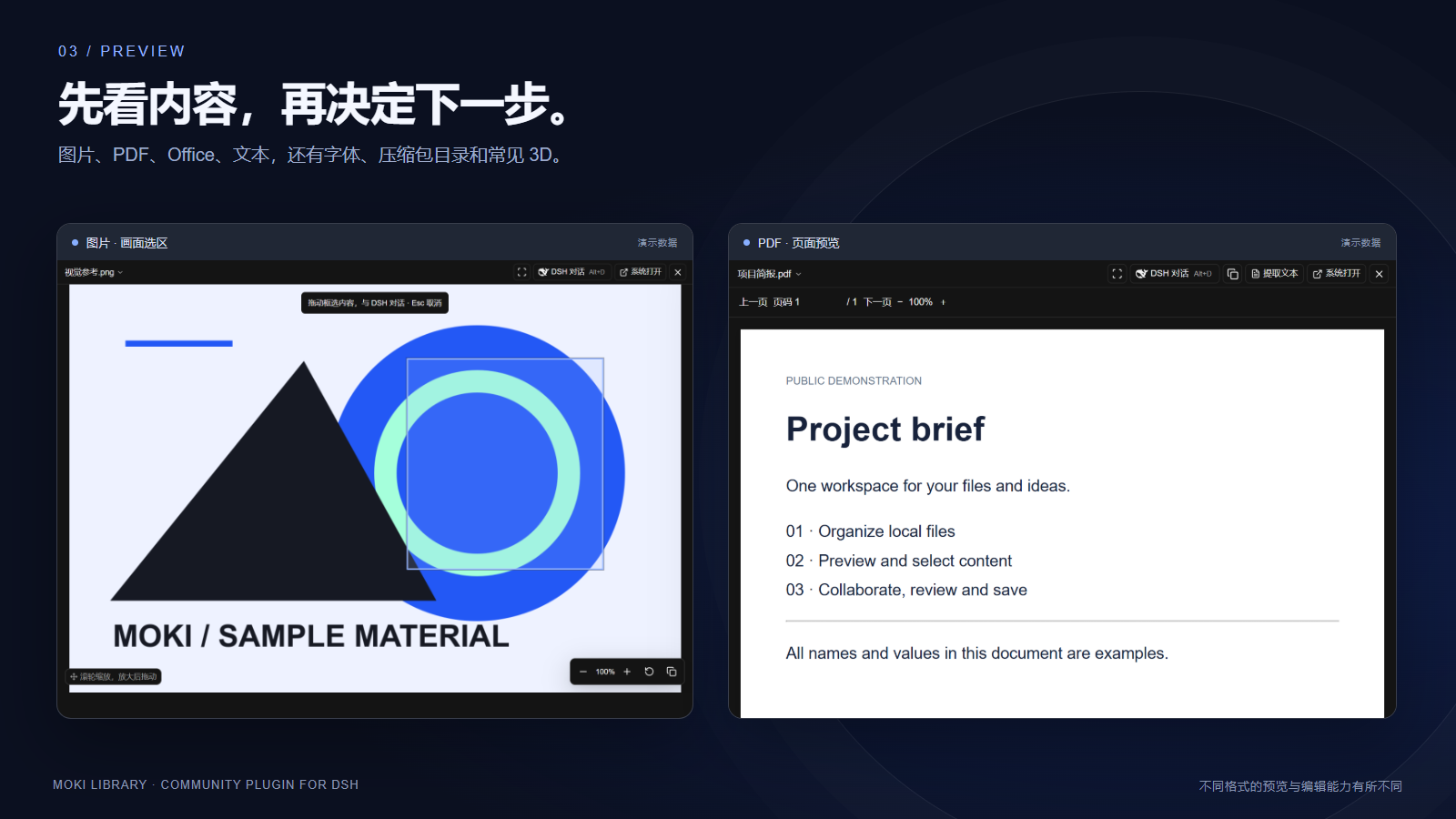
The illustrated usage demos include exact steps, sample prompts, expected checks and window/workspace choices. Sample prompts are instructions, not fabricated AI transcripts.
Selections, attachments and task files
Add selection to conversation carries selected content and its location. Library → Add attachments supplies selected files, after enabling the library composer button in settings. Separately, automatic task-file mapping collects newly created/delivered DSH files in “DSH task files” after it is enabled, deduplicating identical paths.
The whale opens the same compact selection input as MOKI Canvas. After sending in the side workspace, the current main conversation receives focus so the file stays beside the chat. The DSH conversation button and Alt+D still open the conversation directly. Main-window and standalone previews use a floating conversation with DSH's native input, moving/resizing and session creation/switching. A standalone preview keeps its conversation inside that window. Moving back to the side workspace routes quotes to the current main session instead of a previously selected floating history session.
Default context text is bounded to 4,000 characters; composer quotes to 1,000. Truncation is marked. Tools can request more content when needed. Selection references are scoped to the conversation/editor, expire after ten minutes, and reject stale or reused edits.
Preview and editing formats
| Category | Main formats | Preview | In-plugin editing |
|---|---|---|---|
| Word / Excel / PowerPoint | DOCX, XLSX, PPTX | Supported | Supported; review the draft before saving |
| Delimited data / workspace | CSV, TSV, UNIVER | Supported | Supported; CSV/TSV do not retain workbook styling |
| Text and code | TXT, MD, JSON, HTML, XML, YAML, JS/TS, Python and more | Supported | Listed editable extensions up to 5 MB |
| Legacy / Apple Office | DOC, PPT, PAGES, NUMBERS, KEY | Limited content extraction | No; convert to an editable format first |
| Images / design files | PNG, JPEG, GIF, WebP, SVG, BMP, AVIF, ICO, PSD/PSB, TGA, TIFF | Image or composite preview | No image/layer editor |
| PDF / OFD / AI | PDF, OFD, PDF-compatible AI | Page, text or region | Reading/analysis, not source-format editing |
| Audio / video | MP4, MOV, MKV, AVI, WebM; MP3, WAV, FLAC, AAC, OGG and more | Codec-dependent, optional FFmpeg | No media editing workflow |
| 3D / fonts | GLB, glTF, OBJ, STL, PLY, FBX; TTF, OTF, WOFF, WOFF2 | Model controls / font samples | No model/font source editing |
| Archives | ZIP/ZIP64, RAR5, 7z, TAR, GZ, BZ2, XZ, CAB and more | Read-only directory/search/paging | No archive-content editing |
HEIC/HEIF depend on decod