ningbainb/deepseek-harness-desktop--packages-dsh-remote-web-ui ↗★ 491
@linxin666/dsh-remote-web-ui
Mobile remote control for the dsh web GUI: scan-to-pair QR entry beside the settings button, one-time pairing tokens, live device status, and revocable mobile sessions
AI Analysis
适合需要用手机远程操作工作区,或希望一键更新 Web UI 插件包的用户。
Install
npx -p @deepseek-ai/dsh dsh plugin --profile web add github:ningbainb/deepseek-harness-desktop#f30137e7d72942d2cd851a0fa0713f596ed06ad6&path:packages/dsh-remote-web-uiREADME
Read the full README ↗DSH Remote Web UI
English | 中文
移动端远程控制 + 一键远程更新:扫码配对后用手机远程使用当前 dsh web 工作区; 点击侧边栏更新按钮自动检查并更新 dsh-web-ui 全家桶。
This repository is an external plugin package for DeepSeek Harness (DSH):
scan-to-pair mobile remote control for the dsh web GUI, plus a one-click
self-update for the dsh-web-ui family. It is a single dual-face package — the
host half owns pairing tokens, device sessions, the /api/pair route family,
and the /api/update surface; the browser half renders the sidebar-foot
entries (the download trigger and the phone icon beside the settings button),
the pairing panel with a QR code, live device status, and stop/refresh/copy
actions, and the update panel that probes and runs the update.
What it does
- Entry: a phone icon in the sidebar foot, next to the settings button.
- Panel: "移动端远程控制" title, "扫码或在手机上打开链接,即可远程控制当前工作区" subtitle, a "手机扫码连接" card with the status area ("等待手机连接" + status badge), a large QR code, the "无法扫码?可以在手机上打开链接" hint, and three buttons: 停止 / 刷新二维码 / 复制链接.
- Phone side: scanning the QR binds the phone with a one-time,
time-limited token and lands it on the standalone mobile surface at
/m— a thin client purpose-built for a small screen (see Screenshots), not the desktop UI squeezed into a phone. The link carries aworkspaceparameter so the phone lands in the same workspace the desktop was looking at. - Security: one active one-time token (a refresh invalidates the old
link; an accepted token cannot be reused; tokens expire). 停止 revokes
every paired device and the current token, and closes that device's mobile
live stream immediately. The default
remoteApiMode: mobile-onlydenies every non-loopback full/apirequest, including requests with a valid paired cookie; the phone uses the separately authorized/m/apichannel, where Workspace/Session ownership is checked on every resource request. SetremoteApiMode: legacy-full-apionly for compatibility with old full/apiclients; that mode does not provide Workspace/Session-level resource isolation. In legacy mode,requirePairingForLanremains the pairing gate. - Live status: the desktop panel mirrors the pairing state in real time (waiting → connected → disconnected) over an SSE stream.
- Remote update: the download trigger in the sidebar foot (left of the
phone icon) opens the update panel, which probes the npm registry for the
installed
@linxin666/dsh-*family releases. When a newer release exists the panel runs the update automatically (pnpm updateinside the owning dsh profile; when pnpm is missing it falls back tocorepack pnpmand thennpx --yes pnpm, and on Windows the command runs throughcmd.exeso npm-installed.cmdshims resolve; the loopback-only/api/update/status+/api/update/runendpoints drive it) and asks for a dsh web restart to pick it up. Local link installs (development mode) are detected and report the npm state without updating.
Screenshots
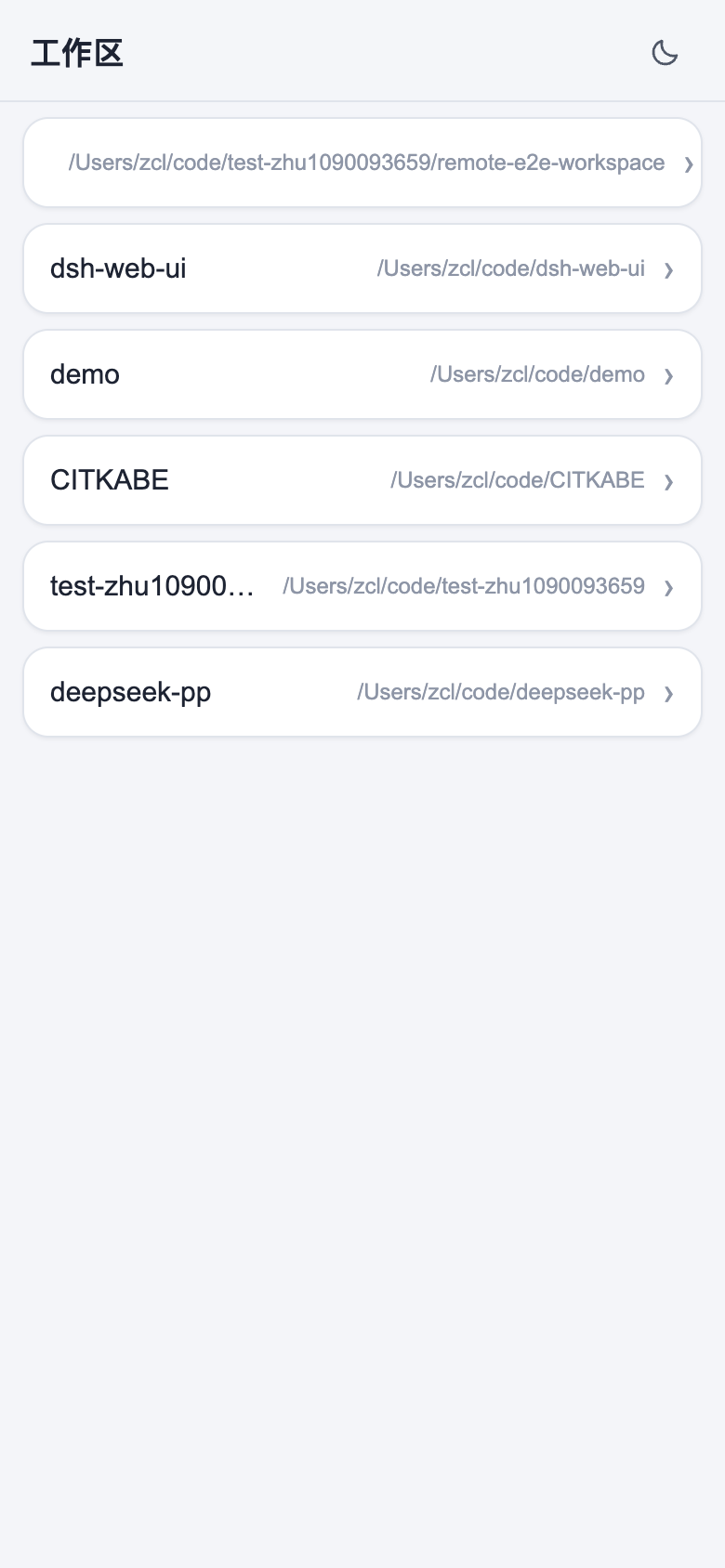
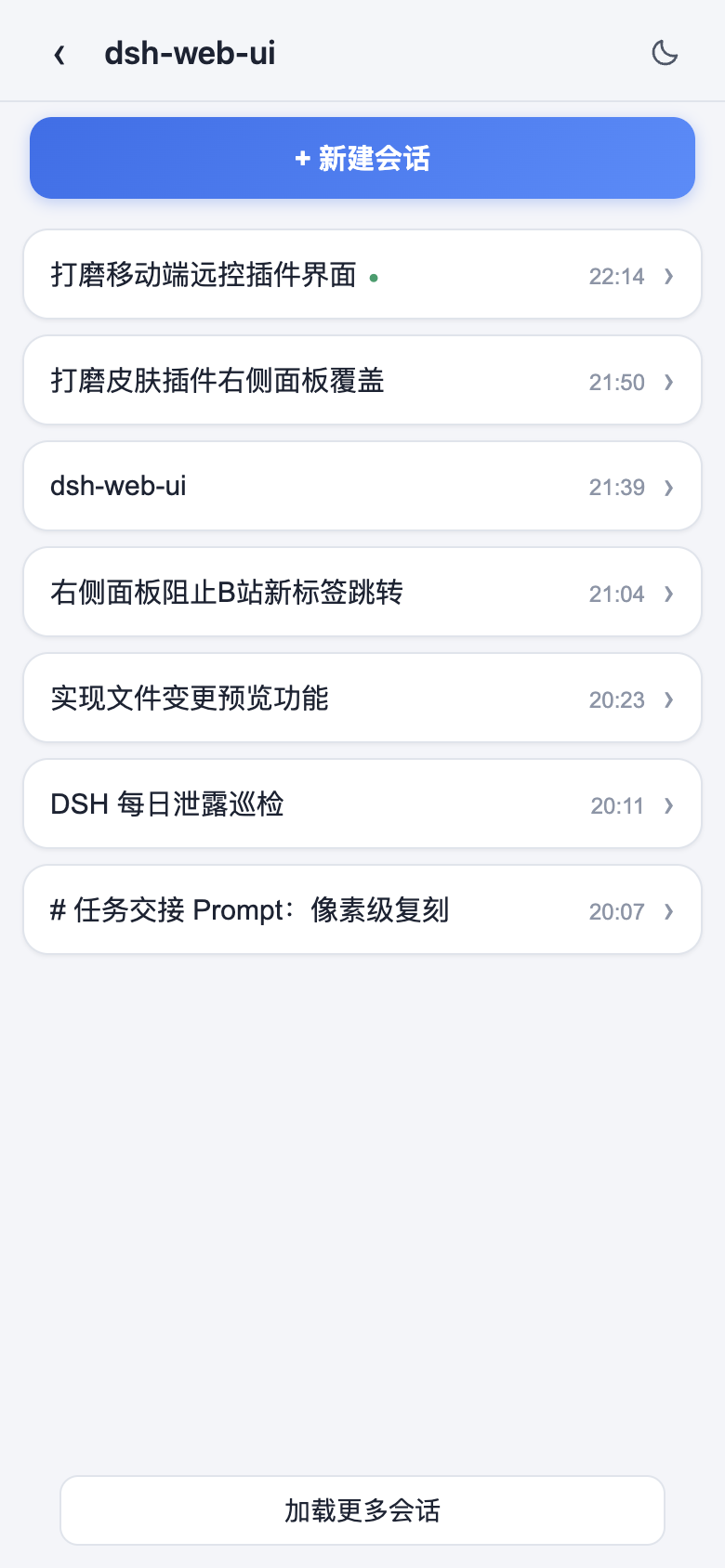
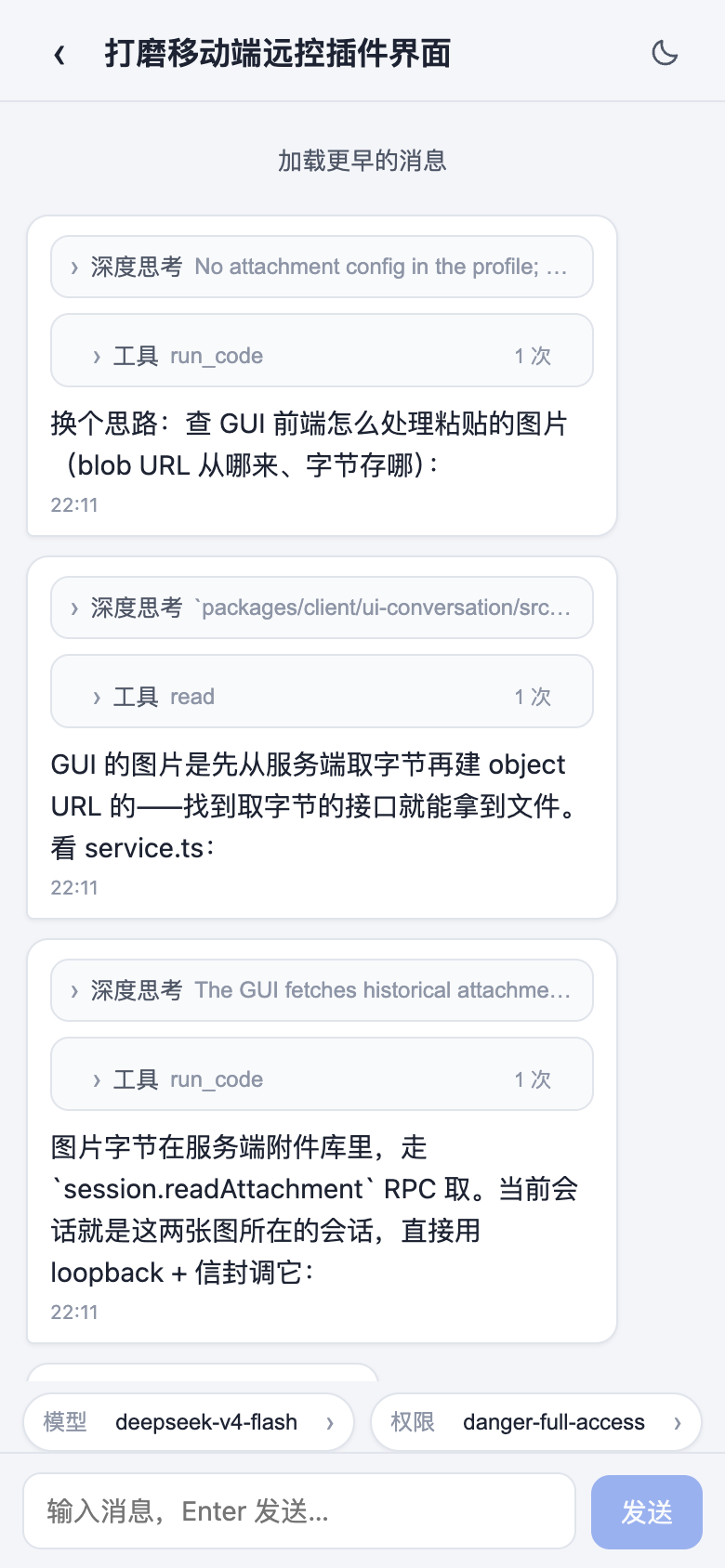
The phone surface on a 390pt viewport. Light is the default theme; a sun/moon toggle in every header flips to the dark palette at any time.
- Workspaces — the roster, each row a workspace with its own sessions:
- Sessions — one workspace's sessions, headed by the 新建会话 button
(creates a blank session attached to the workspace and opens it
immediately):
- Chat — messages with the desktop fold discipline (collapsed
深度思考 reasoning and 工具 tool-call rows), a pinned composer with
模型 / 权限 chips, and a live stream while the agent works:
- Model picker — the bottom sheet with a provider-grouped catalog and a
思考强度 section per model (the same
session.modelsdirectory the desktop uses):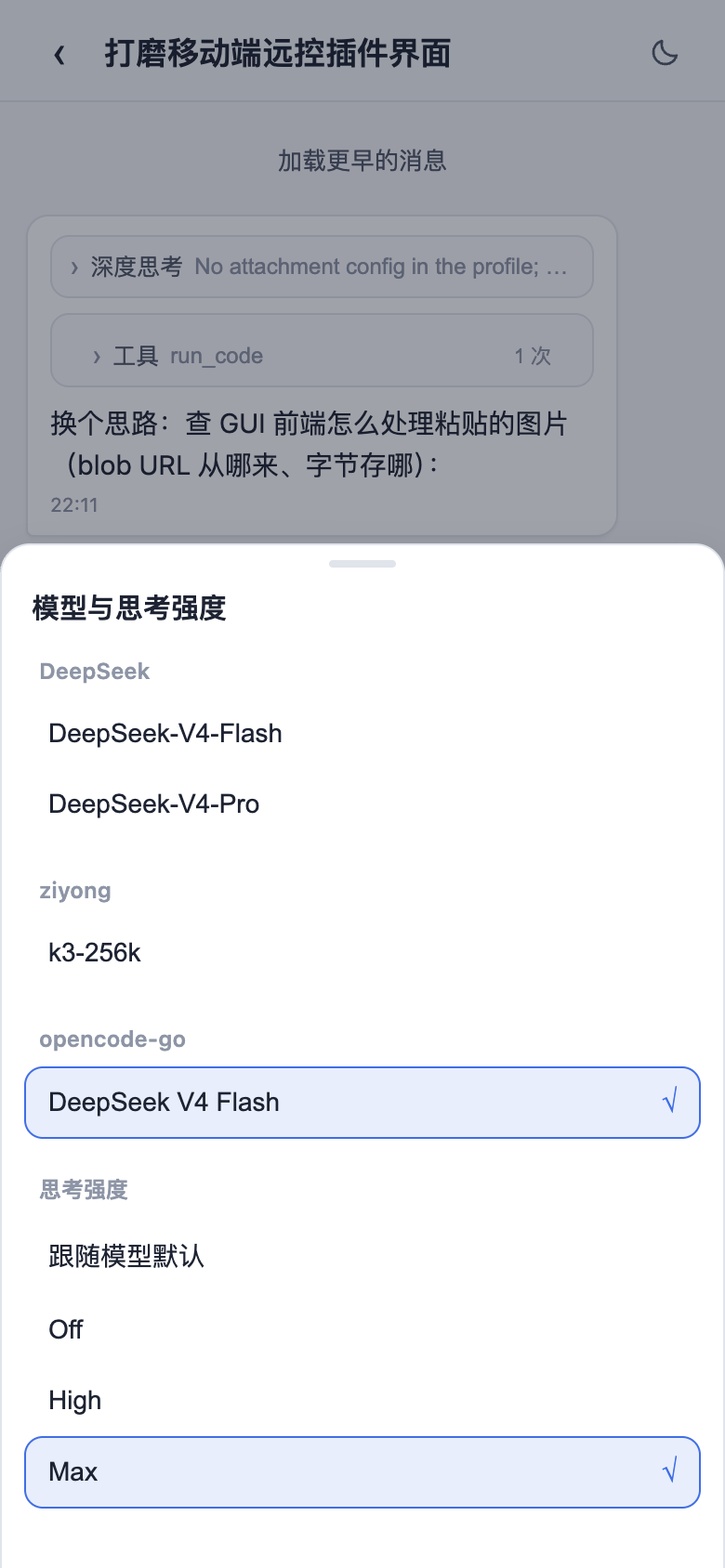
Requirements
Bind and access boundary
The package owns a small web-startup Cordis override through the public
@deepseek-ai/dsh-cmdline / webStartup seam; it does not modify official
DSH source files. The default remains the official loopback posture.
Passing dsh web --host 0.0.0.0 is an explicit LAN request recorded at the
app-owned seam, but the current official DSH web runtime still rejects
0.0.0.0 with its safety guard. This package does not bypass that guard,
so packaged LAN A/B is not a delivery gate for this round.
The package still keeps non-loopback access behind pairing and the default
mobile-only API channel; --trusted-host only expands the
transport trust list when a deployment intentionally uses another authority.
For packaged Desktop, the default is also loopback. The
DSH_DESKTOP_REMOTE_HOST=0.0.0.0 setting only forwards an explicit
request; the current official runtime still rejects it. The value is read in
Electron main and is not renderer-controlled.
- A DSH installation whose
dshCLI supports profiles (dsh --profile,dsh plugin) — the profile/bundle mechanism this package rides on. - LAN use requires a DSH build that explicitly permits all-interface binding.
The current official runtime rejects
0.0.0.0during startup, so the command above is only an optional field-validation path, not a delivery gate for this round. With the default127.0.0.1bind the panel shows an explicit explanation instead of a dead QR code — unless a public base URL is configured (see "Remote access over the internet" below), which makes the QR reachable from anywhere without rebinding. The panel's mint/stop endpoints are loopback-only by design: a desktop browser opened at the LAN URL sees a "配对面板仅限本机使用" banner instead — open the panel athttp://127.0.0.1and let the phone use the paired link. - For the one-click public tunnel (
autoTunnel),cloudflaredis a package dependency. Normal installation prepares its binary in postinstall; if the installer skips scripts or the app runs from a read-only ASAR, the first run downloads it to the profile-local$DSH_HOME/runtime-bin/cloudflared. With normal network access no user-side installation, account, or domain is needed — a Cloudflare quick tunnel is free and anonymous.
Install
Install the family aggregate package @linxin666/dsh-web-ui-all (all plugins and skins in one) or this plugin alone:
# Recommended: install directly from npm
dsh plugin --profile web add @linxin666/dsh-remote-web-ui

# Or from the repository (development loop)
git clone https://github.com/zhu1090093659/dsh-web-ui.git
cd dsh-web-ui
pnpm install && pnpm -r build
dsh plugin --profile web add link:$(pwd)/packages/dsh-remote-web-ui
Restart the profile (dsh web), then open the phone icon in the sidebar
foot. The plugin's cordis.patch.yml inserts the single plugin row that
mounts both halves.
github:/installs work for a standalone repo whose package sits at the root (thepreparescript buildslib/during install; pnpm ≥10 blocks that until you copy the printed key into the profile'spnpm-workspace.yamlallowBuildsand re-run). Monorepo subpackages use thelink:form above.
Use
- Start
dsh webon loopback by default. Only a DSH build that explicitly permits all-interface binding should receive--host 0.0.0.0; the current official runtime rejects that option. For actual phone acceptance today, use theautoTunnelor manual tunnel path below. - Click the phone icon → the panel mints a fresh one-time QR.
- Scan with the phone (or open the copied link): the phone binds and
lands on the standalone mobile surface at
/m— no desktop UI on a small screen. The surface is deliberately thin:- workspaces straight away (a 新建会话 button lives on each workspace's
session list: it creates a blank session attached to that workspace via
the host's
session.createand opens the new chat immediately), - one workspace's sessions load incrementally (20 rows per page, "加载更多会话" continues; never the whole list at once),
- opening a session fetches its chat content on demand (history pages, "加载更早的消息" goes further back),
- a live stream shows new messages as they arrive, with a prompt box
for sending your own (Enter sends and Shift+Enter inserts a newline
by default; set
mobileEnterToSend: falseto make Enter insert a newline and reserve sending for the 发送 button), - a light-first theme: the surface ships a light palette by default; a sun/moon toggle in every header flips to the dark palette and the choice persists across visits (localStorage),
- messages render with the desktop fold discipline: reasoning hides behind a collapsed 深度思考 disclosure, tool calls behind a collapsed 工具 row (tap to see each call's arguments), very long answers behind an explicit 展开全文 toggle, and each row carries its time — and
- a composer toolbar carries the model picker (provider-grouped
catalog with a 思考强度 effort section per model) and the 权限
picker (permission presets; 完全权限 requires an explicit confirm
step). Both ride the host's own
session.models/session.selectModelRPCs and the/permissioncommand — the phone changes the same session settings the desktop would.
- workspaces straight away (a 新建会话 button lives on each workspace's
session list: it creates a blank session attached to that workspace via
the host's
- The desktop badge flips to 已连接 in real time; it falls back to offline/断开 when the phone leaves.
- 刷新二维码 invalidates the old link and issues a new one. 停止 revokes mobile access: paired devices 403 on their next request, including their live stream.
The mobile surface is fully self-contained in this plugin: the /m page
and its data channel (/m/api) are served by the plugin's own routes and
need no harness source changes — the phone's RPC calls ride the
plugin's /m/api proxy (which delegates to the host ApiProxy service and
pages session.list itself), so the tunneled Host never has to enter the
connection plugin's trust fence. The phone is gated by its paired-device
cookie and an explicit method allowlist (settings/credentials/host-action
domains are never reachable from the phone; model reads/writes are limited
to the advisory session.models / session.selectModel pair, creation to
session.create (workspace id only — the phone never names a working
directory of its own), and the permission picker only ever sends the
mode-agnostic /permission command
through the already-allowlisted session.prompt); every live frame is
re-checked against Session ownership and device revocation aborts the stream
immediately; the live stream arrives over Server-Sent Events on
/m/api/events.mux.
Behavior notes
- The mobile composer sends on Enter by default (Shift+Enter inserts a
newline). Set
mobileEnterToSend: falsein the plugin settings card (or the profile patch) to make plain Enter insert a newline instead; sending then happens only through the 发送 button. The phone reads the flag through its own/m/apipreferences method when a chat opens. On browsers that supportfield-sizing: content, the input grows with the draft up to its 120px cap in either mode. - The default
remoteApiMode: mobile-onlyrejects non-loopback full/apirequests, even with a paired-device cookie. The phone-facing/m/apichannel performs its own pairing and resource checks; loopback (127.0.0.1) remains unaffected. SetremoteApiMode: legacy-full-apionly for old full/apiclients. In that compatibility mode, setrequirePairingForLan: falseonly if you intentionally accept open-LAN access; Workspace/Session-level resource isolation is not available there. - The QR link is built from the machine's non-internal IPv4 literals; a
multi-homed host (Wi-Fi + wired, or a proxy/VPN virtual adapter) shows a
radio picker so you can advertise the network the phone can actually
reach. The first literal is the default. When
publicBaseUrlis set, the picker adds a 公网地址 option on top — the default QR then uses the public base, and picking a LAN literal re-mints an in-network link. - A configured
publicBaseUrlsatisfies the reachable-bind requirement on its own:dsh webbound to127.0.0.1(no--host 0.0.0.0) still mints working public QR links through the tunnel.
Remote access over the internet (tunnels)
One-click public tunnel (recommended)
Turn on autoTunnel in the plugin settings card (or set
autoTunnel: true in the profile patch). The plugin then runs its own
Cloudflare quick tunnel — cloudflared is prepared in the writable
profile-local runtime directory, with no account or domain needed — and wires
everything itself:
- the minted
https://xxx.trycloudflare.comURL becomes the QR base, so a phone anywhere can pair. The panel shows the tunnel status (starting / running / failed with the reason), and a crash is restarted automatically with backoff.
The QR stays LAN-only until the tunnel reports its URL, and a tunnel
restart mints a NEW hostname — the plugin clears the old link and mints a
fresh one, so users never touch configuration. Note that a quick tunnel is
public: anyone with the URL can load the static page; the pairing gate is
the real fence, and the phone's data channel (/m/api) is protected by
its own paired-device gate plus a method allowlist — the tunneled Host
never needs to enter the connection plugin's trust fence, so no profile
or harness customization is required for the auto tunnel to work.
Manual tunnels (bring your own)
The QR link is normally a LAN URL, so a phone outside the house cannot use it. Point a tunnel at the dsh web port and tell the plugin its public address — the QR is then built from the tunnel URL and the phone-facing pairing fence trusts the tunneled host. Two knobs are involved:
publicBaseUrl(plugin config, in the profile patch or the settings card): the public origin, e.g.https://foo.trycloudflare.com. The QR link is built from it, andaccept/heartbeat/statusaccept its host. Malformed values are ignored with a warning (LAN-only behavior kept).--trusted-host(dsh web flag): the transport-level/apifence of the connection plugin must accept the public host too — without it every/apirequest through the tunnel 403s before the pairing layer (the plugin's own fence only covers the/api/pairroutes). Pass the public host (orhost:port) exactly as the tunnel forwards it.
Cloudflare Tunnel (quick tunnel — no account, no domain)
Install the client once (macOS: brew install cloudflared; other systems:
grab the cloudflared-darwin-{arm64,amd64} binary from the official GitHub
releases). Then:
# 1. Expose the local port (whatever dsh web is listening on):
cloudflared tunnel --url http://127.0.0.1:3080
#    prints something like: https://xxxx-xxxx-xxxx.trycloudflare.com

# 2. Start dsh web with that host trusted; keep the server on loopback by
#    default:
dsh web --trusted-host xxxx-xxxx-xxxx.trycloudflare.com
Then set publicBaseUrl: https://xxxx-xxxx-xxxx.trycloudflare.com in the
profile patch (or the plugin settings card — it hot-reloads). Open the
phone icon at http://127.0.0.1, scan the QR from anywhere: the phone
binds, reloads into the mobile surface, and heartbeats keep it online.
Notes:
- Quick tunnels are free and need no login, but the hostname is random per
run: every
cloudflaredrestart changes it, so update--trusted-hostandpublicBaseUrltogether. Cloudflare documents no uptime guarantees; in-flight-request concurrency is capped (HTTP 429 past it), and Quick Tunnels do not forward Server-Sent Events.Tailscale Serve(andtailscale serveon a single port) behaves the same way. SSE is how the phone receives live messages in real time, so over a quick tunnel or Tailscale Serve the mobile chat falls back to polling: the phone st