dsh-panellist
Panellist manager for DeepSeek Harness: take over the left rail — order, show/hide, rename, re-icon, and collect panels into flyout groups. Configuration lives in a new Settings tab and applies instantly. 适合需要自定义左侧栏顺序、图标、名称及分组的 DSH 用户。
Install
npx -p @deepseek-ai/dsh dsh plugin --profile web add github:qwq1999/dsh-panellistREADME
Read the full README ↗dsh-panellist
The management plugin for the Panellist in the DSH (DeepSeek Harness) client.
The Panellist is the column on the left of the session UI: the global entries contributed by individual plugins — plugins, automation tasks, skill center, memory system, SSH, MCP connectors… They come from different plugins, each declares its own order, and each decides its own icon and name.
This plugin lets the user take over: which Panel entries appear on the rail, in what order they appear, what they are called, what icon they use, and which entries are folded into a Group. All configuration is done in a new tab in Settings, and changes take effect immediately.
Status: implemented. This README pair is the whole specification — there is no separate design document: behaviour is §2–§3, the configuration and the interfaces are §4, the compatibility contract is §5, how to install it is §6, and how it is built is §7. The normative configuration shape is
docs/schema/config.schema.json.Three refinements to the original design (all discovered during implementation and backfilled into this document): the rail id of a Group is
dsh-panellist:; unconfigured Panel entries are always listed on the rail, but anorderis written only once the Sequence is non-empty (i.e. after your first structural change); and the/panellist/api/revealendpoint was added to implement "Open config file".
Screenshots
| Settings → Panel list | A Group menu on the rail |
|---|---|
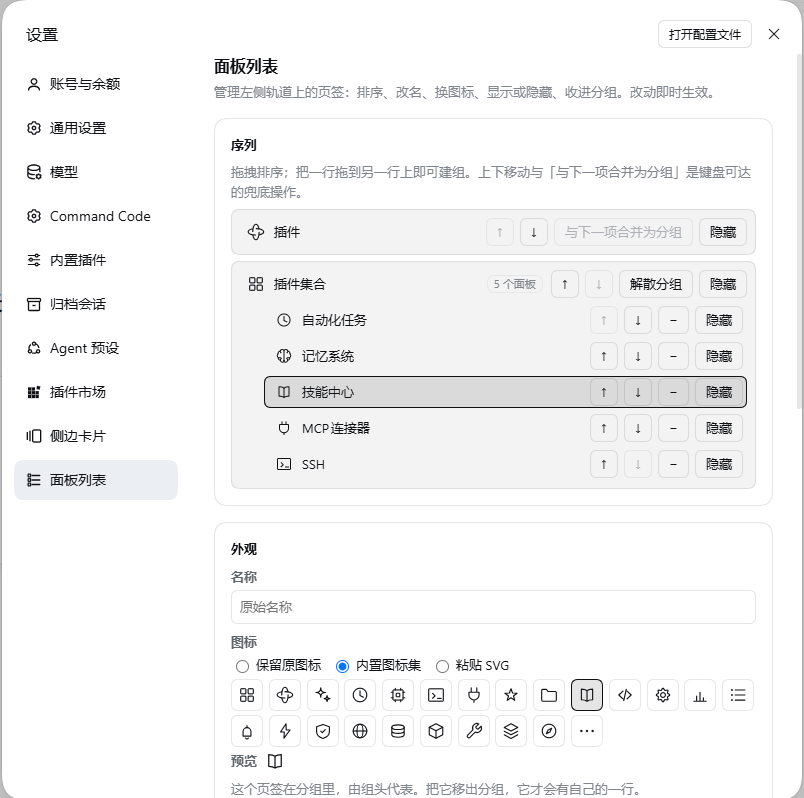 | 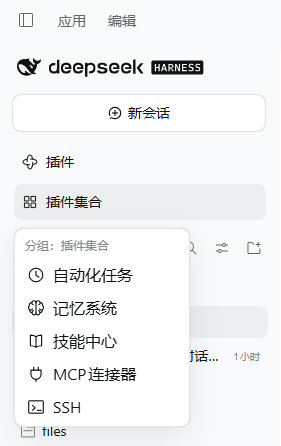 |
1. Why it is needed
The DSH Panellist is a read-only projection: the shell enumerates the registrations in the sidebar.panellist slot and renders them sorted by the order each item reported at registration time. No official API is provided for rewriting someone else's registration:
- Order is read-only — a plugin can only decide the
orderof its own item; - There is no concept of a "Group" — one row is one Panel entry;
- The icon is decided by the component the contributor provides, and the name is decided by the contributor's
label; - The icon of the Settings navigation tab can only be picked from a list built into the kernel.
So this plugin has to use two levers at the same time, and keep DOM intervention to a minimum:
- Registry rewrite — rewrite the order, name and icon component on the registration at runtime (the registration object is not frozen and is handed back by the slot registry, so a post-hoc write is visible to the shell); this plugin's changes do not touch any plugin's own page.
- Minimal DOM/CSS reprojection — only one thing cannot be done through the registry: taking a row off the rail. Group rows are registrations too (registered by this plugin), so their row box, highlight, tooltip and collapsed-state behavior still come from the shell; the popup menu is an overlay and does not modify native rows.
2. Behavior spec (confirmed)
2.1 What it manages
- All registrations in the Panellist are treated alike: kernel-shipped items (plugins, automation tasks, skill center, memory system, SSH, MCP connectors) and items registered by third-party plugins can all be managed.
- This plugin's own settings tab is not in the Panellist, so it is not managed.
- Real Panel entry ids are discovered at runtime and are not hard-coded; the ids in this document's examples are illustrative only.
2.2 Sequence model
The Sequence is a series of ordered items, each of which is either a single Panel entry or a Group:
- Each Panel entry appears exactly once in the whole Sequence (the Sequence is a partition of the set of Panel entries, with no duplicates);
- A Group itself occupies one position in the Sequence and contains an ordered subset of Panel entries;
- Only one level of nesting is allowed (a Group cannot contain another Group);
- An empty Group is invalid; a Group with only 1 item is allowed, but the management panel warns about it.
The design conversation settled the notation this way (G{…} = one Group):
| Notation | Interpretation |
|---|---|
a c b d e | [a][c][b][d][e] |
a b c | [a][b][c] |
a dropdown(b c d e) | [a][G{b,c,d,e}] |
a dropdown(b d e c) | [a][G{b,d,e,c}] |
a dropdown(b e c)d | [a][G{b,e,c}][d] |
dropdown(a b c)d e | [G{a,b,c}][d][e] |
2.3 Shown / Hidden
- There are only two states: Shown / Hidden (there is no third "disabled" state).
- Hidden = it no longer appears on the rail, but the Panel entry itself still exists and is still usable (it can be selected from the management panel, and activated by other plugins or keyboard shortcuts), and the functionality of the plugin it belongs to is unaffected.
- Exception: if a Hidden Panel entry is currently active, its row is shown temporarily — avoiding the case where "the user is still on this page, but the rail has no entry for it".
- Members of a Group can be hidden too, where "hidden" means "left out of the Group menu": a member's rail row is already suppressed by the Group, so for a member hiding only affects the flyout. The member stays in the Group — the count, the ordering and the Group trigger highlight all still see it.
- A missing member is left out of the Group menu automatically (its registration is gone, and a disabled "missing" row in the menu only took up room the user cannot act on). It stays in the configuration and in the settings page's "missing panels" list, waiting to be cleaned up.
2.4 Label override
- A pure display-layer override, affecting only three places: the text of the rail row, the tooltip text in the collapsed state, and the accessible name.
- It does not change same-name displays elsewhere in DSH (Settings, command palette, etc.), and does not change the original name declared by the contributor.
- The first version is a single string, effective for all languages.
2.5 Icon override
Three sources, and you can switch back to the original icon at any time:
- Keep the original icon (default);
- Built-in icon set — 24 inline vector glyphs shipped with this plugin (zero dependencies, usable offline). They are drawn to the spec the icons beside them in the rail are drawn to — the
Icon*OutlineRegularweight:viewBox="0 0 16 16",fill="none",stroke="currentColor"at 1px, geometry on the 16 grid at half-step coordinates inside roughly 2…14, round caps and joins,aria-hidden, no ids and no external references. Three of them are the shipped artworks of the rail's own defaults, so a panel given one of them looks identical to the entry it replaces:puzzleis the plugin pinwheel (IconPluginPinwheelOutline),clockthe clock (IconClockOutline),morethe ellipsis (IconEllipsisOutline). The set is checked mechanically at 16px next to those shipped artworks, and its ink extents are measured against them; - User-uploaded icon — paste SVG source;
- Allowlist sanitization: removes
script,foreignObject, event attributes, and external references (cases wherehref/xlink:hrefpoint outside); - A single SVG is capped at 64 KB;
- Inline rendering (not ``), so it follows the theme's colors.
- Allowlist sanitization: removes
The settings navigation row has its own dedicated glyph (a panel list, at the heavier Icon*OutlineMedium 1.3px weight that column is drawn at) — see §3.
2.6 Groups and Group triggers
- A Group trigger has its own icon and name; by default they are pre-filled from the icon and name of the "first item in the Group" (a common name is "More"), and the user can change them. When no name is set, the trigger text is resolved from the first live member at render time — nothing is baked into the config.
- The Group trigger's whole row is clickable, and clicking it expands the Group menu; a whole-row click is always used to expand the menu and never navigates to a page. The menu lists the Group's members and nothing else: an "Overview" link to the Group's own page used to sit in its title row and was removed on user feedback. That page still exists as the Group's
mainfallback (so selecting the Group id programmatically cannot error) but has no entry point of its own. - When any item in the Group is active, the Group trigger is highlighted, so the user can tell which Group the current page is in without expanding the menu.
- When a Group is created, it is inserted at the original position of its topmost member — that is, the Group "grows" where its members already were. The model guarantees this (
createGroupanchors on the identity of the row above the topmost member), so it holds for any gesture.
2.7 Group menu
- Opens on click (not on hover, to avoid accidental activation).
- Lists the members the user can act on: a member that is hidden (§2.3) or missing is left out, and a Group whose members are all hidden says so instead of showing an empty card.
- Keyboard accessible:
Enter/Spaceexpands,Esccloses, and the up/down arrow keys move within the Group. - When the sidebar is collapsed into the 56 px rail, the menu always flies out to the right (flyout).
- The menu scrolls when the number of items in the Group exceeds the visible height; the first version does not do an in-Group search box.
2.8 Unconfigured items and Orphans
- A newly installed plugin registers a Panel entry you have not touched yet → it is listed in the sequence straight away (after the configured entries, arranged by its own order); there is nothing to opt into first.
- The contributor of a Panel entry is uninstalled while the config still holds it → the config is kept, the management panel marks it "missing", and offers a "Clean up orphans" button.
- Until you make a STRUCTURAL change (a drag, creating or dissolving a group), this plugin writes no order at all: the rail keeps the order its contributors chose. A rename, a re-icon or a hide only overrides that one entry and leaves the order alone — which is what "we do not touch what you did not ask us to touch" means in practice.
2.9 How a change takes effect
Config changes take effect immediately: no need to restart DSH, no need to reload any plugin, and no need to reload the page. That holds for every edit, including the ones that write nothing at all: the rewrite pass compares a digest of everything the rail renders (order, name, icon, shown/hidden) and re-projects when it moves, so a second icon pick or a second rename lands on the rail just like the first one did.
2.10 Scope of takeover
The management panel lists the whole rail from the first time it is opened: there is nothing to "adopt" before you can touch a Panel entry, and there is no "not taken over yet" list. (An earlier design had a "not configured" list with per-item take-over / release buttons; it was removed on user feedback — it only added a step. A banner plus a "use the current rail order as a starting point" button went the same way: the list is the rail either way, so the gate is invisible.)
What still holds is the minimal-intervention property in what gets WRITTEN, not in the UI:
- The config's
sequenceis partially authoritative: it records only what you actually changed. - A
sequencethat is empty means noorderis written at all (the state right after installation, a pure no-op), and an unconfigured Panel's name/icon/hidden state is left entirely alone; it keeps the contributor's own order. - Your first structural change (a drag, a merge into a Group) writes the current order out as an explicit sequence; unconfigured entries stay after the configured block in their own native order (§2.8).
Implementation (src/shared/model.ts): rows is always the whole rail (an unconfigured row's order is null, meaning "do not write"), while reordering decides whether an order is written at all.
2.11 One live mount per page
The shell may apply a client bundle more than once on one page (it re-evaluates a bundle whose file changed, an HMR pass re-applies it). Two controllers over one ledger fight: the second one captures the first one's glyph wrappers as if the contributors had installed them, and both write the same entries. apply therefore retires the previous mount before building its own (src/client/mount.ts), and every wrapper this plugin installs is recognisable, so an entry still holding one is unwrapped rather than adopted (§7.2).
3. Settings tab
Adds one item to the left side of the Settings dialog:
- Name: Panel list (
面板列表); position: near the end of the settings navigation; - Icon: its own glyph — a panel list drawn at the
Icon*OutlineMedium(1.3px) weight every other row in that column is drawn at, painted over the kernel's fallback gear as acurrentColormask. The settings navigation has no icon field in its contract, so the row is located by its visible text and marked; if that probe fails, the native gear stays (without reporting an error). See §7.5. - The page has no "Done" button: the dialog already owns that affordance (the X beside the page).
Page content:
3.1 Sequence editor
- Lists the whole rail — every Panel entry from the first open, with nothing to adopt first.
- Drag and drop is the main channel: reorder, drag a row into an existing Group, drag a member back out.
- Each row's "Group with next" creates a Group; a Group row's "Ungroup" dissolves one.
- Move up / Move down are the keyboard fallback.
- Every row carries a "Hide"/"Show" button that toggles that row in place — Group rows included, and the member rows inside a Group too (a hidden member leaves the Group menu, §2.3).
- Clicking a row's name opens that row's appearance editor (§3.2), including a Group's members, which have no row of their own.
3.2 Appearance override for an item
- Name: a single string override (§2.4).
- Icon: keep the original / the built-in set / paste SVG (§2.5), with a live preview. Picking a built-in icon previews it at the row's own size, and the preview for "keep the original" shows the contributor's real component.
- Visibility is the per-row "Hide"/"Show" button in the sequence list — one entry point, not two.
- A panel shown inside a Group says so here, so it is obvious why its rail row is not on the rail.
3.3 Group editing
- The Group trigger's name and icon.
- The ordered member list: move a member up/down, take it out of the Group, hide or show it.
3.4 Config import / export
Import validates the document before writing it; export serialises the whole file (all profiles). A failed import reports the field-level reason and changes nothing.
3.5 Open config file
POST /panellist/api/reveal opens $DSH_HOME/panellist.json in the system file manager. The path is also printed next to the button.
3.6 Missing panels
Configured ids with no registration are collected here with a count, and "Clean up missing panels" removes them — after an explicit confirmation, never automatically.
3.7 Self-check status
The result of the four startup probes (§5) with a "Re-run self-check" button. A failed probe shows what it measured, what is therefore disabled, and the DSH version the plugin measured.
4. Config and interfaces
4.1 Location and scope
- File:
$DSH_HOME/panellist.json(permissions0600, written as "temp file + atomic rename", falling back to a direct write when a Windows file lock conflicts); - Scope: separated per profile inside the same file, because different profiles have different plugins installed;
- Migration: the config carries a
schemaVersion, and an older version is migrated as needed when read; - Corruption: on a parse failure the original file is backed up and defaults are restored, without silently discar