dsh-ui-colors
Surface and border colors, named presets, palette spectra, and radius presets for the DSH Web GUI 适合需要微调DSH界面颜色以匹配IDE(如VS Code)主题的用户。
Install
npx -p @deepseek-ai/dsh dsh plugin --profile web add github:scsmash3r/dsh-ui-colorsREADME
Read the full README ↗dsh-ui-colors
Customize maximum theme coverage with a minimal set of controls.
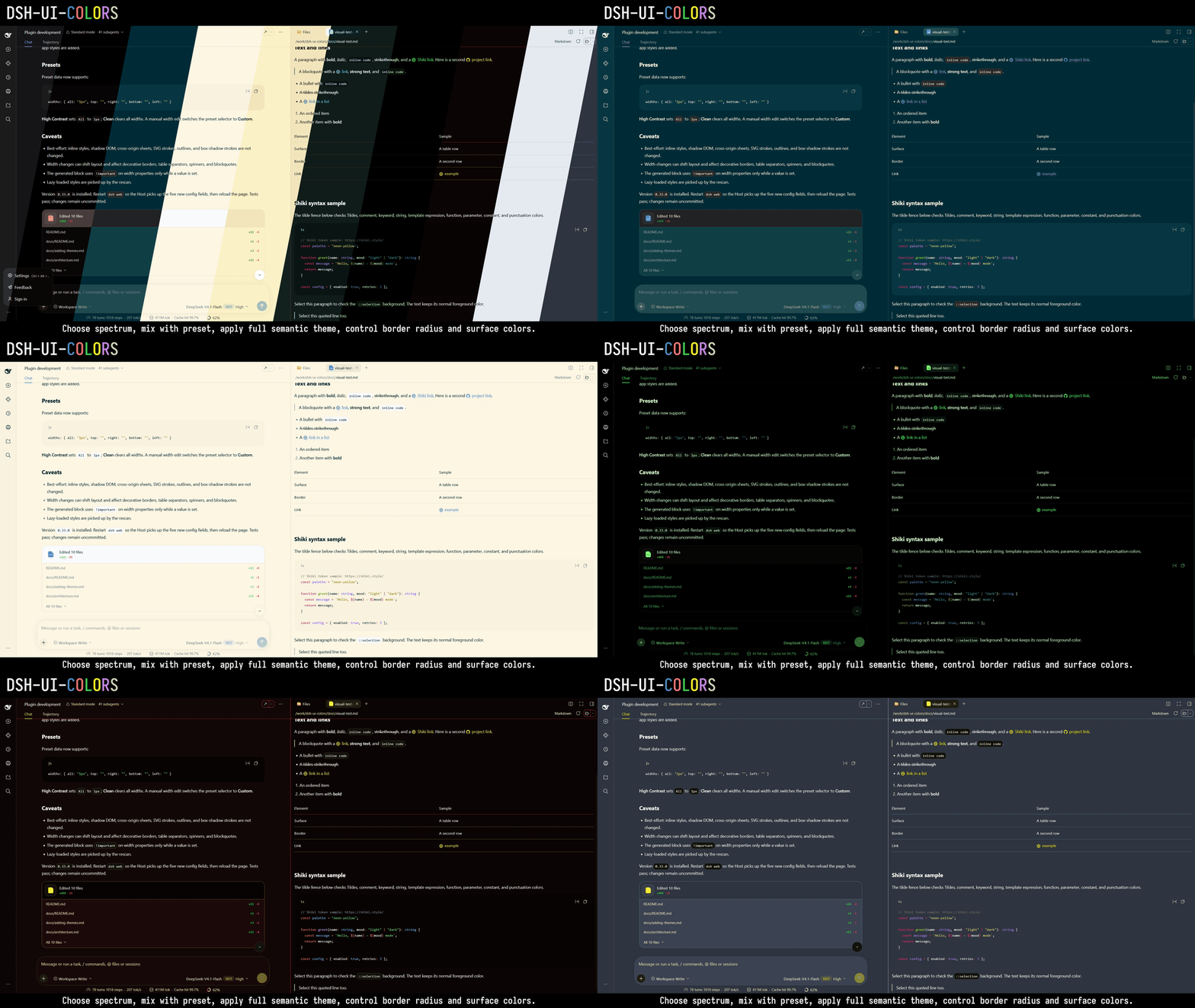
This is a UI plugin I wrote for myself for controlling how DSH WEB client looks like. Basically I wanted to achieve maximum theme coverage with a small set of controls. I mainly use DSH from VS Code, where I already have a custom editor theme, so I wanted to match built-in browser dsh web window with my IDE's theme.
Directly applying VS Code theme into DSH is not possible without some crude adapters, so instead I started with dsh-web-ui-design-spec.md and built this plugin. It modifies basic primitives and color tokens, so UI should be consistent in other plugins that utilize the same default DSH CSS. Yes, of course you can modify the UI, using the agent itself, but here's the plugin already that covers most of basic UI needs for majority of geeks out there.
https://github.com/user-attachments/assets/38989c9b-eb91-4b53-b662-8c608da9e6c2
What this UI plugin offers and adds in DSH?
Under Settings → Customize:
- Palette — nine spectra, color presets, and the Full semantic theme switch.
- Syntax highlighter — six Shiki token themes: Default, GitHub, Nord, Dracula, Solarized, Monokai.
- Selection — Apply spectrum to ::selection, independent of the full theme.
- Colors / Neutral / Borders — per-surface fills, 16 neutral steps, and four border colors.
- Border radius — Default, Half, or None.
- Language — English and Simplified Chinese follow the DSH locale setting; changing the DSH language updates the section without a reload.
The dsh-ui-colors plugin adds a "Customize" section under "Settings", where you can have some options to tweak: under Palette you have a "Spectrum" to choose from main accent colors, and under "Preset" there are some basic presets that change the values of surface fills, neutral color steps and border colors.
You also have a "Full semantic theme" switch, where the colors from the spectrum are also applied with its own inner color scope, adding some more colors instead of just hue and saturation from one main color.
For those who are paying meticulous attention to details, the ::selection of the text can also be overriden by checking independent option "Apply spectrum to ::selection". Also "Border radius" can be changed from default to half and to none (having square, sharp corners if someone prefers).
DSH uses the Shiki syntax highlighter, so that colors can be changed too. There are already a few themes added.
If customization is needed, you can always add your "Spectrum" colors or "Presets". The data lives in lib/client.js and adding a spectrum or preset is a small source change. The agent can help with that.
Oh, and of course you can manually modify some values per surface in "Colors", also changing some "Neutral" values here and there and to play around with "Borders".
Plugin uses the supported theme seam rather than patching the UI:
ctx.theme.overrideTokens('ui-colors', {
  '--dsw-specific-sidebar-fill': { light: '#…', dark: '#…' },
  …
})
Colors and borders are ordinary volatile plugin config, so they persist in the profile patch alongside the other UI preferences. The override layer applies live; no reload is needed after changing a value.
[!TIP] That is all for now, but I am open to suggestions for what to add next. Or you can rely on your agent and inject some presets and spectra yourself.
Documentation
- Architecture — Host/client split, token layers, state, and scoped surfaces.
- Token policy — coverage categories, audits, and how to classify a new token.
- Adding themes — spectra, color presets, and Shiki syntax presets.
- Install and troubleshoot — npm/bundle install, restart rules, and common failures.
- Visual color test — paste-ready Markdown for checking surfaces, links, tildes, selection, and Shiki.
- Changelog — release history and current alpha scope.
- Security policy — supported versions and private vulnerability reporting.
- Accessibility audit — source-level review, keyboard/ARIA fixes, and remaining gaps.
Technical breakdown for agents
Below are the specific details that can be of use for working agents.
Surfaces
| Surface | What changes | How |
|---|---|---|
| Sidebar | Left column and title row | --dsw-specific-sidebar-fill |
| Nav hover / active rows | --dsw-specific-sidebar-nav-item-hover, --dsw-specific-sidebar-nav-item-active | |
| Sidebar text, buttons, borders, scrollbar | Scoped --dsw-alias-label-*, --dsw-alias-button-*, --dsw-alias-interactive-bg-*, --dsw-alias-border-l3, --dsw-alias-scrollbar-* | |
| Main | Center column / transcript background | Scoped background + --dsw-alias-bg-base on the center column |
| Raised Surface | Primary raised surfaces: cards, pane chrome, the Trajectory toolbar | Global --dsw-alias-bg-layer-1 |
| Secondary Main | Secondary raised surfaces: settings panel/cards, raised cards, popovers | Global --dsw-alias-bg-layer-2 |
| Composer | Message input surface | --dsw-specific-input-major |
| Right panel | Files/terminal/browser column | Scoped background, --dsw-alias-bg-base, --dsw-alias-bg-layer-1/2/3 on the right column |
| User bubble | User message bubble | --dsw-specific-bubble, plus a derived --dsw-specific-bubble-highlight |
| Code blocks | Markdown code block and header | --dsw-alias-markdown-code-block, plus a derived --dsw-alias-markdown-code-block-banner |
An empty mode keeps its theme default, so you can override only light or only dark. Values use #RRGGBBAA; a six-digit value is accepted and treated as opaque (ff). The sidebar’s derived text colors use the fill’s RGB channels only, so a translucent sidebar is composited by the browser while its text contrast is still calculated from the opaque color.
Neutral
The Neutral row exposes the 16 pure --dsw-static-neutral-* steps (00 through 1000), each with independent light/dark #RRGGBBAA inputs. An empty step keeps the active theme value; placeholders show the host neutral scale. Explicit neutral values override both the host scale and the palette-tinted neutral ramp generated by the full theme, because the color layer is applied last. The row has its own Reset; the Colors and Borders resets do not clear it. Its input grid starts collapsed under a Show neutral inputs disclosure; the header and Reset stay visible.
Borders
The Borders row exposes the four shared border aliases. Each level has independent light/dark values and the same #RRGGBBAA format. Its grid starts collapsed under a Show border inputs disclosure.
| Level | Token | Light placeholder | Dark placeholder |
|---|---|---|---|
| Border 1 | --dsw-alias-border-l1 | #0000000a | #ffffff0f |
| Border 2 | --dsw-alias-border-l2 | #0000001a | #ffffff1f |
| Border 3 | --dsw-alias-border-l3 | #0000001f | #ffffff29 |
| Border 4 | --dsw-alias-border-l4 | #00000029 | #ffffff33 |
An empty level keeps the theme default. Border 4 is the strongest level; it also feeds some divider fills and strong elevation strokes, so changing it can affect more than outlines. Border widths and styles remain component-owned. The row has its own Reset; the Colors reset clears only surface fills.
The focus ring (--dsw-focus-ring-color) is not one of these four levels and stays theme-controlled.
Secondary Main maps to the global --dsw-alias-bg-layer-2 alias, not a Settings-specific override. It therefore also changes every secondary surface that consumes that token — the Settings dialog and its cards are the most visible examples, but raised cards and popovers use the same layer. Choose a fill that keeps text readable across those surfaces.
Raised Surface maps to the global --dsw-alias-bg-layer-1 alias. It changes every primary raised surface that consumes that token, including cards, pane chrome, and the Trajectory toolbar; it is not scoped to a single container.
Border radius
The Border radius row exposes the shared --dsw-radius-* scale as three mutually exclusive presets:
| Preset | Result |
|---|---|
| Default | 4 / 8 / 12 / 16 / 20 / 28px for xs / sm / md / lg / xl / panel |
| Half | Each default divided by two and floored: 2 / 4 / 6 / 8 / 10 / 14px |
| None | Every radius token set to 0px |
The row uses a separate override layer (ui-colors-radius) from the surface colors (ui-colors), so changing one does not replace the other. The selected preset is persisted as radiusMode in the same ui-colors settings namespace and applies live.
Only token-based radii change. Components that draw circles or pills with a hardcoded 50%/999px radius keep their circular shape; the preset controls the shared radius scale.
The Automation tasks page and its right-side task tab are an exception in the other direction: that package hardcodes most of its radii (16px, 14px, 12px, 10px, 18px, and so on) instead of consuming the shared scale. The plugin bridges those known local class names back to the radius tokens, so the same Default/Half/None preset applies there too. The bridge is best-effort; if those class names change, the schedule package keeps its original values.
Palette
The top row exposes a Bluish / Olive / Ember / Midnight Plum / Deep Charcoal / Solarized / Cyan OLED / Neon Yellow / Acid Hacker Green picker plus a Full semantic theme switch. The picker shows a colored ▓ preview beside the current spectrum name, and repeats it beside every choice in the open list. Bluish is the default and adds no override. The spectrum presets remap the raw static scales:
--dsw-static-neutral-bluish-*— the blue-tinted neutral scale used for backgrounds, text, borders, and many raised surfaces.--dsw-static-blue-*— the selection/informational blue scale.--dsw-static-deepseek-*— the brand accent scale used by links, focus, business state, info buttons, and the user bubble.
Olive, Ember, Midnight Plum, and Deep Charcoal apply fixed palettes generated from the shipped bluish values by rotating hue in OKLCH while preserving lightness. Plum keeps a refined plum accent; Charcoal uses cool near-neutrals with muted steel-blue accents. Solarized uses the actual Solarized base and accent colors: the neutral scale becomes base3/base2/base1/base0/base00/base01/base02/base03, the blue scale becomes Solarized cyan, and the deepseek scale becomes Solarized blue.
Cyan OLED uses a cool cyan-tinted neutral scale with near-black 900–1000 steps, a cyan blue scale, and a bright cyan deepseek accent. Its dark end is deliberately close to black for OLED-style surfaces. Like Acid Hacker Green, it always runs as a full semantic theme and locks the switch on; its stronger cyan seed gives labels, surfaces, links, buttons, focus, and selection more cyan presence.
Neon Yellow uses a warm yellow-tinted neutral scale, a neon yellow accent in Dark, and a deeper amber accent in Light for contrast. It also always runs as a full semantic theme and locks the switch on. Dark appearance gets near-black surfaces with bright yellow labels, links, focus, and borders; Light appearance gets warm pale surfaces with deep amber accents.
Acid Hacker Green is the hand-tuned dark variant: in Dark appearance it keeps pitch-black surfaces and phosphor-green text, and its dark semantic border tokens are black. In Light appearance the full theme generates a green-tinted light counterpart from the same accent. It no longer forces color-scheme. For the plain spectrum presets, semantic green/red/amber status colors and the pure neutral scale stay unchanged, so success/error/warning remain recognizable.
The presets are fixed snapshots of the current DSH base scale. If a future DSH build changes that scale, the presets keep the values they were generated from. Some aliases use raw hex or color-mix() and therefore do not follow the palette.
The Full semantic theme switch turns the selected spectrum into a complete theme with separate light and dark variants. Light appearance uses near-white palette-tinted surfaces, dark tinted text, a darker accent (deepseek-600), and darker status colors. Dark appearance uses near-black surfaces, light tinted text, the brighter accent (deepseek-400), and the bright status colors. The theme follows the host Light/Dark appearance, so no color-scheme is forced; code syntax token colors follow the host mode unless a Syntax highlighter preset overrides them. The pure --dsw-static-neutral-* ramp is palette-tinted too, so raw neutral consumers match the selected spectrum; neutral-bluish remains the stronger tint. It does not force component borders; hover and focus borders follow the token values. Acid Hacker Green remains the preset shortcut: dark keeps the hand-tuned black/green theme, light gets a generated green light theme, and the switch is checked and disabled there. Cyan OLED and Neon Yellow are likewise locked on, but use the generated cyan and yellow themes in both appearances. Explicit surface colors from Colors and explicit border colors from Borders still win over the theme's aliases because the color layer is applied last.
Apply spectrum to ::selection is independent of the full-theme switch. When enabled, selected text uses the current spectrum's accent at 40% alpha in both Light and Dark; when disabled, the host selection color returns. The check lives beside Full semantic theme in Palette.
The sidebar also derives a readable text palette, hover/active tints, button fills, borders, and scrollbar colors from its fill, so a dark sidebar in light mode stays legible. The other surfaces keep the active theme's text colors; choose fills that keep enough contrast with the current light/dark text.
Syntax highlighter
The Syntax highlighter row overrides the nine Shiki --shiki-token-* CSS variables used by fenced code blocks. It offers Default, GitHub, Nord, Dracula, Solarized, and Monokai. Each option supplies separate Light and Dark token colors; Default removes the override and restores the host Shiki tokens.
The row uses a separate ui-colors-shiki layer. It does not change --shiki-background or --shiki-foreground; those stay tied to the Code blocks surface and the active theme, so the code block fill you choose in Colors remains in control. The picker shows four ▓ previews sampled from the preset's comment, keyword, string, and function colors.
Presets
The Preset picker beside Spectrum applies a named set of Colors, Neutral, and Borders values, or clears every color override with Clean. Every option shows two ▒ previews sampled from its Neutral 500 value: the first for Light, the second for Dark. A named preset only writes the fields it defines; light values and unlisted fields keep their current state. Any manual edit in Colors, Neutral, or Borders switches the dropdown to Custom. Presets do not change the palette, Full semantic theme, or Border radius.
| Preset | Surfaces | Borders |
|---|---|---|
| Pitch Black | Dark: every surface #000000ff | Dark: Border 1 #ffffff05, Border 2 #ffffff15, Border 3 #ffffff07, Border 4 #ffffff12 |
| Copper Patina | Light: warm parchment; Dark: deep oxidized patina | Light: muted copper alpha; Dark: brighter copper alpha |
| Gruvbox | Light: classic cream and sand; Dark: warm charcoal a |