HarmlessFunny/dsh-background-by-model ↗★ 3
dsh-background-by-model
Appearance plugin for DeepSeek Harness: an ordered list of model rules, each carrying its own wallpapers — every image with its own framing and theme color — plus layout mode, opacity and blur; the background follows the model you switch to, and a rule can rotate through several images on its own rhythm. 适合追求个性化界面、希望背景随模型切换而自动变化的视觉定制用户。
インストール
npx -p @deepseek-ai/dsh dsh plugin --profile web add github:HarmlessFunny/dsh-background-by-modelドキュメント
README 全文を読む ↗dsh-background-by-model


English | 中文
Forked from
Tkingxiao/dsh-any-backgroundand renamed todsh-background-by-model.
A DeepSeek Harness appearance plugin built around an ordered list of model rules. Each rule carries its own wallpaper, theme color, layout mode, framing, opacity and blur — switch the model, and the background switches with it.
v0.3.0 is a breaking release. Video wallpapers, generated dynamic backgrounds and the single global theme color were removed. See the v0.3.0 entry in CHANGELOG.md.
How Model Rules Work
A rule is a match string plus one complete set of background settings. When you switch models, the plugin reads the current session's model name, scans the list top-down, and applies the first rule whose match string appears anywhere in that model name (case-insensitive). If nothing matches, rule 1 is used — rule 1 doubles as the fallback.
Example list:
| # | Match string | Wallpaper |
|---|---|---|
| 1 | deepseek | Image A |
| 2 | flash | Image B |
| 3 | glm | Image C |
| Current model | Result | Why |
|---|---|---|
DeepSeek-Flash | Rule 1 → Image A | deepseek matches first |
GLM-Flash | Rule 2 → Image B | flash is earlier in the list than glm |
Qwen-Flash | Rule 2 → Image B | flash matches |
GLM-Turbo | Rule 3 → Image C | only glm matches |
Kimi-K3 | Fallback → Rule 1 → Image A | no rule matches |
Notes:
- Order matters. The first match wins, not the best match — drag rules to reorder them.
- An empty match string makes a rule skip matching entirely and act purely as a fallback. A single rule with an empty match string is therefore "one wallpaper everywhere".
- The match string is compared against the concatenation of provider, model id and model display name, so any of the three can be used to select a rule.
- The current model is read from this session's durable model selection (the
modelSelectionprojection — the same value the composer's model picker renders), so switching the model inside a session takes effect immediately. The Model Background page shows which model was read, and labels it host default when only the host-wide default was available instead of this session's own selection.
Note: the example table above has no
kimientry, so switching to Kimi falls back to rule 1 = Image A, which looks like "nothing happened". Add a rule with the match stringkimito give Kimi its own wallpaper.
Screenshots
One interface, one config — only the current model differs:
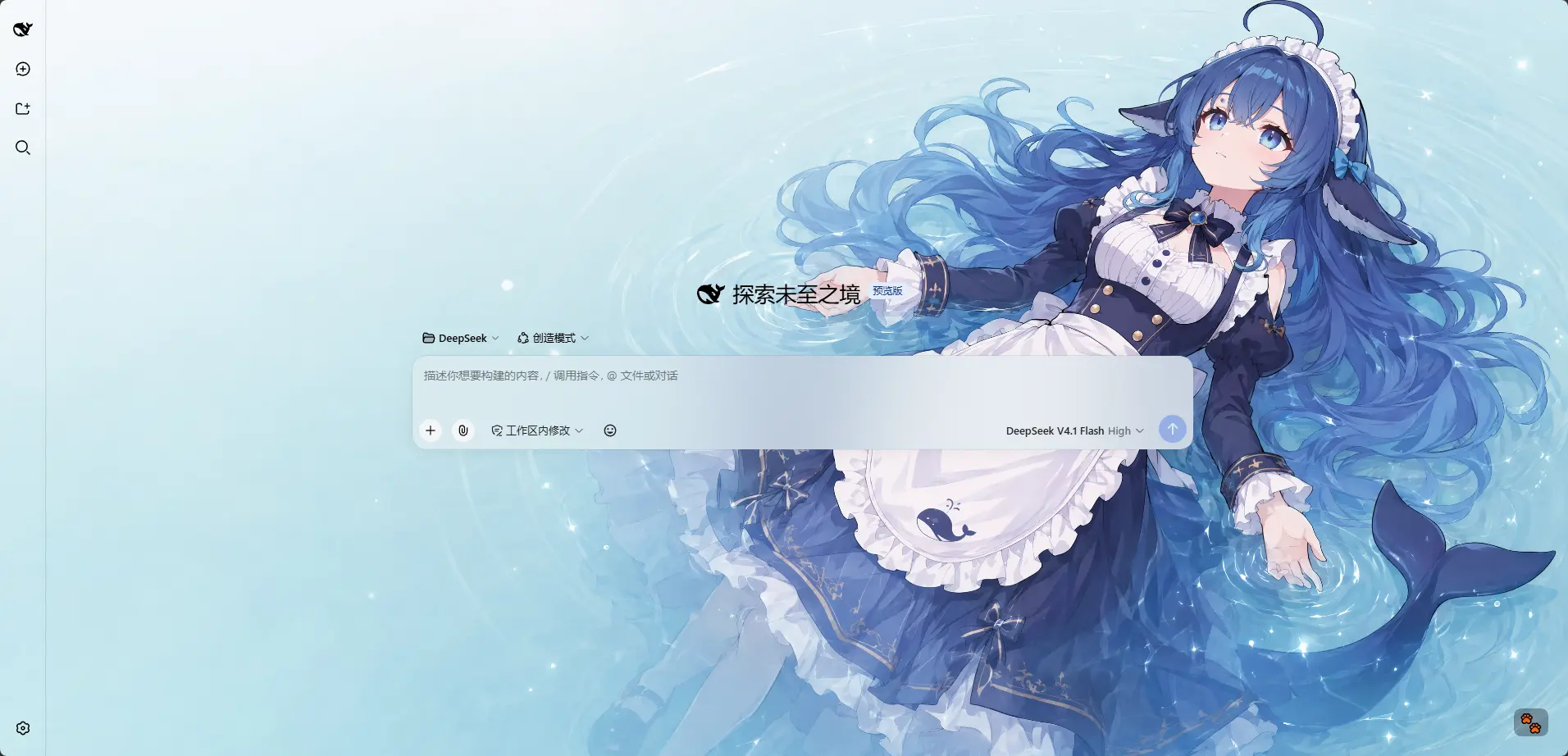
DeepSeek V4.1 Flash · matched the rule whose match string contains deepseek: a light wallpaper with a matching theme color
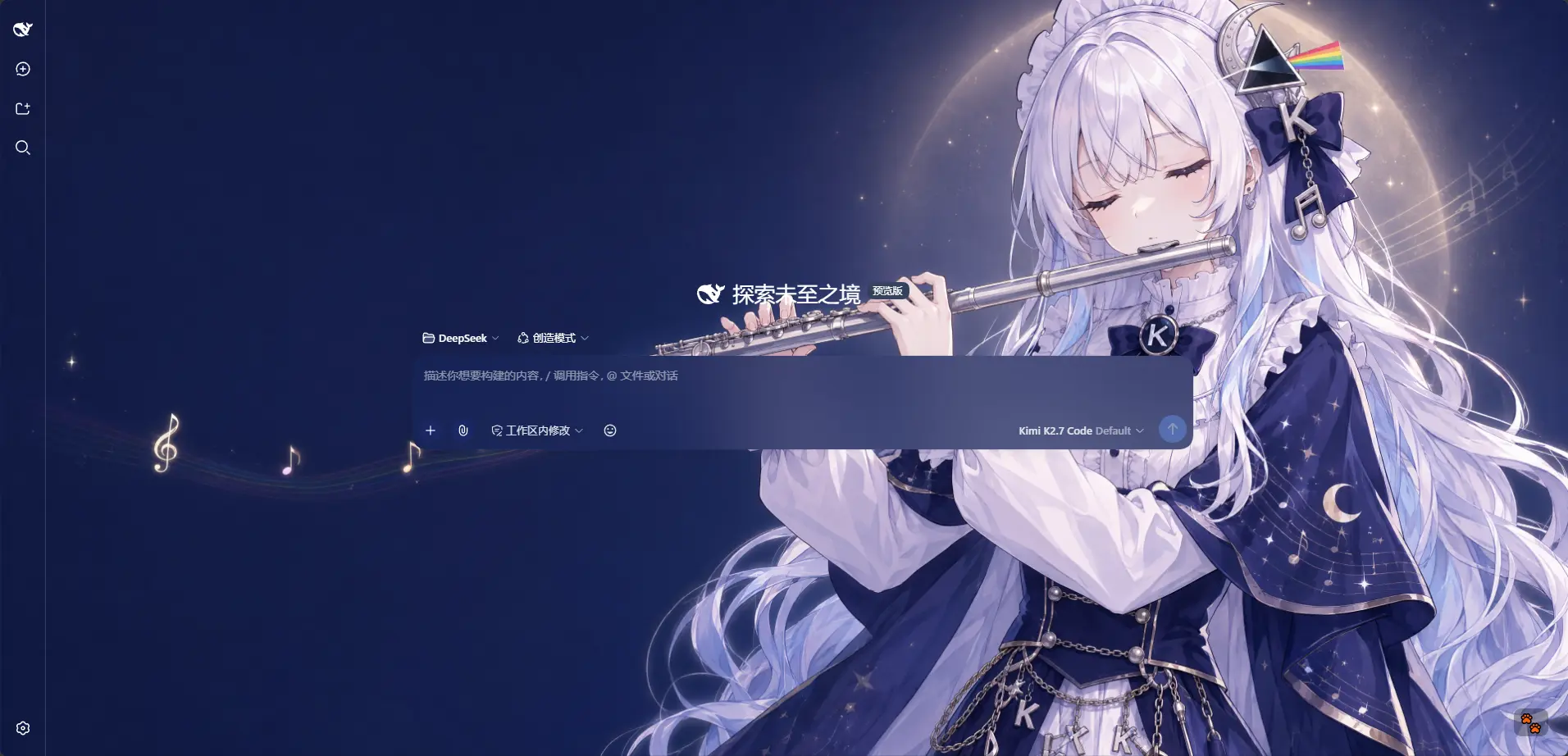
Kimi K2.7 Code · matched the rule containing kimi: a dark wallpaper, a dark theme, and the whole interface reskinned with it
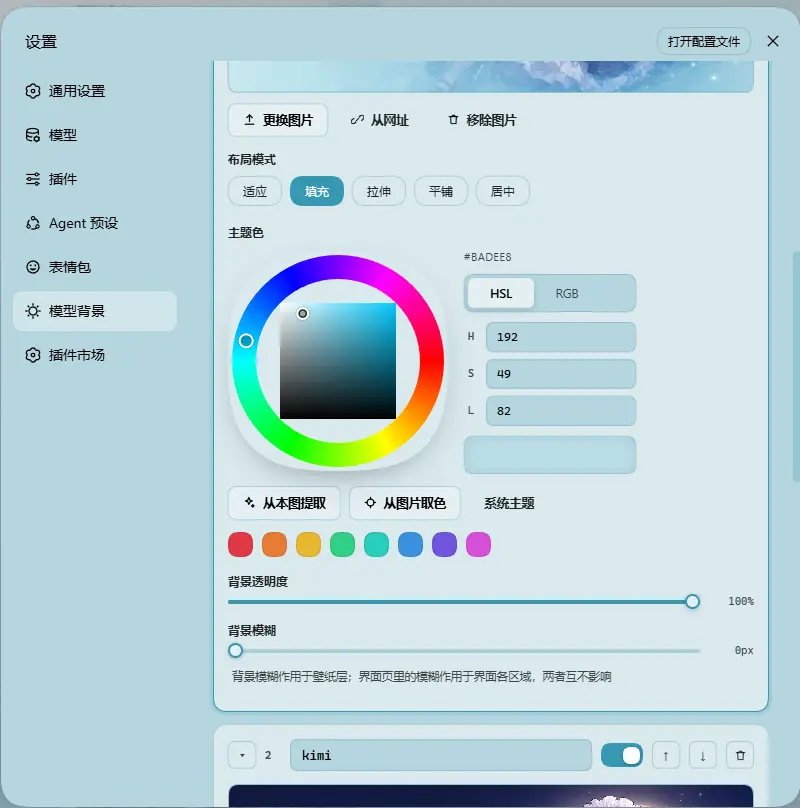
One rule on the Model Background tab · image, layout mode, theme color (wheel / HSL / RGB / extract from this image / pick from image), background opacity and background blur are all properties of that rule alone
Example wallpaper art from ZipZipPipe on bilibili
Features
Model rules
- Ordered Rule List — Add, remove, reorder and name rules. Each rule is matched by its own match string; the first hit wins and rule 1 is the fallback.
- Live Match Readout — The top of the Model Background tab shows the current state, e.g.
Current model deepseek-flash → matched · Rule 1, so you can verify a rule on the spot. If the current model can't be detected, a hint is shown instead. - Per-rule Appearance — Every rule owns its wallpapers, layout mode, opacity and blur, and every image owns its framing and its theme color. Nothing is shared globally except the Interface tab.
- Several Images per Rule — A rule holds an ordered set of images, shown as a filmstrip: add several at once (file picker, drag & drop, or a list of URLs, one per line), reorder them, promote one to first, replace one in place (which keeps its position in the rotation), or remove them one by one. The image a rule paints when nothing rotates is its first. Removing the last image simply leaves the rule empty — and empty is not the same as off: while the rule keeps a theme color of its own it still matches, still serves as the fallback, and paints the interface instead of a wallpaper; only a rule with neither (a freshly added one) is skipped by matching. So an emptied rule is a visible, reversible state rather than one you get stuck in. While it holds no picture the filmstrip is hidden and the big preview tile is the upload button, so there is exactly one obvious place to add one.
- Import / Export — Export every rule including all of its images to a
dsh-background-by-model-theme.json(format version 5, images inlined as base64) and restore it anywhere. Files written by earlier releases still import: each rule's single image is lifted into its image list, and a color written before per-image colors is lifted onto every image that has none — so an older theme file restores its look unchanged. - File-based Persistence — All settings and images are stored on the filesystem under
~/.dsh/.dsh-background-by-model-data/, notlocalStorage. - Automatic Migration — Old single-wallpaper configs are upgraded in place on first read. See the v0.3.0 entry in CHANGELOG.md.
- Bilingual — Full Chinese / English UI with automatic locale detection.
- Theme Watchdog — Re-asserts the custom theme if the host resets it.
Image rotation
Per rule, and off by default — cycling spends real bandwidth, memory and battery, so nothing turns it on for you.
- Enable it per rule — the switch appears in the rule card and only becomes usable once the rule holds two or more images.
- Dwell time — 10 s / 30 s / 1 min / 5 min / 30 min / 1 h, or any custom value in seconds (clamped to 5 s – 24 h).
- Order — In order walks the list top-down and wraps around; Shuffle picks uniformly among every image except the one on screen, so a tick never looks like it was missed.
- Also step on a model switch — an optional second trigger: every time the model changes and lands on that rule, it steps once. That is the whole feature for a rule meant to show "a different picture every time" without any timer running.
- Only the active rule rotates — one timer for the whole plugin, aimed at whichever rule the current model resolved to. It stops while the tab is hidden and resumes on a fresh interval; a single-image rule (and every holiday) never schedules anything.
- Next image — steps the wallpaper immediately, for when you want to check the set.
- What follows a switch is the rule — except the color, which travels with the picture — layout mode, opacity and blur belong to the rule and stay put. The theme color belongs to the image, so a rotation can move through a green picture, a red one and a system-themed one, and the interface palette changes with the wallpaper. The cross-fade between two images is the same one a model switch already used.
- Framing is per image, and so is the color — a crop and an accent both belong to a picture, so each image keeps its own while sharing the rule's layout, opacity and blur. The filmstrip marks the images that carry a color of their own, and the color controls always say which image they are editing.
- Only the images it needs are loaded — boot reads each rule's first image; the rest stream in when a card is expanded or when the rotation is about to need one. Ten images per rule therefore do not mean ten wallpapers transferred before the first frame.
Holiday backgrounds
A small one, not a settings block: one switch on the Config page and nothing else. It is on out of the box, and on the day the background changes by itself and changes back the next morning.
- How it behaves — On 中秋节 and 国庆节 the wallpaper switches to that holiday's own image, with that holiday's own fixed theme color (中秋
#384A77, 国庆#FFF6EB). The next day, the model rules take over again. - Mid-Autumn Festival — 农历八月十五, the day itself. It moves every year (2024-09-17, 2025-10-06, 2026-09-25, 2027-09-15 …), so it is resolved from the Chinese calendar at runtime, in Asia/Shanghai — the lunar day turns over at Beijing midnight, not yours.
- National Day — October 1–7.
- Mid-Autumn wins the overlap — the two do collide (2025-10-06 was both); the single precise day is the better answer.
- A holiday with no image falls through to the model rules rather than blanking the wallpaper.
- Built-in wallpapers — Both holidays ship with a compressed wallpaper (228 KB and 500 KB at native resolution, against 8.37 MB of source art). Only the holiday that can paint today is ever fetched, so a profile that is not on a holiday transfers none of it.
- Neither the art nor the palette is swappable, by design — an easter egg that asks to be configured is not an easter egg. A holiday slot is read-only: a file dropped into
modelbg-h-midautumn/modelbg-h-nationaldayis ignored by every read, and the plugin refuses to write, fetch into or delete those slots. The theme colors are constants in the holiday definition and are forced on every read — on the holiday and on its image, since a theme color lives on the image now — so a hand-editedcolorintheme-config.jsoncannot repaint a festival either. Theme exports therefore carry your rules only. - Turning it off — the switch on the Config page, or
"holidays": { "enabled": false }in the same file.
Per-rule settings
- Wallpaper — Give a rule one or more images; each image is its own file. The filmstrip picks which one you are editing, and the "first" one is what the rule paints when no rotation is running. A rule may also hold no image: it then paints no wallpaper, but as long as it has a theme color of its own it still matches and still serves as the fallback (painting the interface alone), and only with neither is it skipped by matching until you give it something.
- Theme Color — HSL wheel plus numeric input and an inspiration palette, with Extract from this image and an eyedropper. The color belongs to the image: those controls edit the one selected in the filmstrip, the strip shows which images already carry a color of their own, and an image that has none follows the system theme rather than inheriting its rule's. A rule with no image at all has only its own color left to edit — and that is exactly what such a rule paints. Generates the full CSS design-token set in real time. Following the system theme hands the palette back to the host while the wallpaper and the Interface-tab opacity/blur sliders keep working — the surface colors are read back from the host's own tokens and re-emitted with your alpha, so the wallpaper is never buried under an opaque plate.
- Layout Mode — Fit / Fill / Stretch / Tile / Center.
- Framing — Drag to pan and scroll to zoom inside a viewport-proportional editor; only editable in Fit mode, and the committed framing stays consistent across window resizes and cross-monitor moves. Stored per image.
- Background Opacity —
0–100%for the rule's wallpaper layer. - Background Blur —
0–60 px, applied to the wallpaper layer.
Global settings (Interface tab)
- Per-part Interface Opacity — Independent sliders for the main background, left panel, right panel, cards & panels (including the dropdowns and menus around the dialog), the input & controls (composer box, Cordis panel), plus the settings panel and the conversation text box. Independent of the theme color: a rule with no color keeps every one of these sliders live.
- Per-part Interface Blur — Frosted-glass
backdrop-filterblur (0–60 px) for each interface part, including a real backdrop on the composer and Cordis panel via stable host selectors. - Conversation & Trajectory — The message list is wrapped in a translucent card automatically, and the trajectory page gets whole-page opacity & blur controls, letting the wallpaper shine through the content.
- Right Panel — The column that slides in from the right when you open a file now has a card of its own: its opacity follows Main background until you drag it (then this card owns it), and its blur stacks on top of the main-background blur. While closed it takes no space and costs nothing.
Settings
Settings → Theme now has three tabs:
| Tab | Scope | Contents |
|---|---|---|
| Interface | Global, shared by every model | Opacity & blur for the main background, left panel, right panel, cards & panels, input & controls, settings panel, conversation text box and trajectory page |
| Model Background | Per rule | The ordered rule list, the live match readout, and each rule's images (filmstrip), theme color, layout mode, per-image framing, opacity, blur and rotation |
| Config | — | Import / export the whole rule set (dsh-background-by-model-theme.json), plus the single holiday background switch |
The old Color tab is gone — the theme color is now a property of each rule. The old Background tab became Model Background.
Storage
Data directory: ~/.dsh/.dsh-background-by-model-data/ (Windows: C:\Users\\.dsh\.dsh-background-by-model-data\)
| File | Contents |
|---|---|
theme-config.json | The rule list (each rule with its image list and rotation) plus the global Interface settings and the holiday overrides |
modelbg- | One image, stored as raw bytes without a file extension — one file per image, so a rule with three images owns three slots |
modelbg-h-midautumn / modelbg-h-nationalday | Not used: both holiday wallpapers ship inside the package and are served straight out of it |
Installation
Method 1: npm install (Recommended)
dsh plugin --profile web add dsh-background-by-model
# or install straight from the repository:
dsh plugin --profile web add github:HarmlessFunny/dsh-background-by-model
Then restart dsh web.
The plugin appears as a "Theme" section in Settings.
Method 2: npx (No Global Install)
npx @deepseek-ai/dsh plugin --profile web add github:HarmlessFunny/dsh-background-by-model
npx @deepseek-ai/dsh web
Method 3: Local Build (Development)
The lib/ directory is committed, so installs need no build step. To rebuild after editing src/:
git clone https://github.com/HarmlessFunny/dsh-background-by-model.git
cd dsh-background-by-model
pnpm install
pnpm run bundle      # output goes to lib/
pnpm run typecheck
To mount a working copy into a profile instead, add it to the profile's package.json and register the bundle:
{
  "dependencies": {
    "dsh-background-by-model": "link:E:/DeepSeek/dsh-background-by-model"
  },
  "dsh": {
    "profile": {
      "bundles": ["dsh-background-by-model"]
    }
  }
}
After c