dsh-code
DeepSeek Harness CLI core bundle: interactive coding terminal, durable sessions, and model management for dsh --profile cli
インストール
npx -p @deepseek-ai/dsh dsh plugin --profile web add github:UNLINEARITY/dsh-codeドキュメント
README 全文を読む ↗3. Core features and usage
DSH-Code brings DSH Agents, models, tools, and durable sessions directly into the terminal, covering the complete workflow from writing code to reviewing changes.
1. Session management
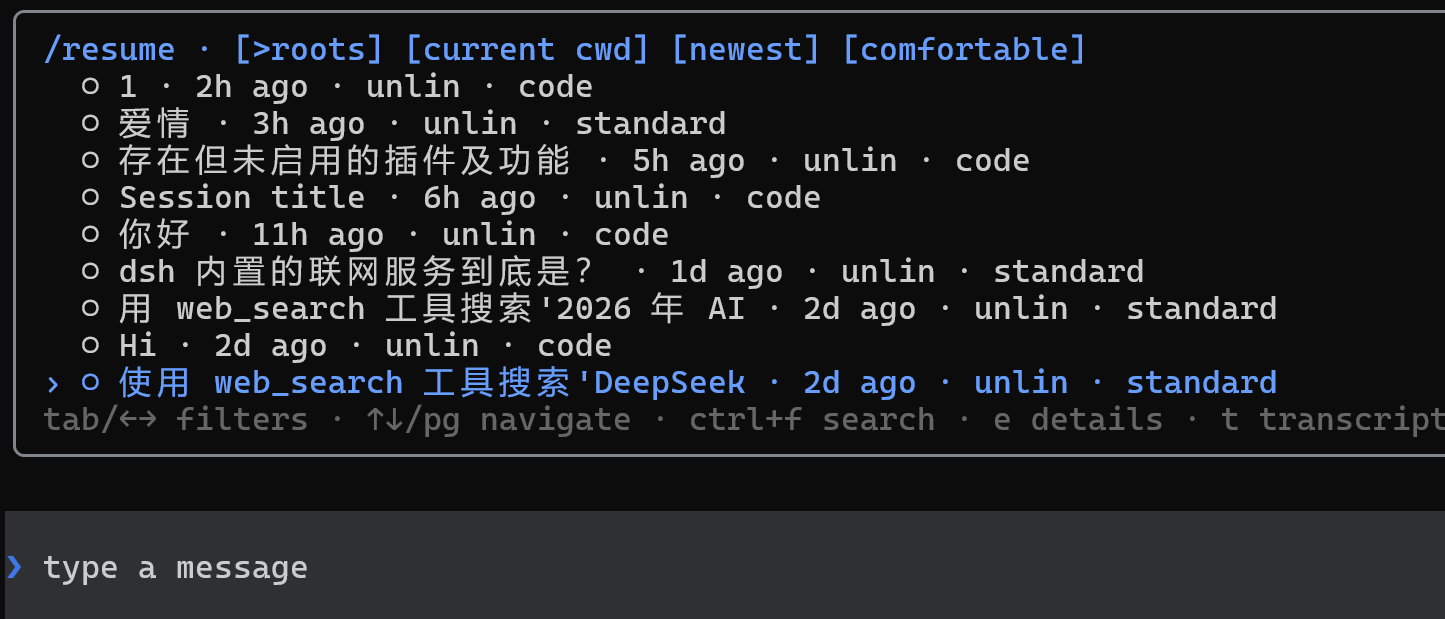
- Create sessions with
/new, or restore existing sessions with/resumeand--continue - Create a new work branch from a historical point with
/forkwhile preserving the original session - Search history by current directory, update time, and session scope
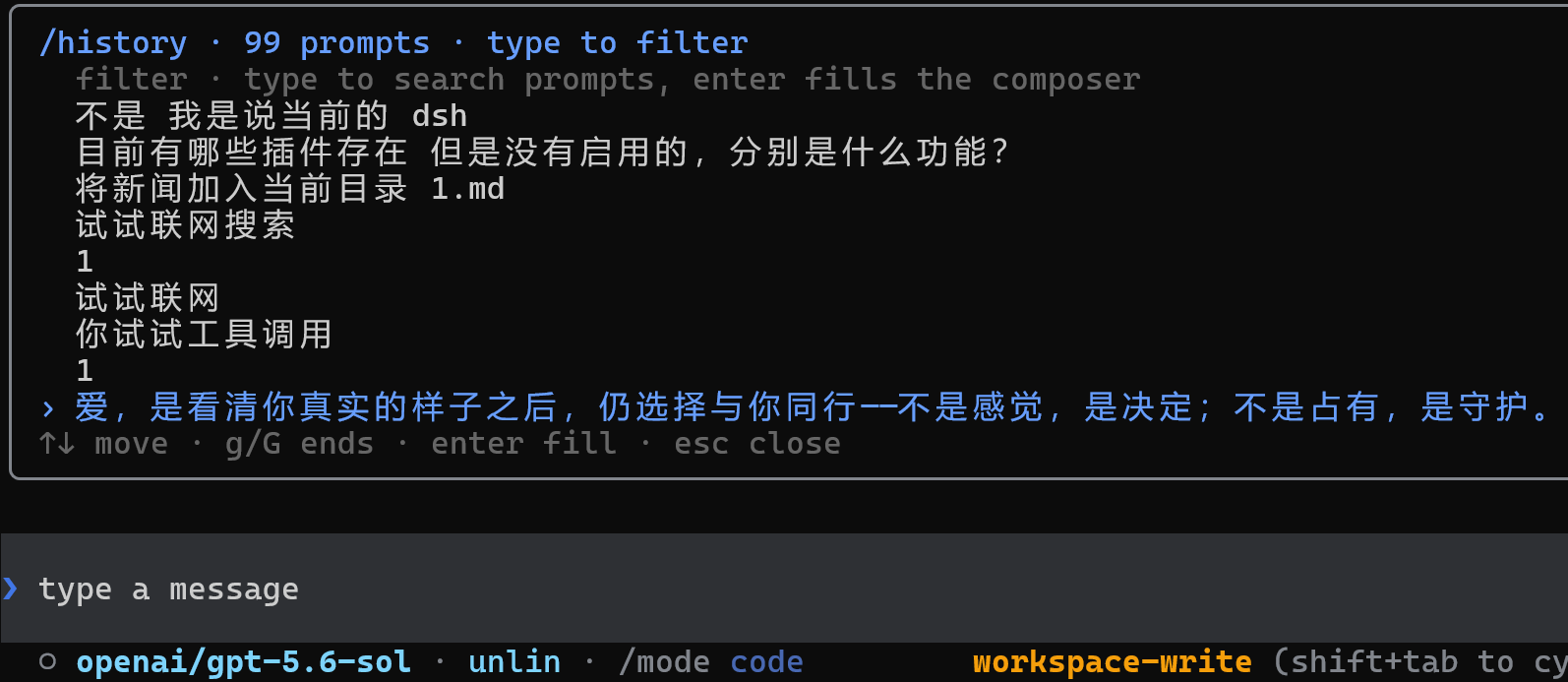
- Recall input history with Up/Down (typed slash commands included), or search previous prompts and commands with
/history - Use persistent titles, Markdown export, context occupancy, token, cache, TTFT, and elapsed-time metrics;
/usagereports the harness token meter's four disjoint buckets, the totals merged by model, and a per-turn breakdown - The status bar's
incounts only uncached input, andcacheshows both the cache-read volume and the hit share — together they are the billed prompt side - Restore the session's Agent Preset, model selection, and subagent list when resuming it; the welcome header shows both the dsh and dsh-code versions
2. Agents, models, and extensions
- Select an independent Agent Preset for each session to compose tools, prompt sections, skills, context compaction, plan mode, and subagent capabilities
- Use
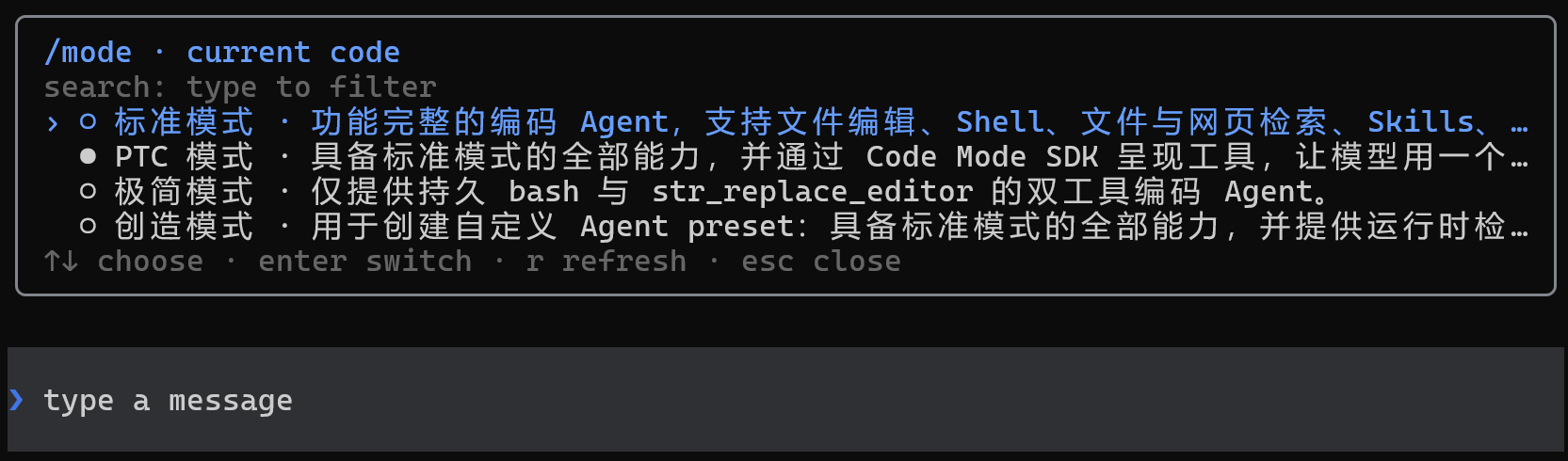
/modeto selectstandard,ptc,minimal,cordis, or a user-defined Preset (the legacycodeid maps toptc) - Use
/modelto switch models and manage providers, API keys, OAuth/device-code sign-in, endpoints, available models, and context windows - In the
/modelprovider list, Enter manages a manual API key,lstarts sign-in, andologs out after confirmation - Automatically load commands and skills available in DSH; use
/helpto find them and/pluginto inspect extension status - Use plans, goals, todos, permissions, sandboxes, subagents, and additional instructions while a task is running
3. Model-switch animations
The composer plays Wave, Aurora, or Pulse when the model or reasoning effort changes under the following conditions:
| Scenario | Trigger | Animation text | Effect tier |
|---|---|---|---|
| Official DeepSeek model | Switch to the model, or change its reasoning effort | deepseek | Flash uses the single-band tier; other DeepSeek models use the multi-band tier |
| Other models | After changing the model or reasoning effort, the effective effort is strictly above high | Into the Unknown | Uses the same multi-band tier as non-Flash DeepSeek models |
Levels above high include xhigh, x-high, very-high, max, maximum, and ultra. For non-DeepSeek models, high, medium, low, and off do not trigger an animation.
| Style | Flash | Other DeepSeek / Into the Unknown |
|---|---|---|
| Wave | One blue crest sweeps from left to right, about 1.2 seconds | Two offset blue crests sweep across in sequence with trailing · ✦ ✧ sparkles, about 1.5 seconds |
| Aurora | Two blue light bands drift across one another, about 1.5 seconds | Three differently hued light bands drift across one another, about 1.8 seconds |
| Pulse | One ring expands outward from the center of the composer, about 1.1 seconds | Two rings expand outward in sequence, about 1.45 seconds |
/animation off disables purely decorative effects such as Wave/Pulse, animated theme flow, and rainbow bursts. The input cursor, streaming caret, busy chase, Thinking/Deep Diving shimmer, and Deep diving... clock remain live so an active turn never looks frozen.
4. Coding workflow
- Use
@to reference workspace files or existing sessions; selecting PNG, JPEG, WebP, or GIF files attaches the real image automatically - Attach images through the initial prompt, repeated
--imagearguments, or by dragging one or more images into the terminal - Inspect changes by file with
/diff, and start a read-only code review with/review(a range picker; diffs use full-row green/red) run_codelists nested tool calls as they run; workflow runs list their member agents until they finish- Copy the latest complete response with
/copy, and inspect history and full tool details with Ctrl+O; intermediate replies that contain reasoning but no final text do not occupy their own inspector entry - Handle tool approvals, structured questions, plan reviews, multiple selections, and custom answers
- Control what the Agent may do with permission Presets and sandboxes; add instructions or interrupt while a task is running
5. Queued and steered messages
While a turn is running you can keep typing. There are two ways to send what you type:
- Queue — it waits until the turn finishes and then runs as a new turn. Use it for "do this once you are done with that".
- Steer — it reaches the model before the next step of the running turn, as part of that request. Use it when the work has gone the wrong way and you want it corrected now.
The difference is when the model sees it: a queued message is read once the turn has finished, a steered one before the turn makes its next move.
How to send each way:
- Press
Tabon an empty composer to switch between them. The prompt glyph (❯/↳), the placeholder text, and the notice shown on switching all say which one is selected. With text in the box,Tabstill completes commands and references. /queueopens the queue panel: pressEnteron a message to send it as steering instead,eto edit its text (attachments are kept as they are), ordto remove it.- Press
Deleteon an empty composer to cancel the newest queued message. - Pressing
Escto cancel the turn keeps queued messages and sends them next, while steered messages are dropped with the turn.
Every prompt in the transcript is a full-width coloured row, and the colour says how it was sent: the theme's bright brand colour for an ordinary message, its warning colour for a queued one, and its third accent for a steered one, each labelled with "queued" or "steered". The colour is computed from the theme, so switching themes or rerolling rainbow changes it too.
A message counts as queued or steered only when a turn was already running at the moment you sent it. A message sent while idle is an ordinary one even if the composer is set to steer, because it starts a new turn straight away.
See Queued and steered messages for the queue behaviour, the order the upstream queues are read in, and the colour values per theme.
6. Commands and key bindings
Start the TUI:
dsh --profile cli                    # create a standard session
dsh --profile cli --mode ptc         # start with the specified Agent Preset (standard/minimal/cordis/ptc)
dsh --profile cli --continue         # resume the latest session for the current directory
dsh --profile cli --resume abc123    # resume by id or unique prefix
dsh --profile cli --session my-id    # create a session with an explicit id
The following built-in commands are available inside the TUI. Additional Harness commands and user skills depend on the active profile and installed packages; use /help for the complete current list.
Sessions and history
| Command | Purpose |
|---|---|
/new [preset] | Create a session, optionally selecting an Agent Preset |
/resume [id|prefix] | Search for or restore an existing session |
/search [query] | Full-text search across persisted sessions (Enter resumes the hit) |
/resume cancel | Cancel a pending session switch |
/fork [event-seq] | Create a session branch from the latest completed turn or a specified event position |
/delete [id|prefix] | Delete a session and its subagent sessions |
/title | Change the current session title |
/export [path] | Export the current session as Markdown |
/history | Search and reuse previously submitted prompts and slash commands |
/clear | Clear the current terminal display without deleting the durable session |
Agents, models, and permissions
| Command | Purpose |
|---|---|
/mode [preset] | Inspect or select the current session's Agent Preset |
/model | Switch models and manage providers, API keys, browser sign-in, endpoints, and available models |
/effort | Adjust the current model's reasoning effort |
/permission [preset] | Inspect or switch the permission Preset |
/subagent | Select the model used when a subagent performs a task |
Coding, tasks, and background work
| Command | Purpose |
|---|---|
/diff [--staged|ref] | Inspect the working-tree, staged, or specified-ref Git diff by file |
/review [note] | Bare /review opens a candidate picker (uncommitted changes / pick a branch / pick a commit / custom focus); any argument becomes a review note over the uncommitted diff (/review in Chinese). The diff is pasted into the current session under read-only permissions, and findings arrive with P0-P3 priorities and file anchors |
/todos | View the complete todo list for the current session |
/queue | See the messages waiting for the next turn: enter sends one as steering instead, e edits its text, d removes it; ↑↓/PageUp/PageDown/g/G move |
/usage | See this session's token usage: the four disjoint buckets (uncached input, cache write, cache read, output), the totals merged by model, and the per-turn breakdown |
/agents | View subagent sessions created by the current session |
/jobs | View background jobs and their runtime status |
/copy | Copy the latest complete assistant response |
Extensions, display, and exit
| Command | Purpose |
|---|---|
/plugin [query] | Inspect loaded extensions and their status |
/update | Checks npm for a newer version and confirms the upgrade |
/statusline | Select the items displayed in the status bar |
/vscode-keys | Pass Ctrl+R through VS Code-family terminals (idempotent user-level keybindings.json write) |
/theme | Switch colors: dark / light / prismatic / rainbow / auto |
/rainbow [seed] | Reroll or pin the rainbow theme seed; a bare /rainbow rolls a new seed and switches to rainbow |
/language [en|zh] | Switch the interface language, default English; model prompts and factual status values stay in English |
/animation | Toggle decorative animations; input cursors and activity indicators stay live, /animation [on|off] |
/help | View key bindings, built-in commands, Harness commands, and user skills |
/quit | Exit DSH-Code |
Input and key bindings
| Action | Purpose |
|---|---|
Enter | Submit the current input |
Ctrl+J / Alt+Enter | Insert a newline in the composer (with the enhanced keyboard protocol, Shift+Enter / Ctrl+Enter work too) |
Up / Down | Recall the previous or next input-history entry |
Tab | Complete commands, skills, or @ references; on an empty composer, switch the next message between queue and steer |
@ | Reference workspace files or existing sessions; image files are sent as attachments |
Ctrl+O | Inspect history and full tool details; intermediate replies with reasoning but no final text do not occupy their own entry |
Ctrl/Alt+R | Fold or expand model reasoning; run /vscode-keys first in VS Code-family terminals to pass Ctrl+R through |
Shift+Tab | Cycle permission Presets, and the plan station when /plan is available |
Delete | Cancel the newest queued message when the composer is empty (steering is not in the queue; press Esc to end the turn instead) |
Ctrl+K | Delete from the cursor to the end of the line |
Ctrl+U | Clear the current input line |
Ctrl+A / Ctrl+E | Move to the beginning or end of the current line |
Esc | Close the current menu or interrupt the running turn; queued messages are kept and sent next, steered ones are dropped with the turn |
Ctrl+C | Cancel a task, clear the input, or exit, depending on the current state |
Ctrl+D | Exit DSH-Code |
Status indicators
| Indicator | Trigger |
|---|---|
✻ Deep diving... | The turn is running while nothing is streaming (waiting for the first token, gaps during tool runs); an elapsed clock appears after 15 seconds |
✻ Thinking… | Model reasoning is streaming; collapsed into the shimmer marker by default, expand with Ctrl/Alt+R |