datuloar/dsh-computer-use-win ↗★ 2
dsh-cu
Windows computer use for the DeepSeek Harness: screenshot, click, type, scroll, read windows and the clipboard, plus an on-screen indicator the human sees and stops with ESC. No dependencies, no driver to install. 适合需要让AI智能体控制Windows界面、执行截图和点击任务的用户。
インストール
npx -p @deepseek-ai/dsh dsh plugin --profile web add github:datuloar/dsh-computer-use-winドキュメント
README 全文を読む ↗dsh-computer-use



Windows computer use for agents: read the screen as text, click controls by name, screenshot, type, scroll, drag — plus an on-screen indicator the human can see and stop with ESC.

A text-only model can drive a GUI with this: dsh-cu tree and dsh-cu read turn a window into a
few hundred tokens of roles, names and clickable points, and dsh-cu tap "Save" clicks the one
control that matches. Screenshots are there when pixels are the answer, not as the only way in.
Built for the DeepSeek Harness; the CLI works
with any agent or script. The CLI is dsh-cu, the skill it registers is dsh-computer-use, the
repository is dsh-computer-use-win — three names, one thing.
Nothing to install. No packages, no driver, no SDK: the backend compiles its own C# with the .NET Framework that ships with Windows.
Requires Node.js 18+ and Windows PowerShell 5.1 on a Windows desktop. The C# compiler is
provided by the built-in .NET Framework; users do not need Visual Studio or the .NET SDK.
PowerShell 7 (pwsh) is not a supported replacement for this Framework/WinRT backend.
Why this one
- Cheap enough for a text-only model.
treereads the control tree through UI Automation (native apps, and web pages once the browser's accessibility is woken up),readruns the OCR that ships with Windows, and both print a clickable point per line. A window costs a few hundred tokens instead of a full screenshot. OCR and UI Automation run locally; MCPscreenshotreturns image data to the connected client/model. - The human can see it and kill it. A rounded status panel that names the command being run ("click 640,380"), a glow along the screen edge and a ring that follows the real pointer; ESC stops everything. Injected ESC is ignored, so an agent cannot switch off its own indicator.
- One pointer, always. The ring is drawn around your own cursor, so there is never a second
arrow chasing the first one.
--hide-cursoris the opt-in for the other model: the drawn marker becomes the only pointer on screen. - Input is refused while the indicator is down.
move,click,drag,wheel,type,key,keys,clipboardandrunanswer with a refusal untildsh-cu overlayhas put the frame on screen. That gate lives in the tool, not in the prompt. - It runs on a stock Windows box. Other computer-use plugins drive an external native driver (cua-driver and friends) that has to be installed first; this one needs only the PowerShell and .NET that Windows already has.
- It is verified against the real machine.
dsh-cu self-testdrives an isolated test window through MCP and checks countdown gating, text, clicks, screenshots and cursor recovery. - Works from inside the Harness sandbox. The Harness file sandbox blocks piped stdio for
nested processes; the CLI falls back to file-descriptor capture, so
dsh-custill works where a naivespawn(..., {stdio: 'pipe'})getsEPERM.
What it is not: it has no browser DOM (UI Automation sees what an app exposes, which is less than the DOM and more than pixels), no multi-monitor support, and no per-application allowlist.
Install
| Way | Command | What you get |
|---|---|---|
| Skill + CLI + PATH | powershell -ExecutionPolicy Bypass -File install.ps1 | SKILL.md in $DSH_HOME\skills\dsh-computer-use\ and a dsh-cu shim on the user PATH |
| DSH profile plugin | dsh plugin --profile web add github:datuloar/dsh-computer-use-win | the bundle mounts the plugin, which registers the skill from the repository |
| Nothing at all | bin\dsh-cu.cmd or node src\cli.js from a clone | the same CLI, no PATH change |
Use one skill delivery path: the copied $DSH_HOME\skills\dsh-computer-use\SKILL.md and the
plugin registration carry the same skill name.
Without any of them: node src\cli.js or bin\dsh-cu.cmd .
The filesystem skill root is scanned live, so no restart is needed for the copy; the profile
plugin needs dsh web restarted once.
The loop
dsh-cu overlay                       # the human is warned for 8 s, ESC cancels
dsh-cu shot                          # capture the screen, print the path
dsh-cu click 640 380                 # click there
dsh-cu type "hello"                  # type into the focused window
dsh-cu keys ctrl+l                   # key combinations
dsh-cu drag 420 300 980 300          # press, glide, release
dsh-cu shot --region 1200 600 420 240   # read one detail instead of the whole screen
dsh-cu overlay --stop                # stop and clean up
dsh-cu overlaybefore the first input.dsh-cu focus(or--title) the target window.dsh-cu shotand look at the image.- Act on coordinates taken from that screenshot; confirm a
movewithdsh-cu pos. dsh-cu shotagain — a step is done only when the second screenshot says so.dsh-cu overlay --stop(MCP:indicatorwithaction: "stop") after each GUI interaction, before shell work or replying, including on failure. Do not wait for the entire project to finish.
Commands
dsh-cu see  [--region    ]   ask local vision about the screen, returns text

dsh-cu shot [file.png] [--region    ]   capture the screen, or a crop of it
dsh-cu read [--region    ] [--lang ] [--json]   the screen as text, with a point per line
dsh-cu tree [--pid N | --title ] [--depth N] [--all] [--json]   the control tree of a window
dsh-cu find  [--pid N | --title ] [--json]   controls whose name contains the text
dsh-cu tap  [--pid N | --title ]   click the one control named like that
dsh-cu move                         move the pointer
dsh-cu click   [left|right|middle|double|triple]   click
dsh-cu drag             press, glide to the second point, release
dsh-cu wheel  [ ] [--horizontal]   scroll, 120 = one notch, at that point when x y are given
dsh-cu type                         type into the focused window
dsh-cu key  [down|up]               Enter, Esc, Tab, Space, Ctrl, Alt, F1..F12, arrows
dsh-cu keys                        ctrl+l, ctrl+shift+t, ...
dsh-cu clipboard [get|set |clear]   read or write the clipboard
dsh-cu pos                                pointer position and foreground window
dsh-cu windows [--json]                   visible windows with pid, title and rectangle
dsh-cu focus
| --title bring a window to the front, verified dsh-cu wait-window [seconds] wait for a window to appear, then focus it dsh-cu run run a command line — see the safety rules dsh-cu broker [start|stop|status] elevated input broker, asks for UAC dsh-cu overlay [--announce N] [--quiet] [--hide-cursor] on-screen indicator, ESC stops it dsh-cu overlay-state whether the indicator is running dsh-cu display primary screen size and DPI dsh-cu mcp serve the same tools over MCP (stdio) dsh-cu doctor what this machine can do dsh-cu self-test exercise every command dsh-cu overlay --stop stop the indicator, restore the cursor dsh-cu overlay --restore-cursor emergency cursor rescue
read, tree, find and tap are the cheap path; shot writes into %TEMP%\dsh-computer-use\
and prints SAVED ; --region x y w h
crops it to that rectangle in screen coordinates. --quiet draws only the pointer marker, for
pixel-accurate reads. Arguments are handed to the backend as a JSON array, so typed text and window
titles keep their spaces, quotes and leading dashes.
drag presses at the first point, glides to the second in eased steps and releases it, which is
what sliders, selections and drag-and-drop targets expect; click also takes middle and
triple.
As MCP tools (DeepSeek Harness, Claude Code, opencode, Cursor)
dsh-cu mcp serves every command as native tools over MCP stdio: ui_tree, find, tap,
read_text, screenshot (returns the image), click, move, drag, scroll, type, press,
windows, focus, wait and indicator. It keeps one backend process warm, so a call takes
without recompiling C# for each call; timings depend on the application's UI Automation provider.
Input tools, including focus, start the on-screen
indicator by themselves the first time.
DeepSeek Harness — add a row to your profile patch (\profiles\web\cordis.patch.yml);
the tools then appear as mcp__pc__click, mcp__pc__ui_tree, ...:
- id: mcp-pc
  name: '@deepseek-ai/dsh-mcp-client'
  config:
    serverName: pc
    transport: stdio
    command: node
    args: ['C:\\path\\to\\dsh-computer-use\\src\\mcp.js']
    toolCallTimeoutMs: 120000
Claude Code: claude mcp add pc -- node C:\path\to\dsh-computer-use\src\mcp.js.
opencode and Cursor take the same command in their MCP settings.
If the human presses ESC, the indicator records it and every input tool refuses for the next ten minutes with a message telling the agent to stop and ask — an agent cannot quietly restart the indicator it was just stopped with.
Driving a GUI without vision
Optional local sight: run powershell -ExecutionPolicy Bypass -File install-vision.ps1 once.
It downloads about 3.4 GB of pinned, SHA256-verified Qwen3-VL 4B weights and a Vulkan
llama.cpp runtime from their official repositories. No Python, SDK or API key is needed.
The local server starts on demand at 127.0.0.1:19471. After five minutes without tasks,
llama.cpp unloads the model and its caches from memory. The lightweight server stays running
and automatically reloads the model on the next request. Active tasks prevent idle sleep.
Restart an existing MCP connection once to discover the new see tool.
Call see with a specific question and a crop of the relevant window. It returns text
instead of image blocks, so a text-only DeepSeek can use it. Images go only to the local
server; the resulting text goes to the main model. Coordinates are estimates;
the tool converts normalized model boxes into screen_box and screen_point in screen pixels.
Prefer UIA for exact controls and reobserve
after moving or scrolling. The tool observes only and never clicks by itself.
dsh-cu overlay                       # the human is warned, ESC cancels
dsh-cu focus --title "Settings"      # pick the window
dsh-cu tree                          # roles, names and a clickable point each
dsh-cu tap "Bluetooth"               # click the one control with that name
dsh-cu tree                          # verify: the tree is the new state
tree walks the window with UI Automation and prints one line per control:
TREE Invoice draft (6 elements, depth 6)
  Text "Invoice draft" @1066,643
  Edit "Customer name" @1250,754
  Button "Save" @1075,1013
  Button "Cancel" @1245,1013
find "save" filters that list, and tap "Save" clicks the single match — or refuses and prints
the candidates when the name is ambiguous, so a wrong click is never silent. Before clicking, tap
checks that the point really belongs to the target window and refuses when something covers it.
Chrome, Edge and other Chromium browsers keep their accessibility tree switched off until a client
asks for it; the first tree or find wakes the renderers and waits for the page, later calls are
immediate. A browser window then lists its links, buttons and fields the same way, which is enough
to drive most web UIs without a DOM. Firefox and Electron apps expose whatever they expose — check
with tree before planning a run.
When a window shows no tree (canvas apps, games, remote desktops, a PDF viewer), read falls back
to the OCR that ships with Windows:
dsh-cu read --region 1200 600 420 240 --lang en-US
READ 3 lines (en-US, 420x240 at 1200,600)
[1310,648] Customer name
[1288,712] Design system audit
[1276,764] Save
Each line carries the point to click, small regions are upscaled before recognition, and --lang
picks an installed language pack (dsh-cu read --lang ru). doctor lists what is installed.
A screenshot is still the right tool when the question is about pixels — colours, layout, an image,
a chart. Then shot --region keeps it small, and a vision-capable route (for DeepSeek Harness: the
Vision Toolkit plugin) can answer questions about it.
Scrolling follows the pointer, so pass it the page: dsh-cu wheel -600 1280 700 is five notches
down at that point, --horizontal scrolls sideways, and key PageDown / keys ctrl+End scroll the
focused page. Every scroll moves the coordinates you measured — take a fresh shot before clicking.
What the human sees
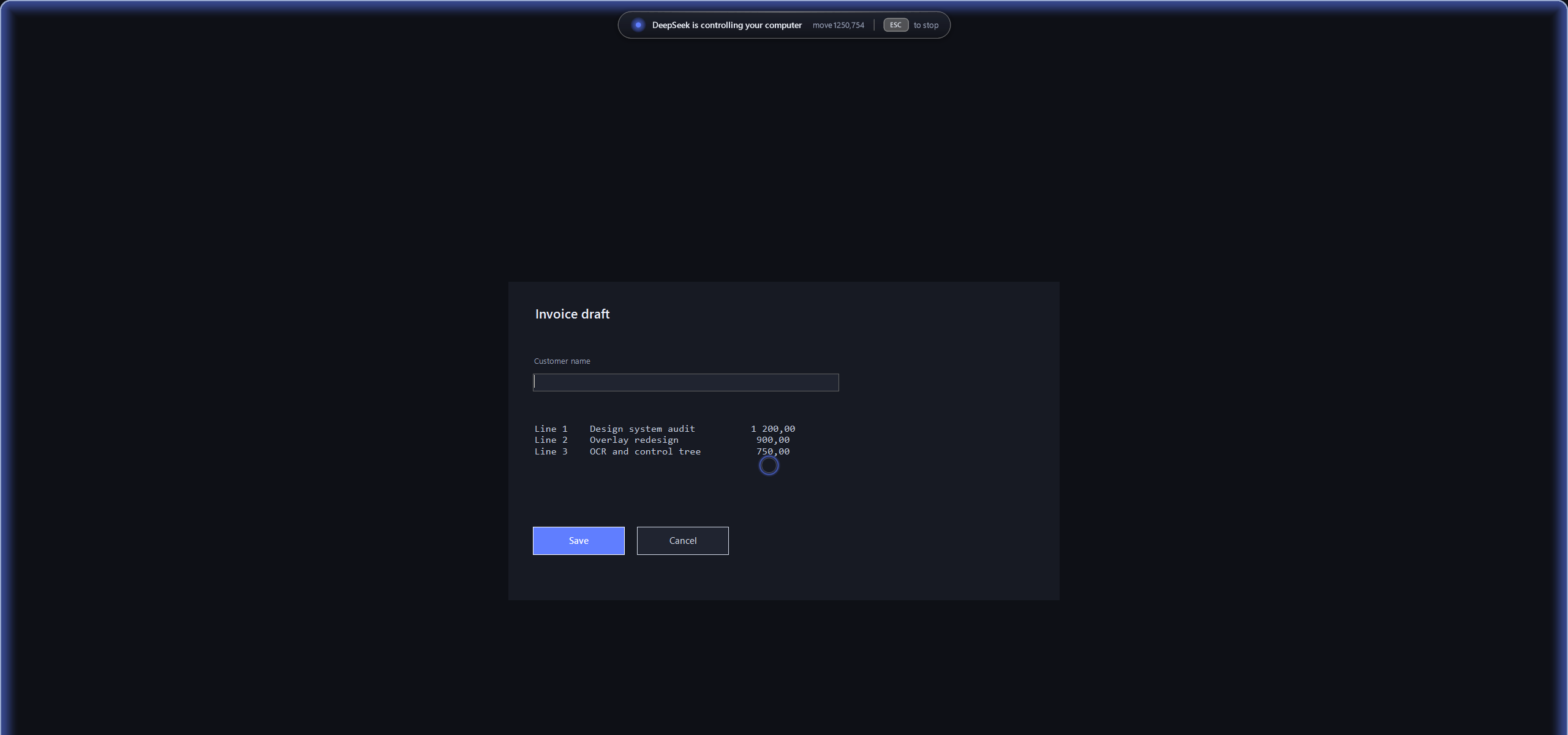
| Countdown before the first input | A click, shown where it landed |
|---|---|
 | 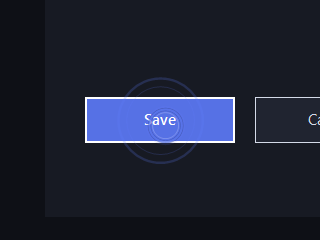 |
- The panel names the command that is running; typed text is shown as a character count only.
- The edge glow breathes while the agent is in control and is solid during the countdown.
- The ring follows your own pointer and pulses on every click. Screenshots never contain the system cursor, which is why only the ring shows up in the images above.
All images on this page were taken over a neutral demo window, not a real desktop.
Safety model
- Input is refused while the indicator is down — and again the moment the indicator process
dies, so a killed indicator cannot leave the human blind for the seconds the heartbeat stays
fresh. Override only deliberately:
DSH_CU_ALLOW_NO_INDICATOR=1. - The indicator comes up before input is allowed, and the CLI waits out the full announcement
(default 8 s) after the frame is confirmed on screen. The indicator publishes readiness only
after that countdown. CLI, MCP and direct backend input all check it, including concurrent
calls.
focusandwait-windoware gated too.--quiethides chrome only after the countdown. - ESC stops it — a physical press only; injected ESC is ignored.
Text input and drags check the gate during execution; key releases still run during cleanup.
An already launched
runprocess is not cancelled by ESC. - The panel says what is happening. Every command writes a one-line label the indicator shows
next to the status text, so the human can follow along;
typeis reported as a character count rather than the text, so a typed password never appears on screen. overlay --stopkills the indicator by pid file, reloads the system cursors and removes its state files. The indicator also stops itself after 60 seconds without a desktop command.- One pointer, never two. By default nothing replaces your cursor: the indicator draws a ring
around it, so the pointer you see is the real one and the ring only says "the agent is here".
dsh-cu overlay --hide-cursoris the opt-in for screen sharing and recordings: it blanks the system cursor and draws the marker arrow instead, so there is still exactly one pointer. The tool records that it blanked the cursor, `o