dsh-ide-vscode
DSH 右侧栏内置 IDE:左文件树 + 右编辑区,右键新建文件/文件夹(后缀可改)、重命名、删除,打开即可编辑并 Ctrl+S 保存。 Built-in IDE panel for DeepSeek Harness: workspace tree plus editor with create / rename / delete / save. 适合需要在对话中直接新建、修改和保存工作区文件的用户。
インストール
npx -p @deepseek-ai/dsh dsh plugin --profile web add github:wang6077/dsh-ide-vscodeドキュメント
README 全文を読む ↗dsh-ide-vscode
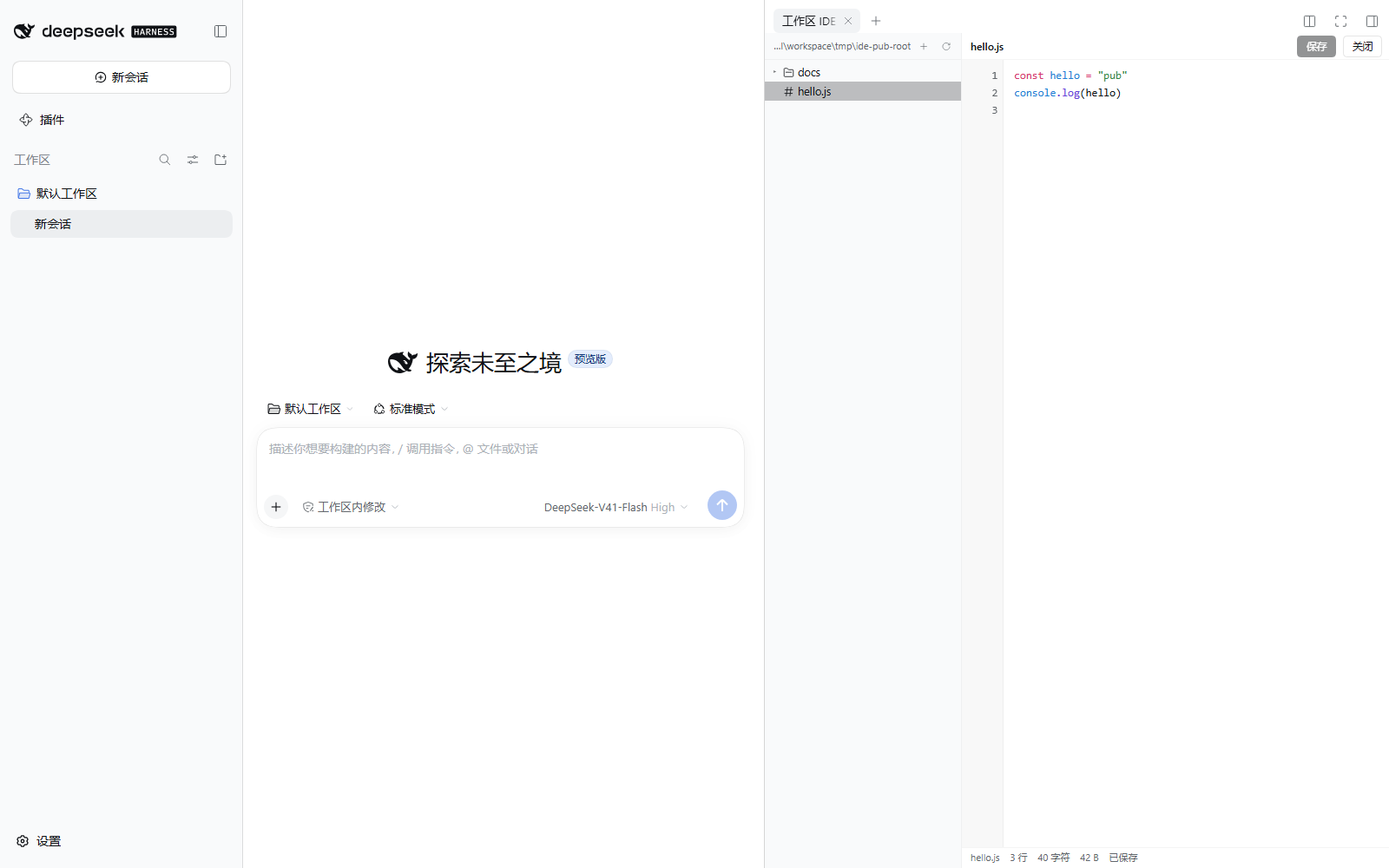
给 DeepSeek Harness(DSH)右侧栏装一个能读能写的 IDE:左边是工作区文件树,右边是编辑器 / 图片预览 / 压缩包查看,文件可以直接改、Ctrl+S 直接存。
它解决什么问题
DSH 自带的工作区文件面板只能看不能改(宿主的 workspaceFiles 服务是只读的)。想看代码、改一行配置、新建个脚本,都得切出去用别的编辑器。
这个插件把「文件树 + 编辑器」直接放进右侧栏的标签页:改完 Ctrl+S 就落盘,不用离开 DSH。
功能
文件树(左)
- 展开 / 折叠目录,点文件就在右侧打开
- 目录上右键:新建文件… / 新建文件夹… / 打包成 zip… / 刷新
- 文件上右键:重命名 / 改后缀… / 删除 / 打包成 zip…
- 树空白处右键 = 对当前选中的目录操作
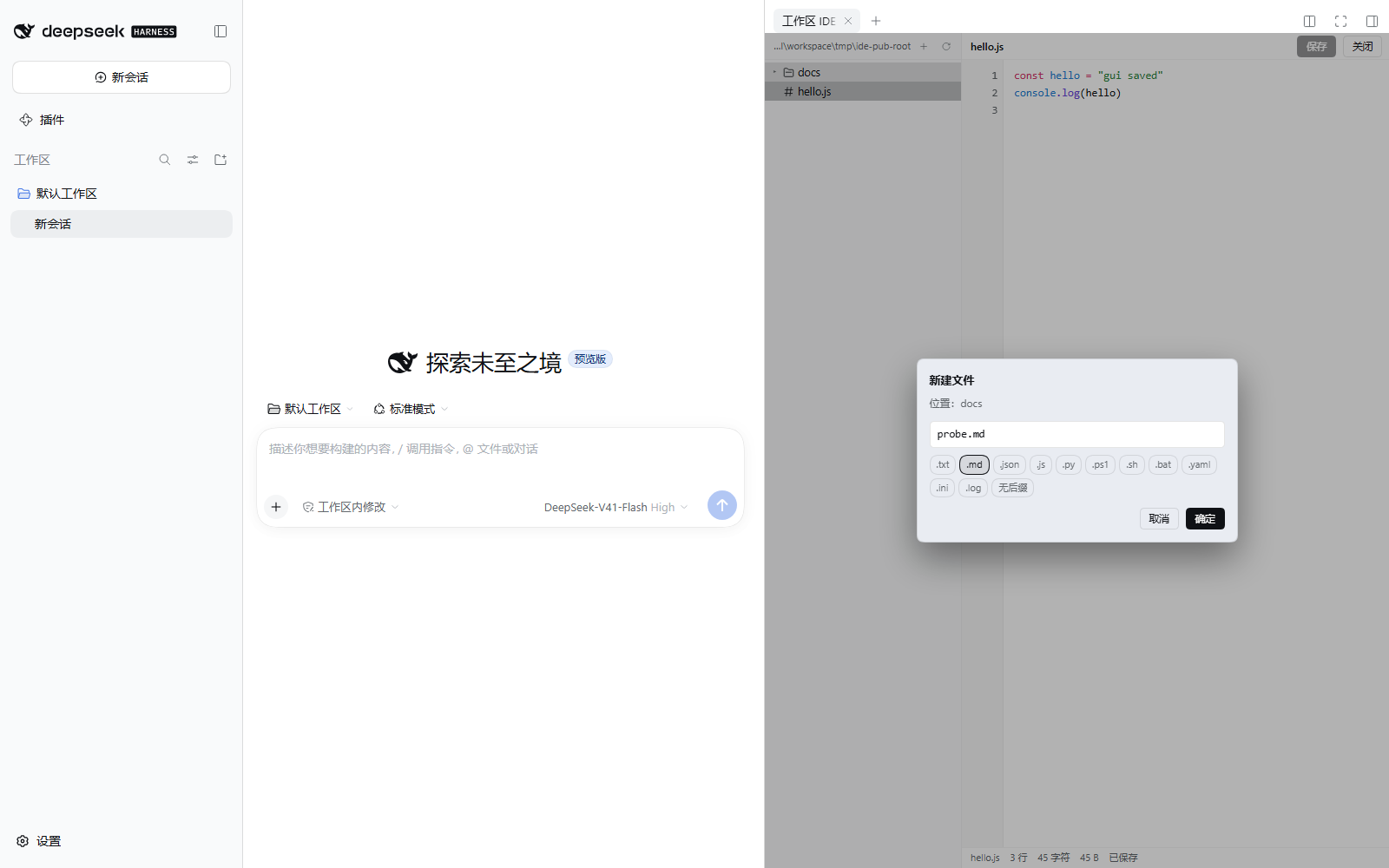
- 新建文件时给一排后缀胶囊(
.txt .md .json .js .py .ps1 .sh .bat .yaml .ini .log 无后缀),点一下自动补全名字,也可以手打任意后缀
编辑器(右)
- 行号 + 语法高亮(用宿主自带的 shiki 高亮器,按扩展名识别)
- 直接打字编辑;
Tab插入两个空格;Ctrl+S保存(也有「保存」按钮) - 状态栏显示 行数 / 字符数 / 字节数 / 已保存·未保存;有未保存修改时文件名旁带一个圆点
- 切换文件时如果当前文件有未保存的修改,会问「保存并打开 / 放弃修改 / 取消」
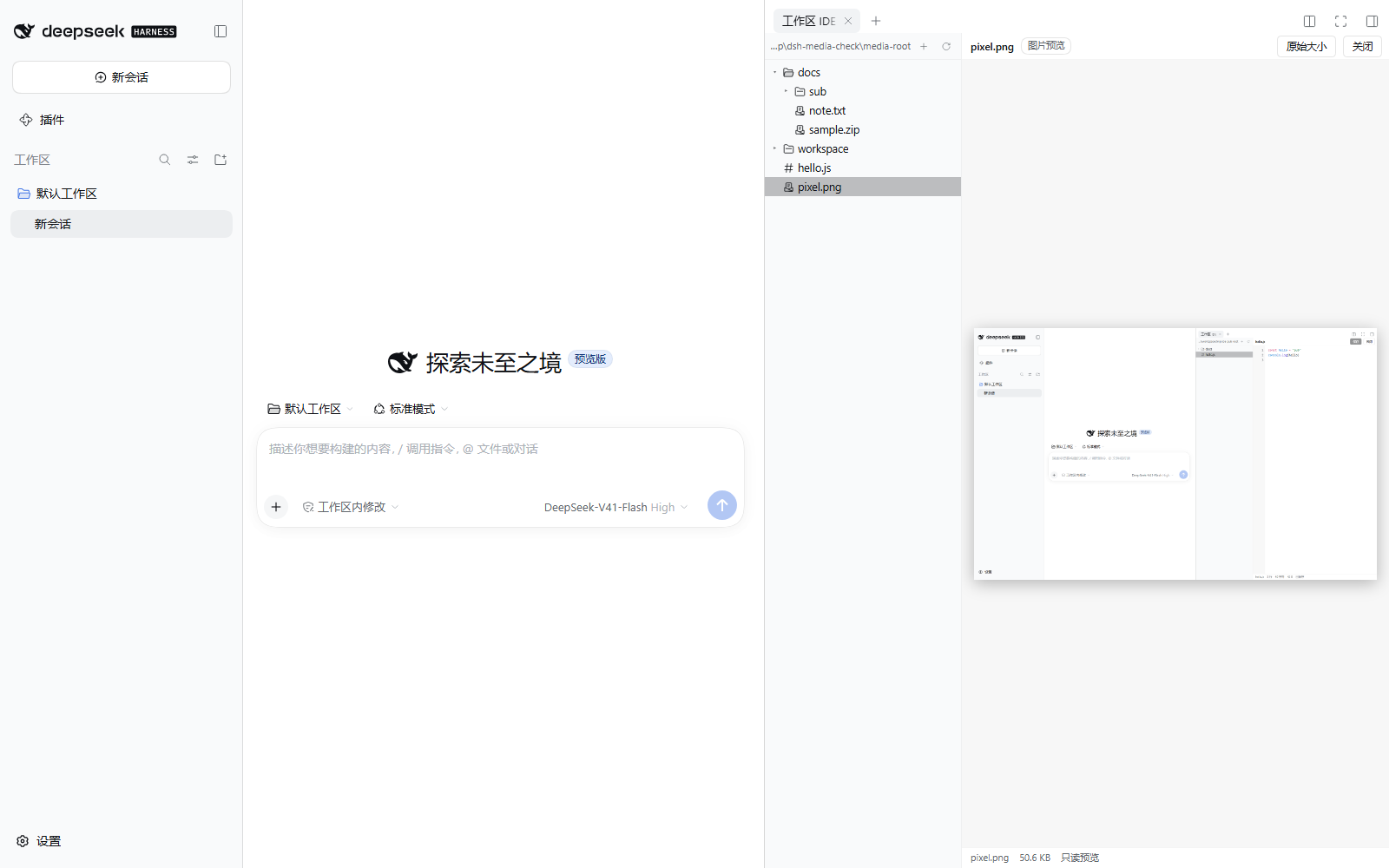
图片(点开就预览)
.png .jpg .jpeg .gif .webp .bmp .ico .avif 点开直接当图片显示(不是丢给你一句「不是文本文件」):可切「原始大小 / 适应窗口」,状态栏显示文件大小与「只读预览」。图片走 GET /api/ide-vscode/raw,单张上限 64 MB。
压缩包(看内容 / 解压 / 打包)
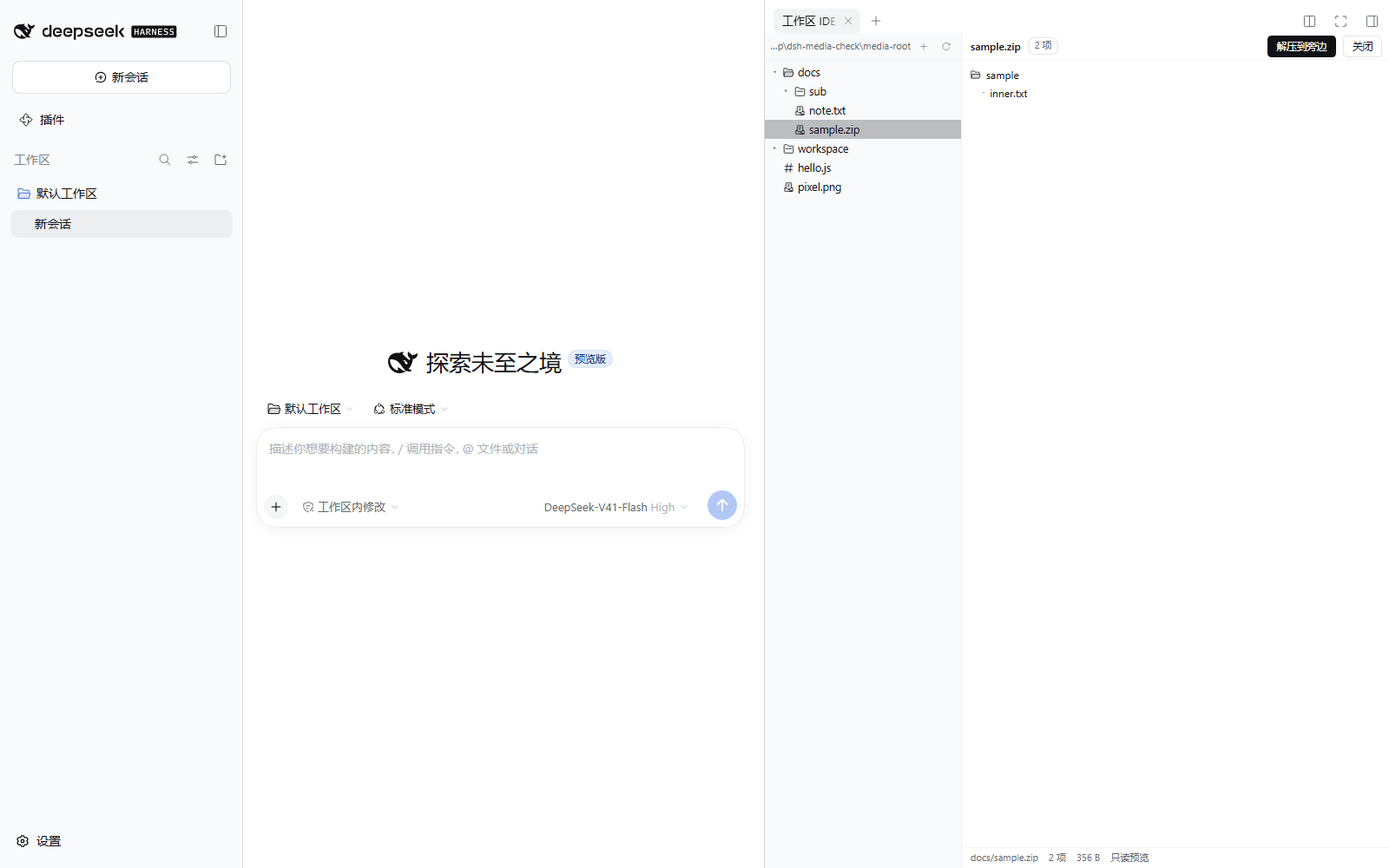
.zip .tar .tar.gz .tgz .gz .7z .rar点开列出包内成员(目录缩进显示,最多列 1000 项,超出会提示总数)- 面板上「解压到旁边」:解到压缩包旁边的同名目录(已存在就自动用
名字-2,不会覆盖);解出来的顶层目录与压缩包里存的一致(和资源管理器 / 7-Zip 的默认行为相同) - 文件或目录右键「打包成 zip…」:在它旁边生成
.zip;同名已存在会提示,不会默默覆盖 - 底层用系统自带的
tar(Windows 10+ 自带 bsdtar),所以不用装任何依赖;系统没有tar时会明确报错
删除
- 默认移到回收站,不是真删;对话框里另有「彻底删除」按钮并二次确认
- 回收站位置会写在删除后的提示里(默认
/.dsh-ide-vscode/trash,可配置,见下)
在哪里打开
- 右侧栏点
+→ 起始页上的「工作区 IDE」卡片(图标是文件树) - 会话里点到
.js .ts .py .json .ps1 .yaml ...这类代码 / 配置文件时,也会直接开在这个 IDE 里 .md、.html仍交给 DSH 自带的文档预览,不抢
安装
从插件市场装(推荐):设置 → 插件 → 插件市场 → 搜 dsh-ide-vscode → 安装。
或者命令行:
dsh plugin --profile desktop add dsh-ide-vscode
(desktop 换成你在用的 profile 名;用 dsh web 的话是 --profile web。)
装完要重启一次 DSH。 插件包列表只在启动时读,热加载不会带上新插件。
工作区根目录(跟随会话)
树显示的就是这个面板所在会话的工作区——切换工作区,树跟着换,不需要配置。每个请求都带上会话 id,宿主据此取该会话的 cwd。整条链按顺序取第一个真实存在的目录:
- 环境变量
DSH_IDE_ROOT(想强行钉死一个目录时才用) - 该请求所属会话的工作目录(
ctx.sessions→sessionPersistence) - 插件包目录下的
ide-root.json,例如{"root": "D:\\my\\project"}(可选) - DSH 自己记录的默认工作区(
~/.dsh/storages/workspace.json) - 宿主进程的当前目录(
process.cwd(),最后兜底)
回收站同理:DSH_IDE_TRASH(绝对路径)> ide-root.json 里的 trash(相对根目录)> 默认 /.dsh-ide-vscode/trash(这个目录在树里被隐藏)。
ide-root.json 是本地文件,既不在 git 里也不在 npm 包里(想留一份自己的根目录就写它;删掉它,面板就纯粹跟着会话走)。
安全边界
- 所有路径都相对根目录解析,越出根目录一律 403(
..跳出去、绝对路径都拦) - 只接受回环地址(
127.0.0.1/::1)的请求;写操作如果带Origin,还要求它与Host同源,否则 403 node_modules、.git、.pnpm-store等目录拒绝写入 / 新建 / 删除- 名称校验:空名、
.、..、Windows 非法字符、保留名(CON / PRN / AUX / …)、超过 200 字符一律拒绝 - 读单文件上限 2 MB、单张图上限 64 MB,写上限 8 MB,单目录最多列 5000 项,压缩包最多列 1000 项
- 解压 / 打包调系统自带的
tar,命令带 5 分钟超时;解压出来的东西只落在工作区根目录内
兼容性
- DSH
>= 0.1.5-rc.1(web / desktop,用到右侧栏标签页 API) - Node
>= 22 - 解压 / 打包需要系统有
tar(Windows 10 1803+ 自带 bsdtar,Linux / macOS 自带) - 没有第三方运行时依赖,不联网
已知限制
- 不是完整的 VS Code:没有 Monaco、没有 LSP 补全、没有终端 / Git / 全局搜索,编辑体验就是「行号 + 高亮 + 存盘」
- 一次只开一个文件,没有多标签
- 图片只做预览,不能裁剪 / 缩放后另存;视频、PDF、Office 文档不处理
- 压缩包只支持系统
tar认识的那些格式(.rar一般解不了,Windows 自带的 bsdtar 不含 rar 解码器),加密包不支持 - 编辑二进制文件不行(不认识的二进制后缀仍然不打开)
- 读写走插件自建的本地 HTTP 路由(挂在宿主 web server 上,只服务这个面板),因为宿主提供的文件服务是只读的
开发
lib/index.js          host 半边:14 条路由(root / list / read / stat / raw / archive / search / extract / compress / write / create / rename / delete / log)
client/client.js      客户端半边:右栏标签页 + 文件树 + 编辑器 + 图片预览 + 压缩包面板(React,复用宿主的 ui primitives)
cordis.patch.yml      把插件插进 bundle 列表
ide-root.json         可选的本机根目录配置(gitignore,不进包)
test/host-smoke.mjs   69 项:全部路由、越界、改名、回收站、图片 / 压缩包、Origin 闸(离线,无需 DSH)
test/client-smoke.mjs 34 项:bundle 契约与面板注册(离线,jsdom + react)
test/dom-e2e.mjs      42 项:真 DOM 交互(点右键菜单、打字、Ctrl+S 落盘、图片预览、压缩包解压)
test/gui-verify.mjs   真 GUI 端到端:无头 Edge + CDP 真鼠标真键盘,对隔离的 DSH 实例跑完整流程
npm test # host + client + dom,三套全部离线
test/gui-verify.mjs 需要一个带 token 的 DSH 网页地址(dsh web 启动时会打印),用法见文件头部注释。
License
MIT
English
dsh-ide-vscode puts a small IDE into the DeepSeek Harness right sidebar: a workspace file tree on the left, an editor / image preview / archive viewer on the right.
- Create files and folders from the context menu, with one-click extension chips; rename (extension included) and delete (to a trash folder by default, hard delete on request).
- Edit in place with line numbers and syntax highlighting,
Tabfor two spaces,Ctrl+Sto save; unsaved changes are tracked and confirmed before switching files. - Pictures (
.png .jpg .jpeg .gif .webp .bmp .ico .avif) open as an image preview, fit-to-window or 1:1, never as a "not a text file" error. - Archives (
.zip .tar .tar.gz .tgz .gz .7z .rar) list their members, can be unpacked next to themselves, and any file or folder can be packed into a.zipfrom the context menu — all through the systemtar, so there is no runtime dependency. - Opens from the right-sidebar + start page ("工作区 IDE" card) and takes over code/config files (
.js,.ts,.py,.json,.ps1, …) opened from a session; Markdown and HTML stay with DSH's own preview. - Install from the plugin market or
dsh plugin --profile desktop add dsh-ide-vscode, then restart DSH (new bundles are only read at startup). - The host half adds 14 local routes under
/api/ide-vscodebehind a loopback + same-origin gate, because DSH's built-inworkspaceFilesservice is read-only. - The tree follows the workspace of the session the panel belongs to (each request carries its session id); the fallback chain is
DSH_IDE_ROOT→ session cwd →{"root": "..."}inide-root.jsonnext to the package → DSH's own default workspace (~/.dsh/storages/workspace.json) →process.cwd(), first existing directory wins. - The recycle bin lives at
/.dsh-ide-vscode/trashby default (hidden from the tree) and can be redirected withDSH_IDE_TRASHortrashinide-root.json. - No third-party runtime dependencies, no network access. MIT licensed.