zengqingsong/dsh-sidebar-frog ↗★ 0
dsh-sidebar-frog
可弹出侧边栏 · A DeepSeek Harness sidebar that shows artifacts and pops out into a larger web tab. 适合多文件/多产物工作流,需重启服务并强制刷新界面后生效。
설치
npx -p @deepseek-ai/dsh dsh plugin --profile web add github:zengqingsong/dsh-sidebar-frogPopout Sidebar · dsh-sidebar-frog
English · 简体中文


An artifacts + file-tree sidebar for DeepSeek Harness — it keeps the files the agent created or edited, and the current workspace, within reach; one click on a file opens it as a new tab inside the sidebar, previewed at full panel width (code / Markdown with math + Mermaid + JSXGraph / PDF / HTML / images / sortable CSV·TSV tables / Word, Excel and PowerPoint read fully offline / audio & video streamed with HTTP Range). When you want a bigger screen, one click pops it out into its own browser tab that you can drag to a second monitor and read side by side. Sidebar and popout page stay in sync in real time.
- Repository: · License: MIT · Author: 曾青松 (Zeng Qingsong)
- Unofficial community plugin — an independent project, not affiliated with or endorsed by DeepSeek. The name, the frog and the panel are this plugin's own.
- Origin: a fork of
e2mcc/dsh-popout-sidebar(MIT · Copyright (c) 2026 Qinyun Cai) — the upstream notice is kept verbatim in LICENSE, and the differences are described under Author - Zero runtime dependencies: no npm package beyond React, and no network access (every preview library is bundled)
- Permissions and risk: it reads and writes only inside the session's workspace; every data route is fenced exactly the way DSH's own
/apiis, so an unauthenticated call answers401; and it makes no network requests at all — no external service, no telemetry, no runtime npm dependency, no build script run on install (see How it works). - Compatibility: verified on DSH
0.1.5-rc.2,webprofile — the only profile with a browser UI. Installing runs no build step (both halves ship committed assrc/host.jsandsrc/client.js), so pnpm never asks you to allow a build script; and on a DSH build whose right-sidebar tab registry is absent or has changed, the plugin falls back to its own floating panel instead of failing to load. - Shape: inside the system right sidebar it occupies five tabs — Files (this plugin's file tree, taking over the system's own kind)/ Artifacts/ Jobs/ Usage/ Git — with chip, chrome, fullscreen, floating and drag-to-resize all provided by the system; the left column's footer also carries a permanent File treebutton (the system hides its own expand button in a blank session — see Quick start). Where the system exposes no tab registry (an older build, or a changed contract) the plugin falls back to its own floating panel; both paths are covered by the guards.
Table of contents
| Highlights | what this plugin solves, at a glance |
| Visible proof | two real frames, and how to regenerate them |
| Quick start | install / upgrade / restart |
| Features | popout page · artifact ledger · file tree · preview types · diffs · editing and saving · settings · panel chrome and toolbars · Git read-only slice · the removed built-in browser |
| Settings | 10 preferences and their ranges (plus 5 fixed behaviours with no switch) |
| How it works | host / client / cross-window bridge |
| Sidebar vs popout | the deliberate differences, and what is aligned |
| Layout | what every file is for |
| Development | what npm run check is actually watching |
| Theming · Updates | light/dark, and the build-id self-check |
| Author · License |
✨ Highlights
| Feature | In one line | |
|---|---|---|
| 🖥️ | Popout · two-monitor workflow | One click pops the sidebar out into its own tab (/dsh-sidebar-frog) that you can drag to another monitor for a larger, clearer view; both sides show the same content, synced live — session / workspace, settings, and the splitter position are all shared, and the @-reference button on the popout page writes straight back into the main window's composer (the layout differences are listed under known differences) |
| 📦 | Works out of the box · fully offline | pdf.js, MathJax, Mermaid, JSXGraph and the Office readers (docx-preview + JSZip, SheetJS, @aiden0z/pptx-renderer) are all bundled (no CDN), so PDFs, formulas, diagrams, interactive geometry and Word / Excel / PowerPoint documents render just as well offline or inside an isolated intranet |
| 🌳 | What the agent produced is what you see | Files the agent writes or edits show up automatically, as do files produced indirectly by bash / pwsh commands (a chart drawn by a script, for instance) — click one to preview it |
| ↔️ | Click a file → a new tab in the sidebar | The sidebar only owns one strip of the screen, so it no longer squeezes preview and file tree side by side: clicking a file in the tree or the artifact ledger adds a file tab to the panel's tab strip, and the preview takes the whole panel width; the ledger and the tree each stay in their own tab, one click away. Every file tab carries a ✕, and clicking the same file twice just switches to the tab that is already open |
| 🖥️ | The popout page is still a two-column layout | The standalone tab has room to spare, so it keeps preview on the left and list / file tree on the right, with a draggable splitter whose position is shared with the "popout preview width" setting and remembered (default 80%, preview ≥300px, file tree ≥280px) |
| 🔄 | Refresh one directory at a time | The ↻ on a hovered directory row re-reads only that level: every other expanded directory, its children, and the scroll position stay exactly where they were. The toolbar ↻ likewise preserves expansion state (Shift+click is the full reload) |
| ⚡ | Deeply fitted to the agent workflow | An inline @-referenceon a tree row writes @path straight into the session composer (falling back to copying when unavailable); pressing the same button on the popout page writes the reference back into the main window's composer across windows; edited files show their "− removed / + added" diff hunks; in the floating form there is also a permanent toggle in the top-right corner, visible even with no session |
| 🧩 | Every view is a tab of the system sidebar | Files / Artifacts / Jobs / Usage / Git each own a system tab, and the guide page lists all five entry points: chip, chrome, fullscreen, floating, split and drag-to-resize are all the system's. The "Files" tab takes over the system's own kind at the extension band (the official contract states that a kind may carry a builtin and an extension at once, that the extension is the one in force, and that the builtin comes back when it is disposed), so the system sidebar's Files tab is this plugin's file tree — @-references into the composer, the context menu and per-directory refresh are all there (the built-in tree is a plain list with no context menu and no reference action at all). On the native surface the plugin draws no view switcher of its own and no sidebar toggle either (that is how the duplicate "collapse sidebar" disappeared). A setting hands the whole thing back to the system in one click, and where the system has no registry the plugin falls back to the floating panel (every path is guarded) |
| 🌿 | Git read-only slice | Current branch + ahead/behind + four lists (changed / staged / untracked / conflicted); click a row to see that file's line-level diff against HEAD right there. Read-only is a hard boundary: every git call goes through the system's own ctx.subprocess (executable resolution, managed process scope, timeout abort), argv is always a literal vector defined in that file, and no verb outside the allow-list exists — no staging, no commit, no checkout, no stash, no discard |
| ✏️ | Edit and save without leaving the sidebar (P1-10) | Markdown / plain text / CSV open in a CodeMirror 6 editor (vendored, offline, fetched on the first click of 编辑) with Ctrl+S; the save goes through the host's workspace fence + version CAS and puts the file's own CRLF and UTF-8 BOM back, so editing one paragraph never rewrites the whole file; a conflict is a stated refusal with "reload" or "save anyway", never a silent overwrite; and a save lands in the same undo history as the agent's edits, so Undo puts your own change back too |
| 📐 | Lending the offline renderers to the system sidebar | .md, tables (csv / tsv) and Office documents (docx / xlsx / pptx) are each registered into the official ctx.documentPreviews registry at the extension band (external implementations win over the built-in ones), so the official right sidebar's Markdown preview gains math / Mermaid / JSXGraph too, spreadsheets stop being one endless line of text, and Word / Excel / PowerPoint files can be read in the system sidebar as well; the three switches are independent and hand control back at any time. There is also one capability fallback that has no switch: the system's own PDF renderer calls Map.prototype.getOrInsertComputed (Chromium 145+), and where the browser lacks it the plugin takes over PDFs with its bundled pdf.js 3 — where it has it, nothing is registered. Whether a lend actually took effect is spelled out line by line in "System document previews: lend status" at the top of the settings page. The reverse direction goes through the same registry: for containers this plugin genuinely has no reader for (.doc / .odt / .epub), it offers "open in the system sidebar" when a system renderer claims them |
| 🧭 | Coexists with other sidebars | In the floating form, when another side card is open the panel yields to its left, so both sidebars are usable and neither covers the other |
| 🎛️ | Looks like part of Harness itself | The floating panel's toolbar is 38px, its divider .5px, its icon buttons 28px, its underline tabs 13px — all values taken from Harness's own side panels and settings page; on the native surface that chrome is the system's and this plugin draws none of it, see panel chrome and toolbars |
Visible proof
Two frames of the popout page, produced by npm run check — the real bundle rendering real previews, against the harness's stub host (a guard cannot sit in your browser session, so the harness serves the data instead):
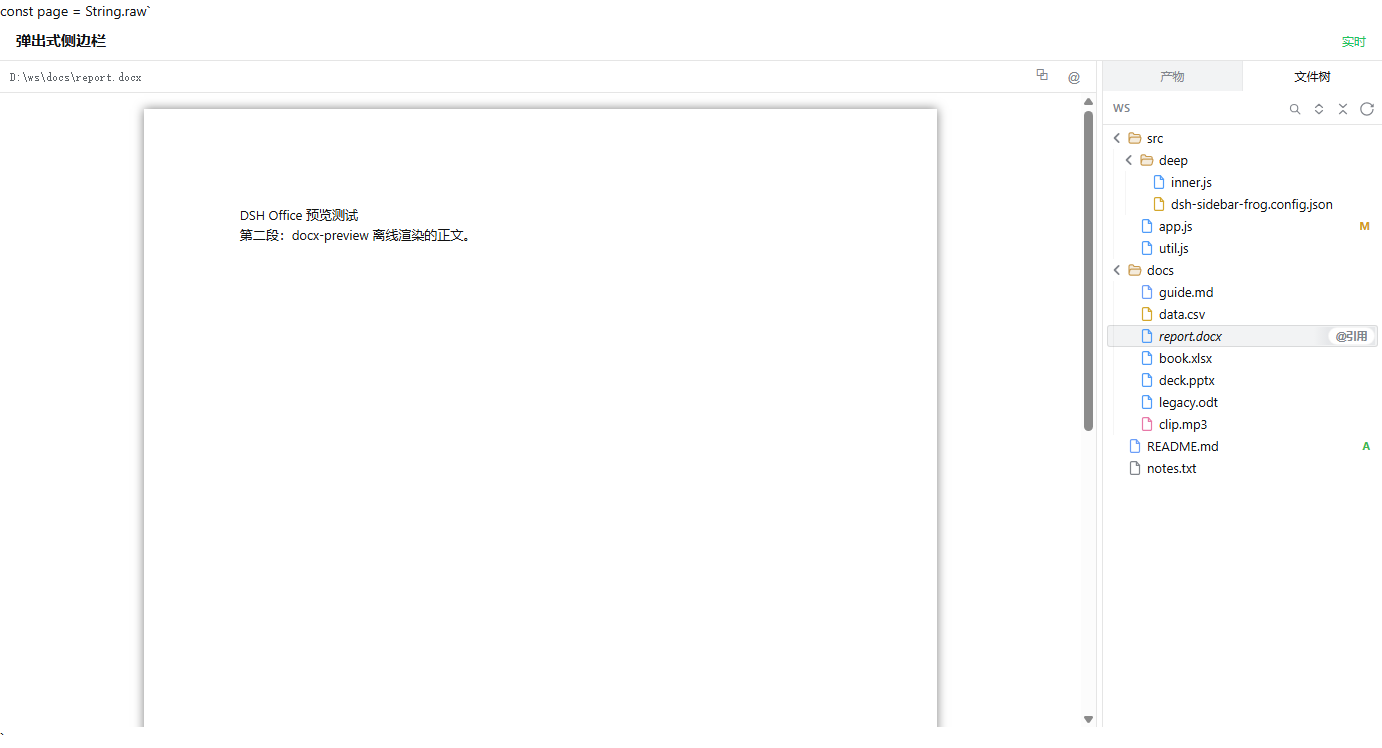
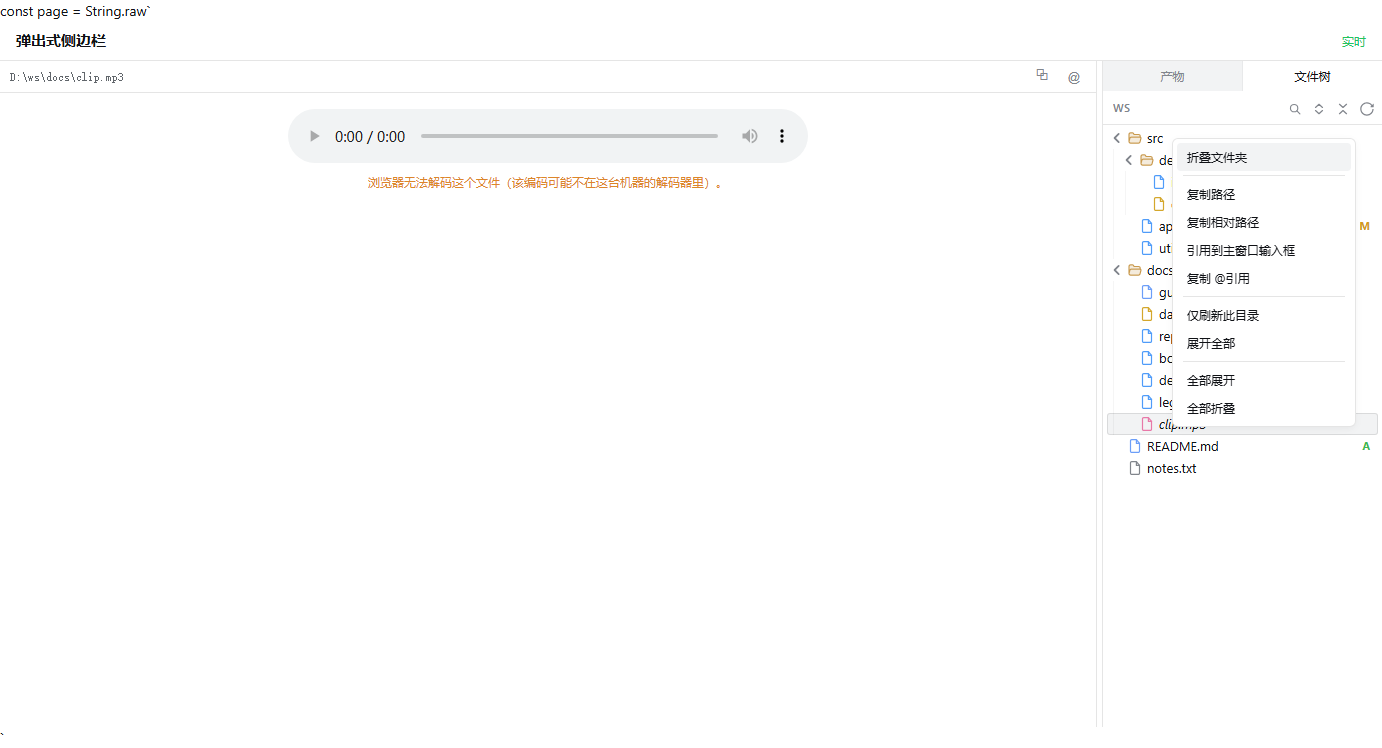
The sidebar inside the app shows the same content through the same shared preview code; the popout page is what a check can drive with real mouse and keyboard events on this machine. Regenerate both with npm run check (they are written to the system temp directory and printed at the end of the run).
🚀 Quick start
Prerequisite: DSH is installed (dsh web runs).
# 1) keep DSH itself up to date
npm install -g @deepseek-ai/dsh        # npm uninstall -g dsh first if you need a clean reinstall

# 2) install this plugin (static install, persists across restarts)
dsh plugin --profile web add github:zengqingsong/dsh-sidebar-frog
Then restart the DSH service (the host half is loaded once at startup) and hard-refresh the browser (Ctrl/Cmd+Shift+R):
- The right sidebar gains five tabs: Files— this plugin's file tree, whose rows show an
@ referencepill on hover and whose context menu offers expand folder / copy path / copy relative path /@-reference / refresh this directory only / expand all / collapse all; Artifacts— the change ledger; Jobs— background tasks; Usage— context and tokens; Git — branch / ahead-behind / change lists plus line-level diffs, read-only; - If the right sidebar is not open yet, its own guide page lists those five entry points — click whichever you want. Expand / collapse, fullscreen, floating, drag-to-resize and splitting are all the system's controls; this plugin does not draw a second sidebar toggle;
- In a brand-new session, come in through the "File tree" button at the bottom of the left column: the right column's only expand control lives in the session header, and the system hides that entire header (
display:none) in a blank session (one that has not run a turn yet) — at that moment the whole column cannot be opened, and that is not something this plugin is missing. This button is present in every state, and one press both expands the column and lands on the file tree (see the right sidebar's default page and entry points); with "expand on load" on, a new session presses it for you;
- In a brand-new session, come in through the "File tree" button at the bottom of the left column: the right column's only expand control lives in the session header, and the system hides that entire header (
- In the file tree, clicking a file makes the system open a document tab in the same column (for
.mdthat is still the renderer this plugin lent out); clicking a file in the Artifacts ledger opens it in the ledger's own document tab, where the line-level diff and Undo live.
If this system's right sidebar has no usable tab registry (an older build, or a changed contract), the plugin falls back automatically to its floating panel: its own entry point then appears in the top-right corner (when closed it is "open sidebar + pop out"; once open, the collapse button sits in the panel's toolbar), the panel switches between artifacts / file tree / Git on its own strip (plus a "Jobs N" view only while background tasks actually exist), and the top of the settings page states which form is in force.
Local development:
dsh plugin --profile web add /absolute/path/to/dsh-sidebar-frog(installed as a symlink); after editingsrc/, runnpm run build, restart the service and hard-refresh.Manual mount: adding
"dsh-sidebar-frog": "link:d:/ai/dsh-sidebar-frog"to the profile configuration has the same effect; but do not usedsh plugin addand a hand-written mount line (that double-mounts: two Node halves, two sidebars).
🎯 Features
1) Pop out into a standalone browser tab
- One click opens the same content in a new tab (
/dsh-sidebar-frog) that you can drag to another monitor for a larger, clearer view — handy for checking output while the agent keeps working. - Where the entry point is depends on the form in force (all four links share one browsing context, so a second click just switches back to the same tab instead of stacking up a row of them):
- Native form (default): at the bottom of the left column there are two stacked buttons — File treeon top and Popout pagebelow it (one seat,
sidebar.footer.action, present while the column is collapsed and on a blank session's first screen; the stacking is mandatory, see the right sidebar's default page and entry points) — plus "Open in a new tab" in the context menu of every tab this plugin owns; the system's own chip has no visible menu trigger, so that one is the
- Native form (default): at the bottom of the left column there are two stacked buttons — File treeon top and Popout pagebelow it (one seat,