Chael-Chael/dsh-reference-anything ↗★ 12
dsh-reference-anything
在@菜单中集成多源搜索与引用功能 适合需要在一个菜单中快速引用文件、会话、指令和云盘的用户。
安裝
npx -p @deepseek-ai/dsh dsh plugin --profile web add github:Chael-Chael/dsh-reference-anything說明文件
閱讀完整 README ↗🚀 Usage
Reference Anything registers seven sources in the native DSH @ menu rather than introducing a separate search interface. Settings let you choose which groups appear, their order, their collapsed row count, their hard candidate cap, and whether groups use plugin-owned collapse actions or the native scrolling list. A separate one-click control switches the visible picker back to DSH's official file/session list without stopping the plugin, synchronization service, local data, or model-facing tools; the same control restores the Reference Anything picker at any time.
- Open
Settings → Reference Anythingin DSH Web. - Under Availability check, confirm that OpenCLI, Browser Bridge, the browser extension, and the conversation adapter are ready.
- Under Web AI conversation sync settings, choose a browser profile, storage mode, sync mode, and history range, then start syncing.
- Type
@in the input box and choose from theCommands,Skills,Files and folders,DSH sessions,Local agent conversations,External conversations, orCloud drive filesgroups. - Type a keyword to filter candidates, for example
@cache-design.
The default Read bodies on demand mode stores only the title index locally and uses the browser when an agent needs the conversation. Choose Store full bodies locally for offline reading and full-text search. The plugin checks for new versions when it loads; release notes are available in Settings, and installed updates take effect after restarting DSH.
[!WARNING] To protect your account and conversation data, external conversations are imported and synchronized through OpenCLI using your existing logged-in browser session. A browser window may temporarily open during use or synchronization. In most cases, leave it open in the background: the plugin will reuse it without interrupting your work. The window may also display OpenCLI debugging information. This is expected—please do not be alarmed or close it manually; wait for the operation to finish. Due to current OpenCLI limitations, we temporarily use slower serial synchronization to reduce how often browser windows open. Once the upstream OpenCLI repository is updated, we will switch to faster parallel synchronization.
🧩 One @ menu, multiple sources
The @ menu contains seven groups: Commands, Skills, Files and folders, DSH sessions, Local agent conversations, External conversations, and Cloud drive files. The cloud-drive group browses folders and supported files from drives connected through OpenList; access is read-only, and connections are managed in Settings. Each group shows six rows before its expand action by default and accepts a separate hard candidate cap from 1 to 50. In collapse mode, each expand action reveals five more rows and updates the mounted menu without jumping back to the top; collapse restores the configured compact count. The external-conversation group keeps its sync action first and updates that row and the visible results in place while synchronization runs and completes. Under Settings → Reference Anything → General, you can enable or disable groups, reorder them, and choose Collapse / expand or Native DSH scrolling.
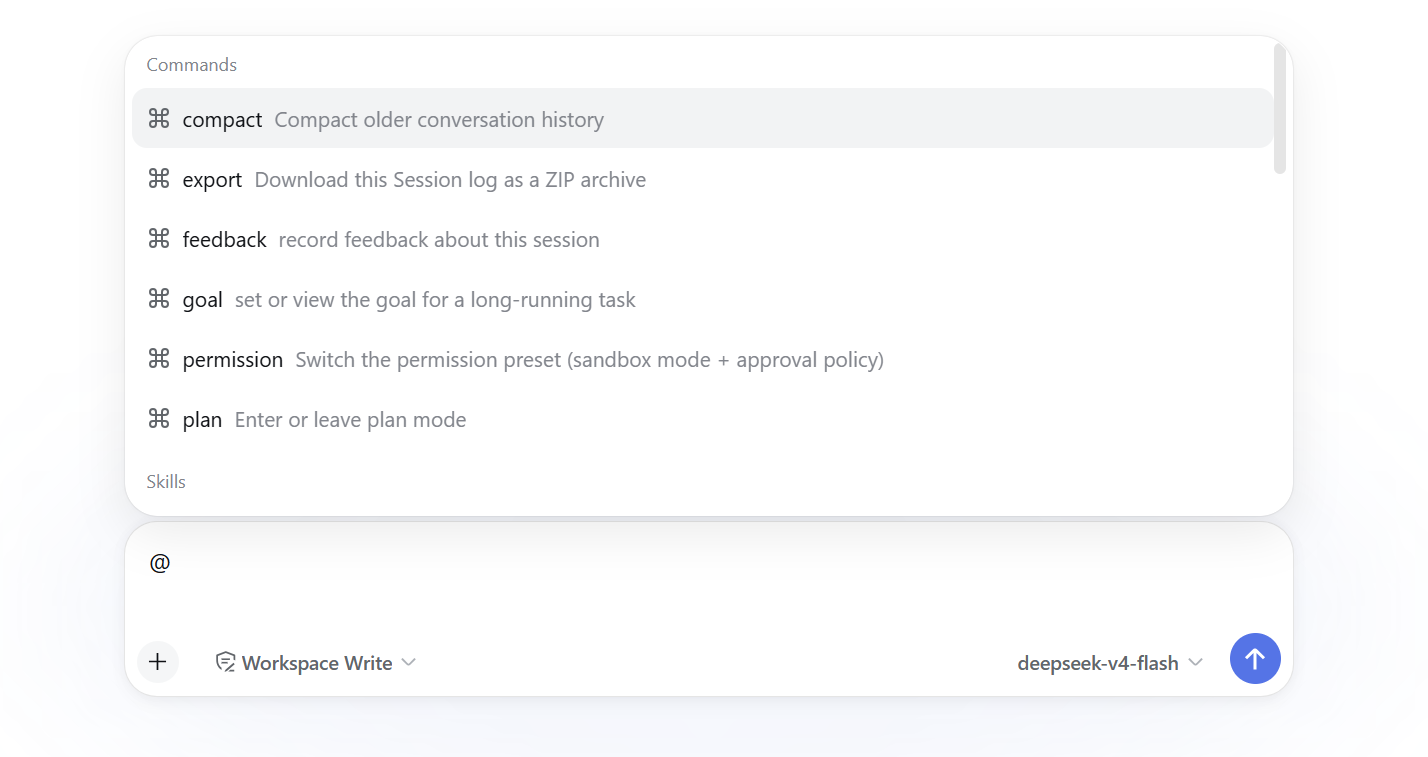
⌨️ @Commands — DSH native commands
To browse commands, use @commands; selecting one hands /command back to DSH's native slash pipeline.
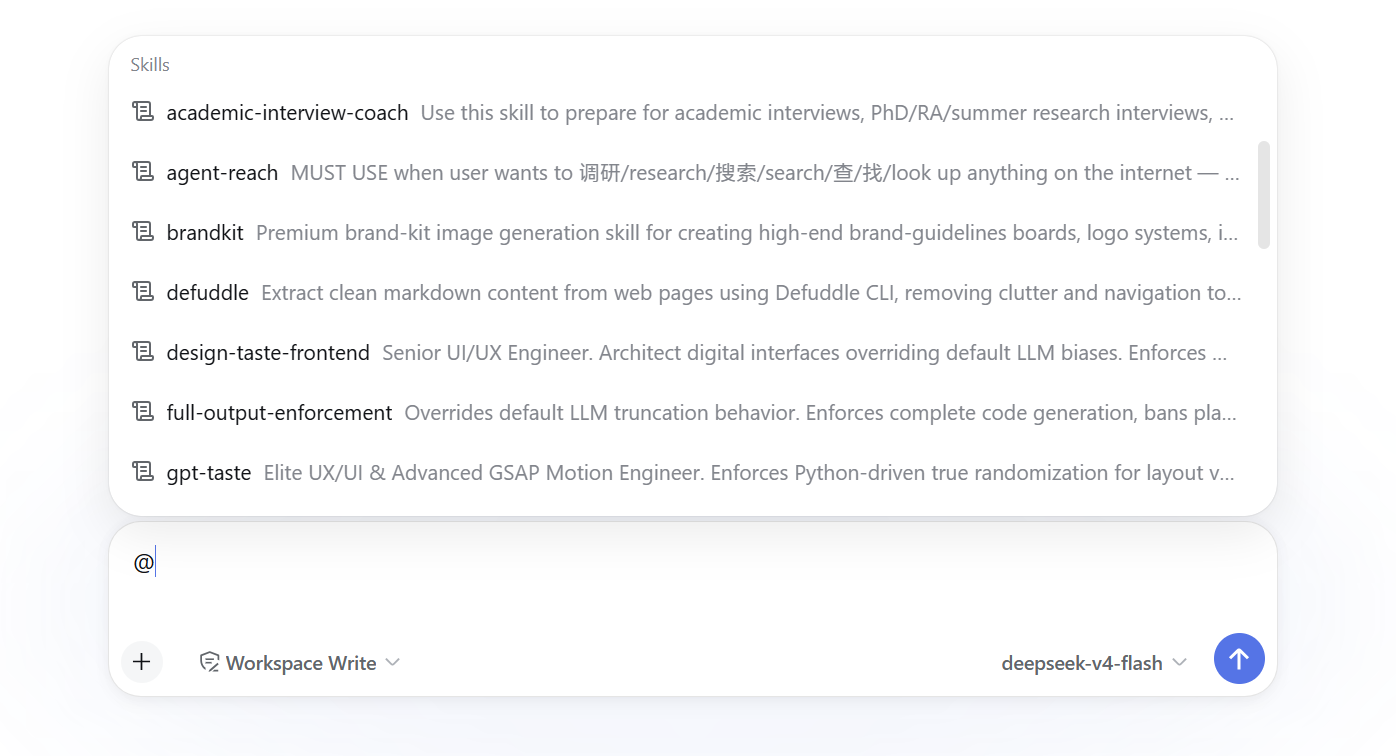
🛠️ @Skills — DSH skill library
To browse skills, use @skills:; selecting one inserts /skill for DSH's native skill handling.
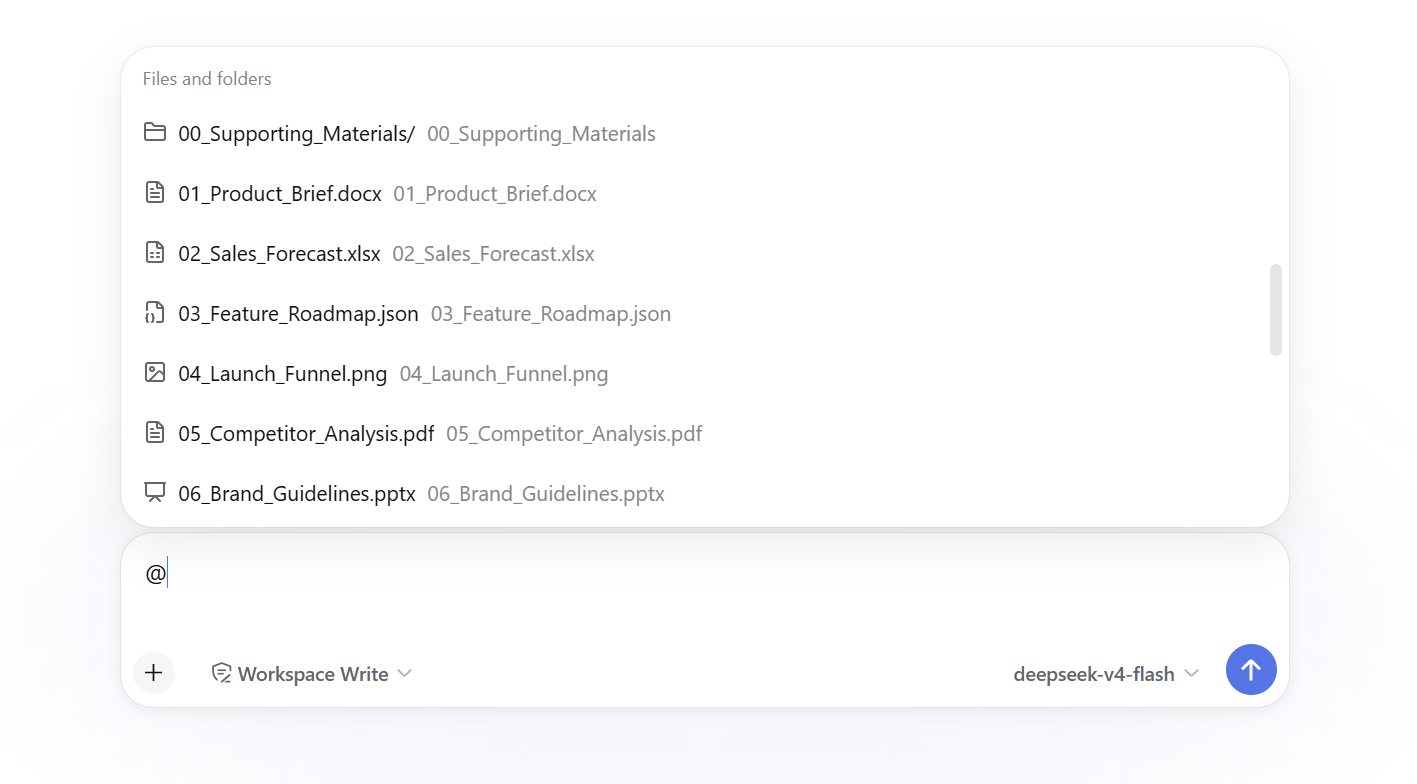
📁 @Files and folders — workspace files and directories
Type @files: in the input box to browse files and folders through DSH's official file-reference Remote.
Features:
- Uses the official
@path/@"path with spaces"grammar and canonical file candidate service - Files become native atomic references; selecting a directory keeps the path editable and continues completion
- The plugin no longer creates or parses a custom
dsh-file:scheme
💬 @DSH sessions — DSH session history
Type @sessions: to browse DSH sessions through the official session-reference Remote.
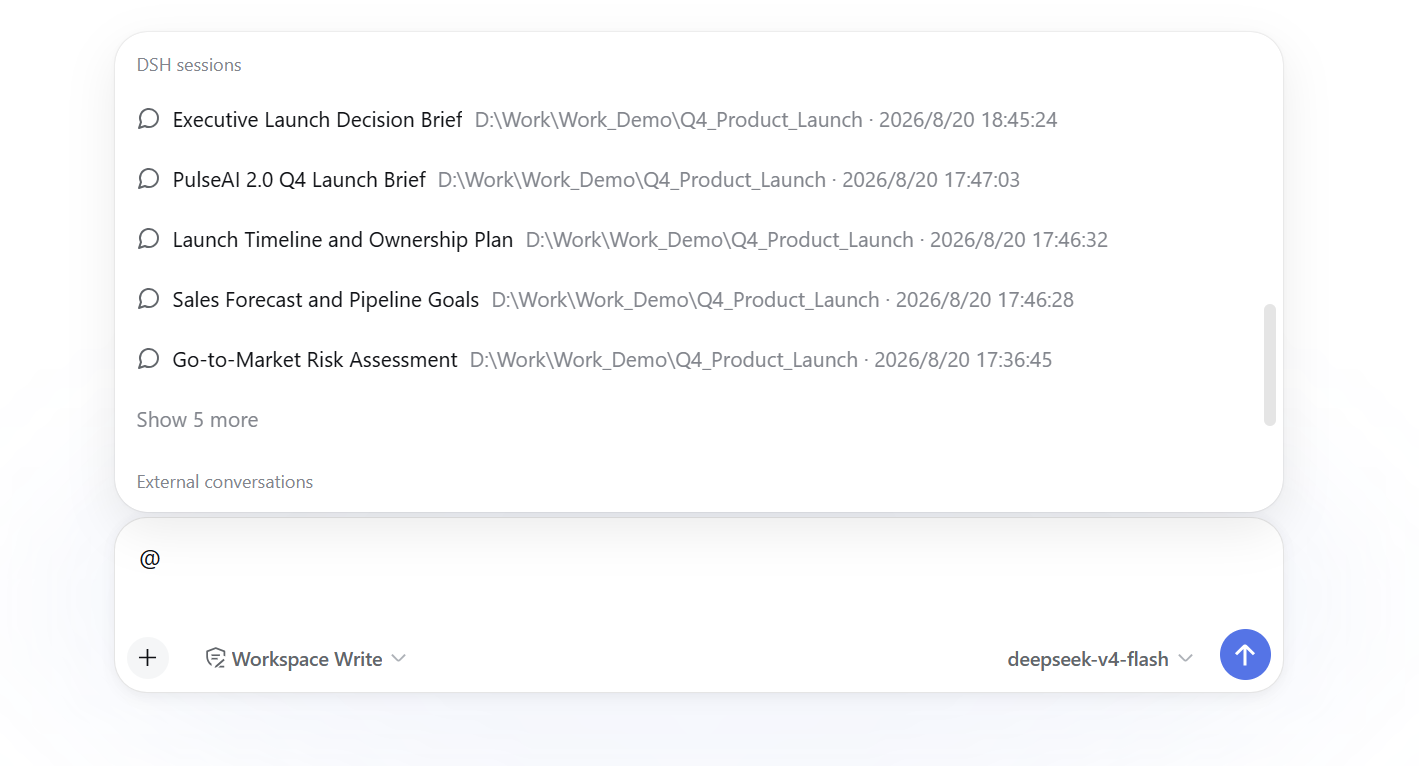
Selected sessions use DSH's canonical dsh-session: mention and native session appearance. Snapshot preparation and resolution remain owned by DSH rather than this plugin.
🖥️ @Local agent conversations — transcripts from local agent CLIs
Type @agents: to search and reference conversations saved by other local agent tools.
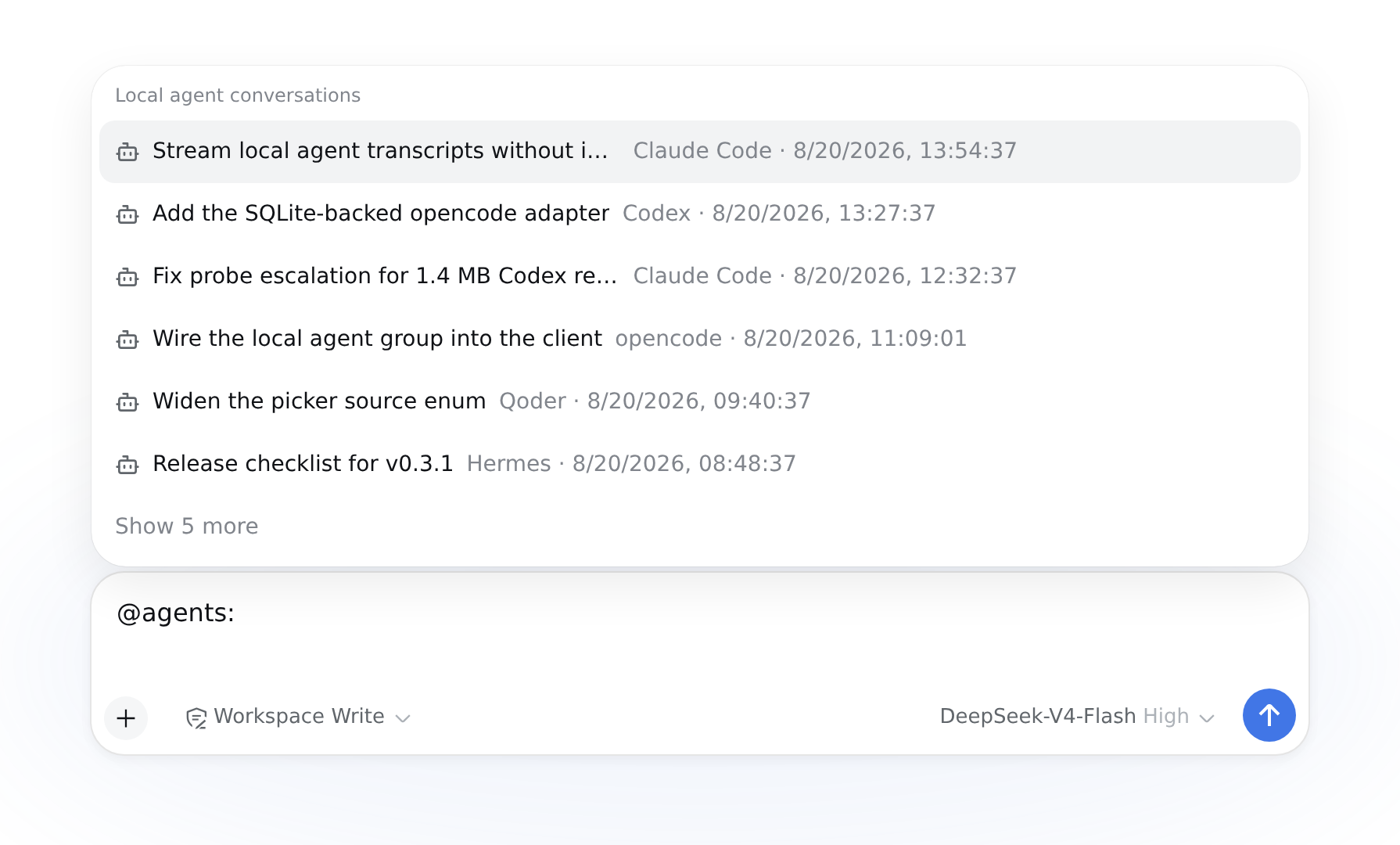
Supported agents: Claude Code, Codex, Cursor, Qoder, Reasonix, OpenClaw, Kimi, Grok Build, Hermes, Gemini CLI, Pi, opencode, mimocode, and zcode.
Features:
- Automatically detects conversation history and shows the number found for each agent
- Lets you enable agents independently or choose a custom history folder
- Searches all detected conversations by default, with an option to limit results to the current workspace
- Reads conversation content on demand; tool names are concise by default, with full details available when needed
- Supports agent-specific prefixes such as
@codex:,@claude-code:, and@gemini-cli:
🌐 @External conversations — external conversation platforms
Supports historical conversations from ChatGPT, Claude, Gemini, DeepSeek, Grok, and Kimi.
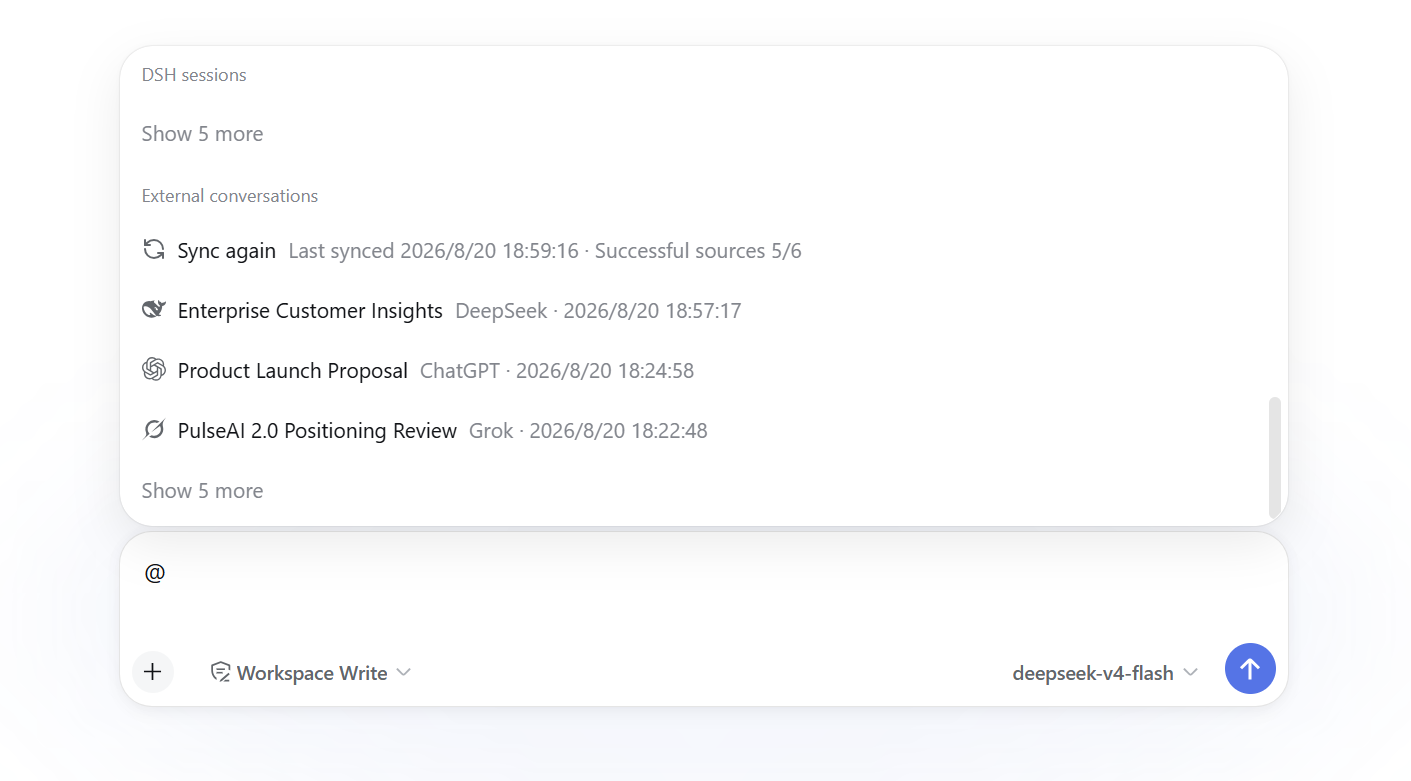
Platform filtering:
- Use
@chatgpt:cacheor@claude:refactorto filter a specific platform - Short aliases are also accepted, such as
@gpt:and@ds: - Entering
@claudealone lists recent conversations for that platform
Search capabilities:
- Title match: fuzzy search on conversation titles
- Content search: available only in Store full bodies locally mode; if title matches are insufficient, synchronized bodies are searched and matching excerpts are shown in the candidate list
- Provider and account isolation: history is maintained separately by Provider and account scope
@search uses the account scope cached by the latest sync and never probes the browser; after a sync observes an account switch, it exposes only that account while older rows remain available in conversation management for cleanup
Reference display: after selection, the draft shows a native removable DSH reference with the Provider logo. Its stable serialized form is:
@[ChatGPT·Conversation title](https://github.com/Chael-Chael/dsh-reference-anything/blob/db460606bdb2e198ac4964a48056e08276fdbafd/)
Opening the source URL happens only in the UI; the URL is never injected into model context. The initial reference contains only a safe pointer; if the model needs the body, it calls reference_read on demand.
☁️ @Cloud drive files — files connected through OpenList
Type @drive:, @cloud:, @netdisk:, or @网盘 to browse folders and reference files from cloud drives connected through OpenList.
Common providers include OneDrive, Aliyun Drive, Baidu Netdisk, Quark, 115, 123, Dropbox, Google Drive/Photos, and Yandex. Other providers available in OpenList can be configured from the same settings page.
Features:
- Enables a managed OpenList instance with one click, or connects to an existing OpenList service
- Adds and manages drive mounts from Settings, including common providers through quick login
- Searches indexed files and supports folder-by-folder browsing from the
@menu - Shows the drive, path, and file type in search results to make similarly named files easy to distinguish
- Reads text files directly and downloads documents, spreadsheets, presentations, PDFs, and images when referenced
- Lets you choose and open the download directory
- Shows mount status and supports enabling, disabling, reauthenticating, removing, and rebuilding the search index
General notes:
- Use
:or/as the separator instead of a space: the@candidate token ends at a space, so@chatgpt keywordcloses the menu as soon as you press the space. For multi-word searches, write@cachedesignor@cache-design. - Without a type prefix, all groups are searched at once.
- Commands and Skills are handed back to DSH's native slash-command handling after selection; the native
/panel remains available. - Switching the picker back to DSH's official file/session list hides every plugin-owned group, including
Local agent conversationsandCloud drive files. The host source stays registered, so an already-inserted reference still expands andreference_readstill works; only the menu entry is gone until you switch back.