Ding-Kyoma/dsh-tui-workspace-sidebar ↗★ 0
dsh-tui-workspace-sidebar
Right-side inbox sidebar for dsh-TUI: running, unread and recent conversations grouped by workspace
安裝
npx -p @deepseek-ai/dsh dsh plugin --profile web add github:Ding-Kyoma/dsh-tui-workspace-sidebar說明文件
閱讀完整 README ↗dsh-tui-workspace-sidebar


English | 简体中文
A light right-side panel for dsh-TUI (dshtui.com) that answers one question at a glance: what is running, what finished while I was not looking, and where am I?
This is a community plugin, not an official dsh-TUI component. It is built against dsh-TUI 0.17.0 and uses only public host seams.
Status: published as
dsh-tui-workspace-sidebar@0.1.1. Install withdsh plugin --profile dsh-tui add dsh-tui-workspace-sidebar; the checkout install below remains available for development.
中文速览:dsh-TUI 右侧收件箱侧边栏,按工作区列出正在运行、未读、待回答和 近期已读的会话。安装:
dsh plugin --profile dsh-tui add dsh-tui-workspace-sidebar;界面语言跟随 dsh-TUI 的/lang,也可在插件配置里写lang: zh或lang: en。完整中文说明见 README.zh-CN.md。
Jump to: Install · Config · Languages · Privacy · Development · License
It uses a normal side-panel tab instead of a full-screen view: grouped by
project, one line per conversation, hover to highlight, click to jump. A +
after a project's status icons starts a fresh conversation in that workspace.
 2 运行 · ● 2 未读
▸ dsh-plugins ⠋ ● +
  ● 后台计划                  待回答
  ● 重写 README               5 分钟前
  ⠋ 给补丁跑个验证            2 分钟前
❯ ✓ 修复登录页样式            刚刚
▸ other-project +
  ✓ 更新部署脚本              3 小时前
↑↓ 选择 · Enter 跳转 · n 新建 · m 已读 · r 刷新
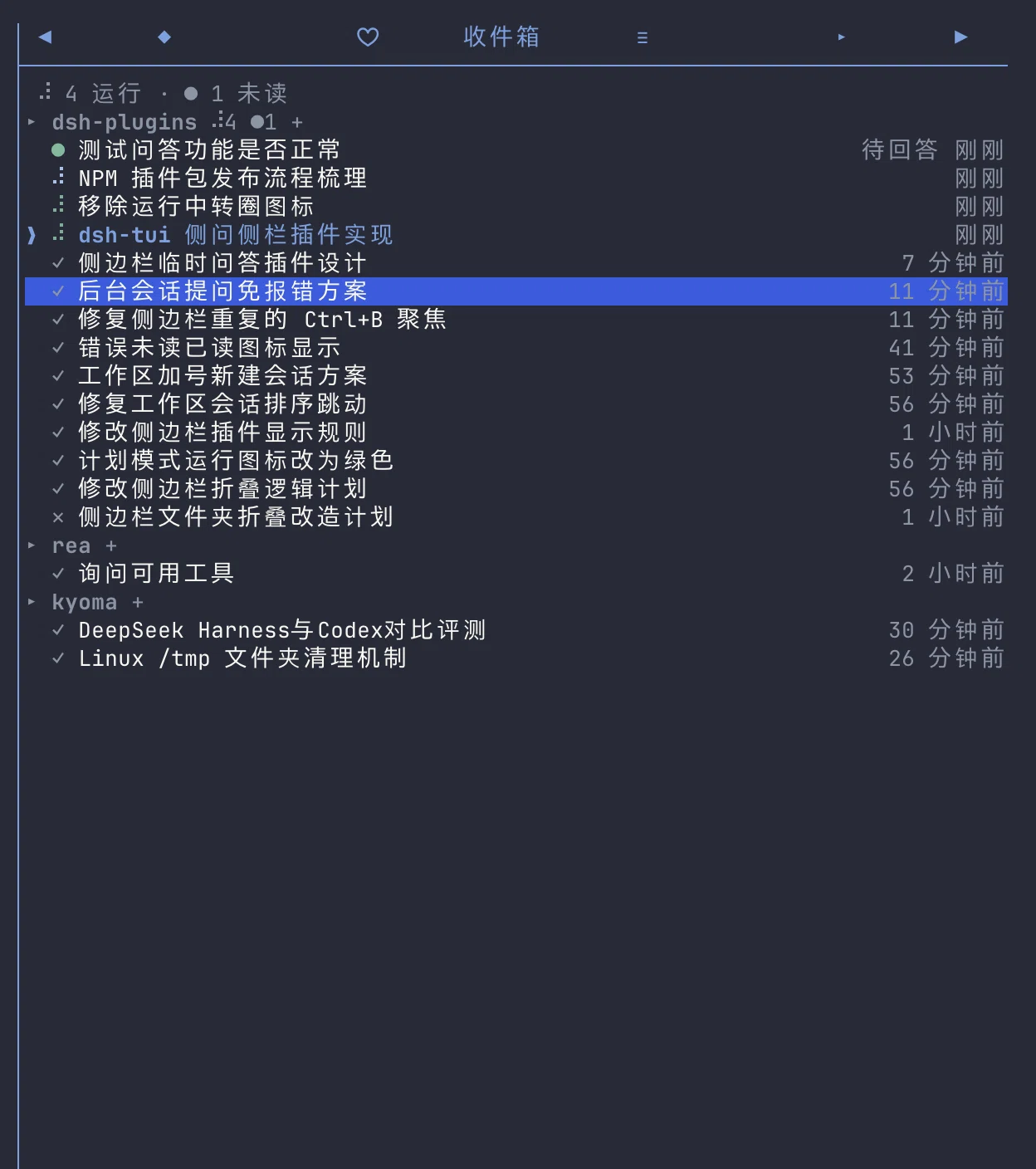
The inbox in a dark dsh-TUI theme: running, waiting and read rows grouped by workspace.
What it shows
Four kinds of conversations, across every workspace that is live in this TUI process:
- Running — the session's agent is inside a turn. Row glyphs and each
project's counter use the chat's own braille spinner, frame for frame (80
ms): the counter borrows the row glyph's character, so the folder icon and
the conversation icons turn together. The header keeps its muted chrome
colour and is icon-only:
⠋while anything there runs,●while something there is unread, with the numbers kept in the header total above. A row whose agent is in plan mode (the durableplan/modeselection written bydsh-plan-mode) spins in the theme's plan colour — sage green on the default dark palette, the same role the status line uses — while the project counter stays muted. Only a running row is coloured; a finished conversation never keeps it. - Finished but unread — a turn ended while you were in another session. The
row shows a solid dot
●(✕when the turn failed) and is bold for the first few seconds. - Waiting for your answer — a conversation called
ask_user_questionorexit_plan_mode. It uses the same green●as an unread finish, stays bold until the question settles, and carries a dim待回答(needs you) suffix so the two are distinguishable. This covers the conversation you are in as well as background ones: a foreground ask is claimed by dsh-tui itself (its questionnaire / plan-review panel is already on screen), and the sidebar still switches the row from the running spinner — plan colour included — to the green dot while that panel is open. The running counter includes a waiting row; the unread counter includes it only when it is not the attached conversation. Clicking a background row jumps to the session and the host's normal questionnaire / plan-review panel appears; only that explicit click releases the parked question — it never pops up while you are in another conversation. The original tool call is still waiting for that answer. See Questions and plan reviews. - Finished and already read — jumping to a conversation (or pressing
m) no longer removes it; the dot becomes a dim✓and the row stays for the rest of the retention window, so the place you just came from is still there. At most ten read rows are listed per project (see below).
A finished conversation — read or unread — is swept once it has been idle for
7 days (retentionHours, configurable). The attached conversation is
always listed and is the default selection: a ❯ cursor marks it while the
panel has focus, and a tinted title keeps it findable otherwise. Its row is
never filled; only the row under the mouse gets the highlight background. It is
pinned regardless of age while you are in it.
Inside a project, rows are grouped by what wants attention first: finished but unread conversations and parked questions lead, then running ones, then everything already dealt with (read finishes, which includes the attached conversation once its turn is over). Within a class rows are ordered by when their current state began, not by their latest event: a running row is anchored to the start of its current turn, a finished row to the moment it finished, and a waiting row to the moment the question was parked. Activity inside a turn — tokens, tool calls, step markers, background job events — never reorders the list, so two conversations running at the same time keep a fixed relative order instead of trading places on every event. A new turn lifts its row once, and an exact tie falls back to the session id. Projects follow the same class priority, so the first rows of the panel are always the ones that want attention. Inside a class projects also keep a fixed order — the slot where the project first appeared in this run, never an activity timestamp — so a new turn in one workspace cannot make two running workspaces trade places; only a change of class (a turn finishing unread, a question being parked, or an unread row being read) moves a project. The relative time on the right still reports the last activity (it is also what the retention window uses).
Each project lists at most 10 already-read conversations. Running, waiting and unread rows are never capped, and the attached conversation always keeps a slot: when it is an older read row it displaces the tenth, so the panel never loses the row you are on. The cap is display-only — the state file still retains everything the retention window allows, so the next-oldest conversation appears when one of the kept rows expires.
The ten-row cap also adapts to the panel height. The panel body is a fixed number of lines, and each project heading takes one of them; with many workspaces, ten read rows each would overflow it. When that happens the cap is lowered for every project together — 9, 8, … — and stops at the first value whose grouped list fits, so the panel keeps as much history as the height allows. It never goes below 3 read conversations per project: at that floor the list scrolls as before. Folding is display-only and temporary: running, waiting, unread and attached rows are never folded, the state file still keeps everything, and a taller panel (or a shrinking history) brings the folded rows back. The header counts the conversations actually listed.
Everything else is hidden: idle sessions that never ran, subagents, and projects with nothing to triage. The attached session is never counted as unread (no badge for the conversation already on screen). A waiting row is also never swept by the retention window — the question is still waiting for an answer, so its green dot stays until the tool call settles.
When the list overflows, the wheel scrolls the window one conversation per
notch instead of moving the selection: a flick can take the attached row off
screen, and ↑/↓ brings the highlight back into view. The panel opens on the
attached conversation, so the first frame already shows where you are even when
that row sits deep in the list.
Install
Requires Node.js ^22.19 || >=24 and dsh-TUI 0.17.0.
Install from npm:
dsh plugin --profile dsh-tui add dsh-tui-workspace-sidebar
For development from a checkout:
git clone https://github.com/Ding-Kyoma/dsh-tui-workspace-sidebar.git
cd dsh-tui-workspace-sidebar
npm ci
dsh plugin --profile dsh-tui add link:$PWD
Then restart the TUI (a newly added bundle is not picked up by a running
process). The tab appears as ▣ 收件箱 (or ▣ Inbox); Ctrl+B opens the
sidebar, [/] cycle panels, and the panel is also listed by /panel.
If you previously linked an older @local/dsh-tui-workspace-sidebar checkout,
remove that row before adding this package: two activations cannot own the same
panel/scene ids.
The plugin also registers:
/ws— open the sidebar panel. It is declared indsh-plugin.json(workspace-sidebar.ws, contractcommands.dsh/v1alpha1#Command, permissioncommands.invoke), so a host with a verified Component identity registers it through the mediated command surface; older hosts fall back to the publiccommandsservice.alt+w— same, configurable or disable withshortcut: off.
Compatibility
- dsh-TUI 0.17.0: the panel, scene, command and question seams used here are the public 0.17.0 surfaces.
- Community manifest v0.15 (
dsh.community), host facetv1alpha1, with thecommands.dsh/v1alpha1#Commandcontract and the/wspermission closure. - Node.js
^22.19 || >=24. - Developed and tested on macOS. The runtime uses only Node built-ins and the host-provided React/UI kit; Linux should work, Windows is untested.
Project layout
| File | Role |
|---|---|
index.js | Cordis entry: name / Config / apply, panel + scene + command + shortcut wiring |
model.js | Pure row/group/order/glyph rules, no I/O |
tracker.js | Folds the live agent registry and session events into rows |
store.js | Debounced, atomic, quarantining JSON state |
panel.js | The sidebar component |
jump.js | One-shot queue and transition scene |
questions.js | Waiting-dot observation and background-question relay |
current.js | Attached-session probe |
strings.js | English/Chinese copy and language resolution |
Config
Patch the row by id in the profile's own cordis.patch.yml (a row patch
replaces the whole config, so restate every key you need):
- id: workspace-sidebar
  config:
    lang: auto                                  # auto | zh | en
    stateFile: ~/.dsh-tui/workspace-sidebar.json
    shortcut: alt+w                             # off disables it
    retentionHours: 168                         # 7 days; 0 = drop a row as soon as it is read
    relayQuestions: true                        # false disables parking background questions
retentionHours accepts fractions (useful to watch the sweep happen) and is
capped at 720 (30 days). The default is 168 (7 days). The row cap of 300 stays
as a hard bound.
relayQuestions is on by default. It is the parking fallback for background
ask_user_question / exit_plan_mode (see below); set it to false if the
host already handles those questions itself, or if you want the old immediate
NO_PROVIDER behavior back. It does not disable the waiting dot: the dot
of a question the host is already showing (including the attached session's
own questionnaire / plan review) is pure observation and stays on either way.
Languages
The panel is bilingual: every label it draws — the tab title, header, empty
state, row suffixes, footer hints, toasts and the transition card — comes from
strings.js in English and Simplified Chinese. Relative times (5m ago /
5 分钟前) follow the same language.
The language is resolved in this order:
- the plugin's
langconfig (zh/en;autoby default), - the host's live UI language (what
/langanddsh-tui.langset), DSH_TUI_LANG,~/.dsh-tui/lang.json,- the OS locale (Chinese locales →
zh, everything else →en).
With lang: auto (the default), /lang switches the panel content on the next
repaint. A pinned lang: zh or lang: en always wins. The panel tab title and
the /ws command description are registered when the plugin activates, so they
keep the old language until dsh-TUI restarts. The dsh-plugin.json manifest
metadata is English-only host metadata.
Interaction
| Input | Action |
|---|---|
| hover a row | fill it (transient; selecting a row does not fill it) |
| click a row | jump to that workspace + session |
click a project's + | start a fresh conversation in that workspace (see below) |
↑ / ↓ | move the selection (while the panel is focused) |
Enter | jump to the selected conversation |
n | start a fresh conversation in the selected row's workspace |
m | mark the selected finished row as read (the row stays, dimmed) |
r | refresh the agent roster and workspace titles |
| wheel | scroll the list one conversation per notch (the selection stays put; ↑/↓ brings it back) |
How a switch works
A plugin panel gets no channel, so it cannot call channel.resumeTo or
channel.switchWorkspace itself. The only public seam that hands a plugin a
live channel is a registered scene. The panel therefore leaves a one-shot
target in a queue and opens a small transition scene; that scene performs the
action and closes. A row click queues a resume; a project's + (or n) queues
a new-session request.
The panel and the scene are registered from one injected context on
purpose. dsh-tui attributes resource ownership to the calling activation
context, and host.openScene() checks the scene's owner against the panel's
owner. Registering them from two sibling ctx.inject callbacks gives them two
different fibers, so the host refuses to open the scene ("belongs to another
activation") even though sceneReady() is true. One injection for both
(['tuiPanels', 'tuiScenes']) keeps the owners identical.
Expect a brief full-screen card (▣ project / title / 正在打开会话…) for the
duration of a jump. It is a trampoline, not a second inbox; there is no
workspace list there.
Failure reasons are mapped to toasts and the row stays unread: occupied
(another TUI terminal holds the session, with its pid), working,
cancelled, failed, unavailable (the adapter already toasts this one).
A successful jump marks the row read but keeps it in the list, so the
conversation you came from is still one click away until its window closes.
New session from a workspace header
+ sits after the running/unread status icons on every project header, to the
right of all the header icons. Its cell is padded on both sides, so the click
target is a little wider than the glyph; n does the same for the workspace of
the selected row. The + is omitted for the "unknown project" bucket, which
has no cwd to start a session in. Clicking it behaves like /new inside that
workspace.
| attached session | clicked workspace | what happens |
|---|---|---|
| idle | the attached one | /new (channel.newSession()) |
| idle | another one | workspace handoff (channel.switchWorkspace()) |
| running a turn | the attached one | /bg first (channel.backgroundCurrent()); the fresh session it creates is already in that cwd |
| running a turn | another one | /bg, then the workspace handoff on the now-idle fresh session |
A running turn is never killed: it keeps going as a background session and
stays listed with its spinner. An idle session is replaced /new-style, and
its row stays in the list as a read finish. The fresh conversation