dsh-side-chat
侧边聊天插件,支持在对话中选择部分文本,并在独立的右侧面板中发起针对该文本的子会话。
AI 分析
提供类似 Edge 侧边栏的局部对话体验。适合在主线对话中需要对某段特定代码或文本进行临时旁支提问的用户。
安裝
npx -p @deepseek-ai/dsh dsh plugin --profile web add github:heartmove/dsh-side-chat說明文件
閱讀完整 README ↗Usage
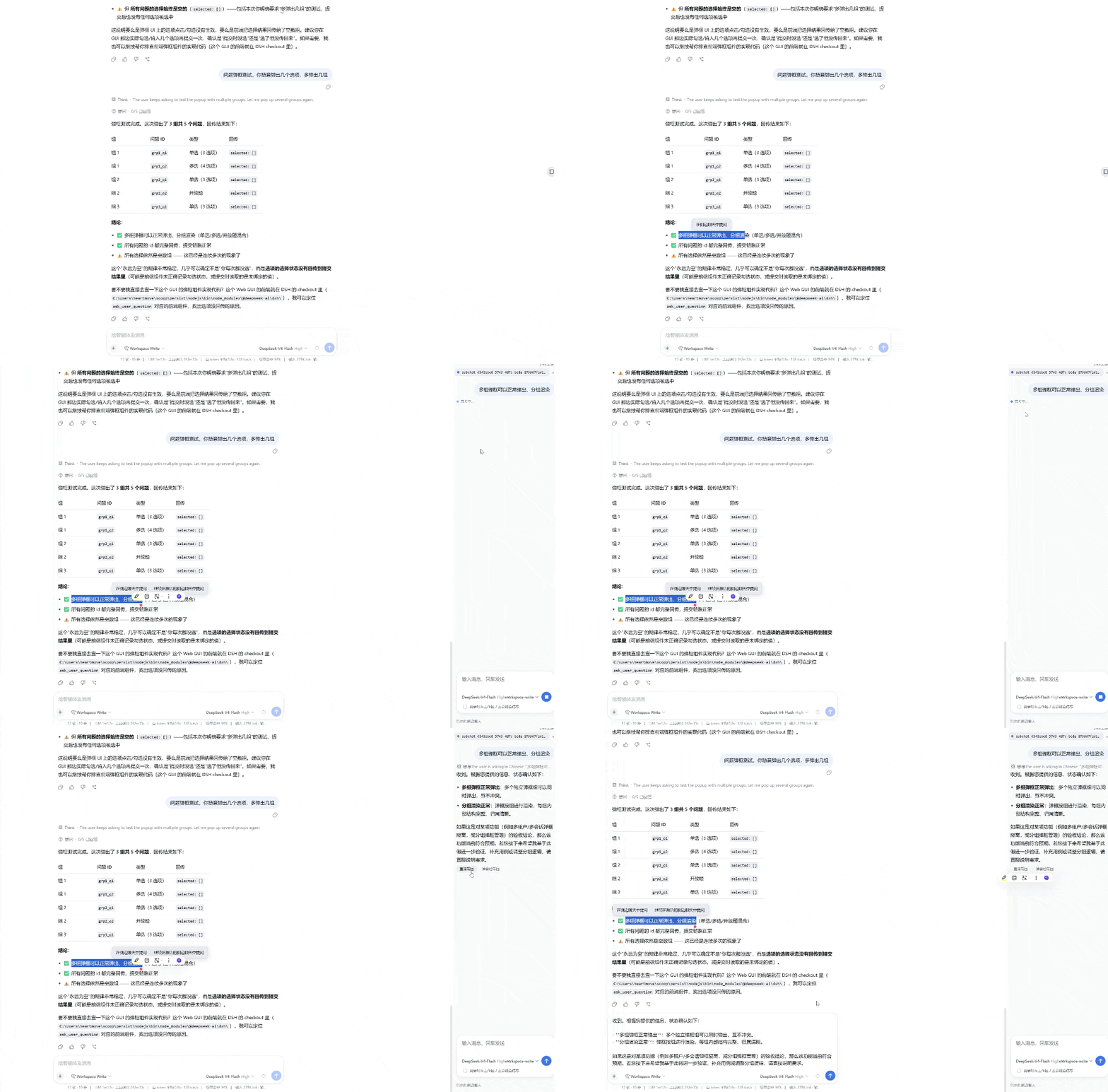
- Select part of any message in the main conversation.
- A floating "Ask in side chat" button appears — click it.
- If a side chat already exists for this conversation, you'll also see "Continue active side chat".
- The right-side panel opens (or expands) with the selected text staged in the composer.
- Adjust model / effort and permission, and toggle "Look up workspace / parent when needed" as desired.
- Send. The reply streams back with markdown rendering and, where applicable, a "Think" row for the model's reasoning.
- Drag the panel's left edge to resize, or use the collapse/expand control.
Sending behavior
By default (sendImmediately on), selecting text sends it immediately and
appends your configured default prompt. Turn sendImmediately off in
settings to stage the selection as an attachment instead, so you can review and
edit before sending.
Bring replies back to the main conversation
Assistant replies in the side chat can be brought into the current main conversation (never sent):
- Bring a selection. Select part of an assistant reply in the side chat, then choose "Insert directly" (verbatim) or "Summarize & insert" (the side chat's inherited model summarizes it first) from the floating menu.
- Bring the whole reply. Each assistant reply has "Insert directly" and "Summarize & insert" buttons under its text, for inserting the full reply (or its summary) in one click.
- Per the bring-back target setting, the content is either appended to the main composer draft (edit before sending) or injected as a collapsed context row (source-tagged, not into the composer; the model sees it next turn).
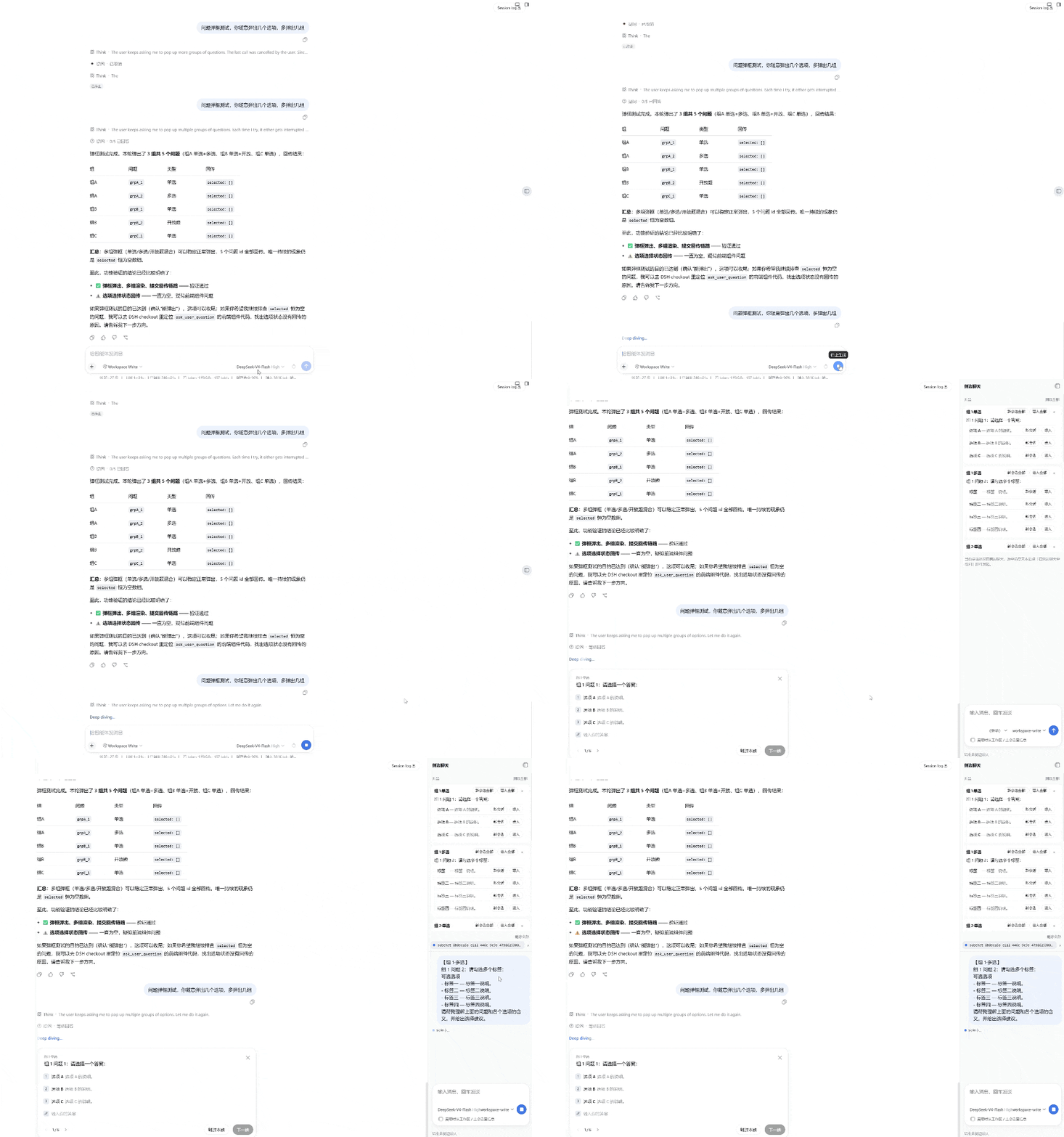
Ask about the current question dialog
When the main conversation shows a question dialog, the side panel automatically lists the question and its options:
- While the panel is closed, a floating entry appears beside the dialog's header — click it to open the panel.
- Each question has "Bring all" and each option has "Bring", both offering to continue an existing side chat or start a new one.
- The list can be collapsed / expanded, and items can be deleted individually or all at once (deleted items stay gone).
The main conversation keeps waiting on the dialog — nothing is interrupted; do the research in the side chat first, then bring the answer back and answer the dialog.
Delete side chats
Each entry in the side-chat list has a "×" delete button; "Delete all" at the top-right removes every side chat of the current conversation.