idoall/dsh-session-colors ↗★ 0
@idoall/dsh-session-colors
为会话添加颜色标记并在侧边栏同步显示 适合需要对大量会话进行色彩分类标记,且要求多端同步的用户。
安裝
$
npx -p @deepseek-ai/dsh dsh plugin --profile web add github:idoall/dsh-session-colors說明文件
閱讀完整 README ↗Usage
- Open the Session you want to mark.
- Click the colour control in the Session header (🎨 when the Session has no colour, the colour itself once it has one).
- Pick a colour, or paste a hex value. The bar appears on that Session's sidebar row immediately.
- To clear it, open the picker again and click Clear mark, or choose the transparent swatch among the theme colours.
Opening the picker on a marked Session starts from its current colour. Colours are stored as HSVA, so alpha round-trips exactly.
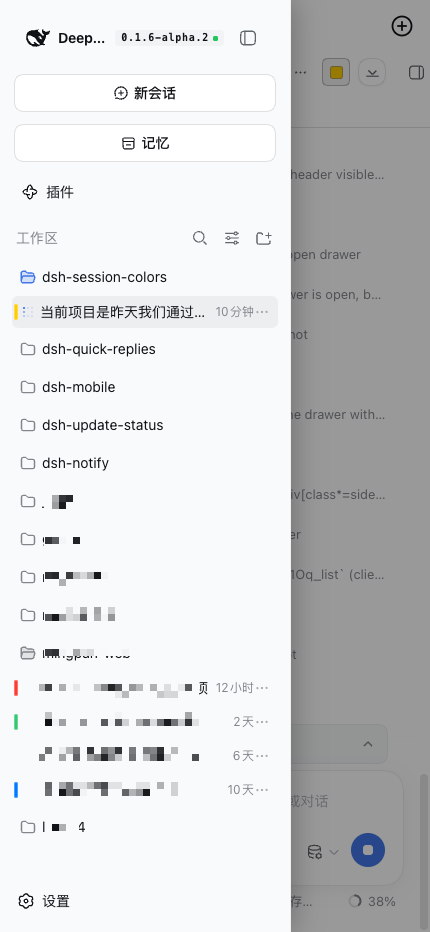
Configuration
| Field | Type | Meaning |
|---|---|---|
dataDir | absolute path | Where session-colors.json is written. Without it, marks live in process memory only. |
A mark is one JSON document:
{
  "version": 1,
  "marks": {
    "session-0698599a-…": { "h": 211.3, "s": 1, "v": 1, "a": 1 }
  }
}
Writes are atomic (temporary file, then rename). To drop a mark, use Clear mark in the picker, or remove that line from the file.